How to Create Bulleted Lists in Word: 2 Easy Methods

Learning how to create bulleted lists in Word gives you a quick way to organise related items without numbering them. You can turn existing lines into bullets or start a new list from scratch — and if you want to tidy the surrounding formatting too, see how to change line spacing in Word. In this […]
28 Essential Mail Merge Shortcuts in Word (Free PDF)

Mail merge shortcuts in Word enhance efficiency by minimising clicks while setting up recipients and inserting fields. This guide lists essential shortcuts for starting merges, previewing records, and finishing documents. Users are cautioned to verify shortcut compatibility with their Word version. A free printable PDF cheat sheet is available for reference.
How to Open a Word Document in Google Docs: 2 Steps

To open a Word document in Google Docs, upload the DOCX file to Google Drive, then convert it into a genuine Google Doc using ‘File ? Save as Google Docs’. The original Word file remains intact, enabling you to keep both versions. This process ensures easy sharing and editing within Google Docs.
How to Type Square Root Symbol in Word: 3 Easy Methods

Learn how to type a square root symbol in Microsoft Word using the Equation Editor, keyboard shortcuts, and Unicode. This step-by-step guide covers multiple methods for inserting and formatting square root symbols in mathematical equations, academic papers, and technical documents.
How to Check Spelling and Grammar in Microsoft Word

Learn how to check spelling and grammar in Microsoft Word with this step-by-step guide. Discover how to enable proofing tools, set the correct proofing language, fix spelling and grammar errors, and use Word’s Editor to create clear, professional, and error-free documents.
How to Recover an Unsaved Word Document: 2 Methods

Learn how to recover an unsaved Microsoft Word document using AutoRecover and the Windows Temp folder. This step-by-step guide explains how to restore lost files, locate ASD recovery documents, and enable AutoRecover to help prevent future data loss.
How to Insert Equations in Word: 3 Easy Methods

Learn how to write mathematical equations in Microsoft Word using the built-in Equation Editor. This step-by-step guide shows how to insert equations, create fractions, use mathematical symbols, and draw handwritten equations with the Ink Equation feature for professional academic and technical documents.
How to Change your Username for Track Changes in Word: 2 Methods

Learn how to change your Track Changes username in Microsoft Word so comments and edits display the correct author name. This step-by-step guide explains how to update your user information, use a custom username, and manage Microsoft account settings for document collaboration.
How to Change Inches to Centimeters in Word: 3 Steps

Learn how to change measurement units from inches to centimeters in Microsoft Word. This step-by-step guide shows you where to find the setting, how to update it, and how to verify the change for easier document formatting and page layout management.
How to Set A4 as Default in Word: 2 Easy Methods

Learn how to set the default paper size to A4 in Microsoft Word with this easy step-by-step guide. Discover how to change page settings permanently, improve document consistency, and ensure every new Word document automatically opens using the A4 paper format.
How to Cut, Copy, and Paste in Microsoft Word

Learn how to cut, copy, and paste in Microsoft Word using ribbon commands, right-click options, and keyboard shortcuts. This beginner-friendly guide explains the differences between each function and shows how to move or duplicate text, images, and other objects quickly and efficiently.
How to Add a Line Under a Header in Word: 3 Easy Methods

Learn how to add a line under a header in Microsoft Word using borders or shapes. This step-by-step guide shows how to create, customize, and remove header lines to give your documents a clean and professional appearance.
How to Change Text Case in Word: 3 Easy Methods

Microsoft Word includes a built-in Change Case tool that lets you change text case in Word instantly — no retyping required. Whether you’ve typed a heading in all caps by accident or need to switch a whole paragraph to sentence case, Word fixes it in a couple of clicks. In this guide, you’ll learn three […]
How to Blur Text in Word: 1 Easy Method in 8 Steps

Learn how to blur text in Microsoft Word with this easy step-by-step guide. Discover a simple workaround using shapes, images, and artistic effects to create a blur effect on text when Word’s built-in formatting options don’t support it. Perfect for hiding sensitive information, creating visual effects, or enhancing document design without using external software.
How to Add a Header on the First Page Only in Word: 2 Easy Methods

Learn how to add a header on the first page only in Microsoft Word with this simple step-by-step guide. Discover how to use the Different First Page option, customize your header, and create professional-looking documents without displaying the header on every page.
How to Make a Bar Graph in Microsoft Word

Learn how to make a bar graph in Microsoft Word using the built-in Chart tool. This step-by-step guide shows you how to create bar and column charts, enter data, customize colors and labels, edit chart information, and design professional graphs for reports, presentations, surveys, and school projects.
How to Rearrange Pages in Word

Learn how to rearrange pages in Microsoft Word using simple methods such as cut and paste, the Navigation Pane, and Outline View. This step-by-step guide explains how to move sections, reorder content, and organize large Word documents efficiently, even though Word does not allow pages to be dragged and dropped like PowerPoint slides.
How to Insert a PDF into Word: 2 Easy Methods

Learn how to insert a PDF into Microsoft Word using simple built-in tools. This step-by-step guide explains how to embed a PDF as an object, display it as a clickable icon, link to the original file, or convert a PDF into editable Word text. Perfect for creating reports, sharing documents, and managing PDF content within Word.
How to Add Subscript in Word

Learn how to add subscript in Microsoft Word using simple toolbar options and keyboard shortcuts. This step-by-step guide explains how to format chemical formulas, mathematical equations, and scientific notation, as well as how to remove subscript formatting when needed.
How to Remove a Page Break in Word: 4 Methods

Learn how to remove page breaks in Microsoft Word using simple step-by-step methods. This guide explains how to delete manual page breaks, remove multiple breaks with Find and Replace, fix hidden paragraph settings, and resolve common formatting issues that cause unwanted blank pages.
How to Rotate Text in Word: 3 Easy Methods

Learn how to rotate text in Microsoft Word using text boxes, shapes, and built-in rotation tools. This step-by-step guide shows you how to create vertical text, rotate text at custom angles, remove text box borders, and enhance document layouts with professional formatting.
How to Merge Cells in Word: 3 Easy Methods

Learn how to merge cells in Microsoft Word tables with this easy step-by-step guide. Discover how to combine multiple cells, split merged cells, and create cleaner, more professional table layouts for reports, forms, schedules, and other documents.
How to Insert a Vertical Line in Word: 4 Easy Methods

Learn how to insert a vertical line in Microsoft Word using four easy methods: Shapes, Borders, Columns, and Tables. This step-by-step guide shows you how to create professional document layouts, customize vertical lines, and choose the best technique for resumes, reports, newsletters, and more.
How to Duplicate a Page in Word: 2 Easy Steps

Learn how to duplicate a page in Microsoft Word using simple copy-and-paste methods and the Navigation Pane. This step-by-step guide covers duplicating single pages, entire sections, and preserving formatting to make document creation faster and more efficient.
How to Use Superscript in Microsoft Word

Learn how to make superscript in Microsoft Word with this simple step-by-step guide. Discover how to format text as superscript using the ribbon tools and keyboard shortcuts, making it easy to create exponents, footnotes, mathematical equations, chemical formulas, and professional academic documents.
How to Group Objects in MS Word: 3 Easy Steps

Learn how to group objects in Microsoft Word, including pictures, shapes, icons, text boxes, charts, and SmartArt graphics. This step-by-step guide explains how to combine multiple objects into a single group, move and resize them together, and ungroup objects when needed for easier document formatting and design.
How to Highlight Text in Word: 3 Easy Methods

Learn how to highlight text in Microsoft Word using the Text Highlight Color tool, custom highlight colors, and keyboard shortcuts. This step-by-step guide explains how to highlight important text, remove highlights, emphasize keywords, and improve document organization and readability in Word.
How to Change the Font in Word: 3 Easy Methods (Quick Guide)

Learn how to change the font in Microsoft Word using the Font dropdown menu and simple keyboard shortcuts. This step-by-step guide explains how to select new fonts, customize document text, improve readability, and change default font settings in Word for professional-looking documents.
How to Change Font Color in Microsoft Word

Learn how to change font color in Microsoft Word using built-in color tools, custom shades, HEX codes, and RGB values. This step-by-step guide explains how to format text colors, apply custom font styles, and set default font colors for professional-looking Word documents.
How to Draw in Word: 5 Easy Steps

Learn how to draw in Microsoft Word using the built-in Draw tools, including pens, pencils, erasers, Ink to Shape, and Ink to Math. This step-by-step guide explains how to enable the Draw tab, create freehand sketches, convert drawings into shapes, and use digital inking features in Word.
Bold Italic and Underline in Word: 3 Easy Methods

Learn how to bold, italicize, and underline text in Microsoft Word using simple formatting tools and keyboard shortcuts. This step-by-step guide explains how to apply text styles, improve document readability, and use essential Word formatting features for professional documents.
How to Change Font Size in Word: 4 Easy Methods

Learn how to change font size in Microsoft Word using simple formatting tools, keyboard shortcuts, and custom font settings. This step-by-step guide shows how to resize text, use larger font sizes, adjust default font settings, and improve document readability in Word.
How to Insert Arrows in Word: 5 Easy Methods

Learn how to add arrows in Microsoft Word using five simple methods, including arrow shapes, arrowheads, symbols, Unicode shortcuts, and block arrows. This step-by-step guide shows how to create, customize, and format arrows for diagrams, flowcharts, annotations, and professional documents.
How to Strikethrough in Word: 3 Easy Methods

Learn how to add strikethrough in Microsoft Word using simple formatting tools and keyboard shortcuts. This easy step-by-step guide shows how to apply, remove, and use strikethrough formatting to edit text, mark completed tasks, and improve document organization.
How to Hide the Ribbon in Word: 4 Easy Methods

Learn how to show or hide the Ribbon Bar in Microsoft Word using simple settings and keyboard shortcuts. This guide explains how to collapse the ribbon, keep it permanently visible, and create more workspace for faster and distraction-free document editing.
How to Add a New Font in Word: 4 Easy Steps

Learn how to add a new font in Microsoft Word by downloading, installing, and applying custom fonts from websites like Google Fonts. This guide explains how to install TTF and OTF font files, troubleshoot missing fonts, and use custom typography to create professional and creative Word documents.
How to Change Page Size in Word: 3 Easy Methods

Learn how to change page size in Microsoft Word using standard paper formats like A4, A5, Letter, Legal, and custom dimensions. This guide explains how page resizing affects document formatting, printing, layouts, and text placement for professional Word documents.
How to Create a Drop-Down List in Word: 3 Easy Steps

Learn how to create a drop-down list in Microsoft Word using the Developer tab and content controls. This step-by-step guide explains how to add, customize, duplicate, and edit interactive drop-down menus for forms, templates, surveys, and professional Word documents.
How to Change Letter Spacing in Word: 3 Easy Steps

Learn how to adjust letter spacing in Microsoft Word using Expanded and Condensed text formatting options. This guide explains how to increase or reduce spacing between letters to improve document design, readability, and professional formatting.
How to Make 1×1 and 2×2 Picture in Word: 4 Easy Steps

Learn how to create 1×1 and 2×2 pictures in Microsoft Word by cropping, resizing, and duplicating images accurately. This guide explains how to format ID photos, passport pictures, and printable photo sheets using built-in Word tools and precise image dimensions.
How to Move a Picture in Word: 3 Easy Methods (Quick Guide)

Learn how to move pictures freely in Microsoft Word by changing text wrapping settings and using layout options. This guide explains how to stop images from disrupting formatting, position pictures accurately, and use tools like Square wrapping and Quick Access Toolbar for easier image management.
How to Add the Developer Tab in Word: 5 Easy Steps (Quick Guide)

Learn how to add the Developer tab in Microsoft Word to access advanced tools like checkboxes, drop-down lists, macros, and form controls. This guide shows how to enable the Developer tab quickly and use it to create interactive and customizable Word documents.
How to Insert a Picture in Word: 3 Easy Methods (Quick Guide)

Learn how to insert pictures into Microsoft Word using images from your computer, online sources, or built-in stock images. This step-by-step guide also covers resizing, moving, and formatting pictures to create professional-looking documents.
How to Justify Text in Microsoft Word

Learn how to justify text in Microsoft Word using toolbar options, keyboard shortcuts, and paragraph settings. This guide explains how to align text evenly on both margins to create cleaner, more professional-looking documents.
How to Single Space in Word (3 Easy Methods)

Learn how to apply single spacing in Microsoft Word using quick steps, keyboard shortcuts, and paragraph settings. This guide helps you remove extra spacing, improve document layout, and create clean, professional formatting.
How to Change Background Color in Word: 3 Easy Methods

Learn how to change the background color in Microsoft Word using the Design tab and Page Color options. This guide also shows how to enable printing of background colors and customize your document with solid colors, gradients, or creative fill effects.
Word Table Shortcuts: 35+ Essential Keyboard Shortcuts

This guide outlines essential keyboard shortcuts for efficiently working with tables in Microsoft Word. It covers navigation, selection, row and column management, cell operations, and formatting, significantly reducing mouse clicks and enhancing productivity in document creation. A printable PDF cheat sheet is included.
How to Insert an Excel Sheet in Word: 3 Easy Methods

Learn how to insert an Excel sheet into Microsoft Word using simple methods like copy and paste, live linking, and embedding. This guide shows how to keep data updated, manage links, and create dynamic documents with Excel tables in Word.
How to Create a Hanging Indent in Word: 3 Easy Methods (Quick Guide)

Learn how to create a hanging indent in Microsoft Word using simple steps and keyboard shortcuts. This guide shows how to apply, adjust, and remove hanging indents for professional formatting in references, citations, and documents.
How to Create an Index in Word: 5 Easy Steps

Learn how to create an index in Microsoft Word by marking entries, inserting an index, and updating page numbers automatically. This step-by-step guide helps you organize long documents and make key topics easy to find.
How to Turn Off Dark Mode in Microsoft Word

Learn how to turn off dark mode in Microsoft Word using simple settings. This guide covers multiple methods, including changing the Office theme, adjusting system preferences, disabling focus mode, and keeping the document page white while using a dark interface.
How to Use Format Painter in Word: 5 Easy Methods

Learn how to use Format Painter in Microsoft Word to quickly copy and apply formatting to text, shapes, and images. This easy guide covers step-by-step instructions, keyboard shortcuts, and tips to keep your documents consistent and professional.
How to Print a Booklet in Word: 5 Easy Steps

Learn how to print a booklet in Microsoft Word using the built-in book fold feature. This step-by-step guide shows how to set up layout, adjust gutter margins, and print double-sided for professional-looking booklets at home or the office.
How to Remove Watermark in Word: 2 Easy Methods

Learn how to easily remove watermarks in Microsoft Word using simple steps. This guide covers both standard and advanced methods, including removing stubborn watermark images from headers for a clean, professional document.
How to Add a Watermark in Microsoft Word

Learn how to add a watermark in Microsoft Word using built-in options or custom text and image settings. This guide shows how to create, customize, preview, and remove watermarks to give your documents a professional and branded look.
How to Alphabetize Text in Word: 3 Easy Methods

Learn how to alphabetize text in Microsoft Word using the built-in sort tool. This guide shows how to organize lists A–Z or Z–A, keep headers in place, and sort names by first or last name for clean, professional documents.
How to Set 1.5 Line Spacing in Word: 3 Easy Methods

Learn how to set 1.5 line spacing in Microsoft Word using the Home tab, keyboard shortcuts, and paragraph settings. This quick guide helps you format documents for better readability and professional or academic use.
How to Apply a Bottom Border in Microsoft Word (Step-by-Step Guide)

Learn how to apply a bottom border in Microsoft Word to create clean, professional-looking headings and sections. This guide covers simple steps, customization options, and quick shortcuts to enhance your document formatting.
How to Change Line Spacing in Word: 4 Easy Methods

Learn how to change line spacing in Microsoft Word using simple tools, keyboard shortcuts, and custom settings. This guide explains how to adjust spacing for better readability, apply double spacing, and set default formatting for your documents.
How to Draw a Line in Word: 4 Easy Methods

Learn how to draw a line in Microsoft Word using simple methods like keyboard shortcuts, shapes, and borders. This guide shows how to create and customize different line styles for better document layout, organization, and formatting.
How to Hide Table Lines in Microsoft Word

Learn how to hide table lines in Microsoft Word with simple steps. Remove borders, manage gridlines, and create clean, professional-looking documents effortlessly.
How to Insert Tick Marks in Word: 3 Easy Methods

Learn how to insert tick and check marks in Microsoft Word using simple Unicode shortcuts and the Alt + X method. This quick guide shows multiple check mark styles, explains how the codes work, and helps you add symbols to your documents faster without using menus or extra tools.
How to Insert a Hyperlink in Word: 4 Easy Methods

Learn how to insert a hyperlink in Microsoft Word using quick shortcuts, the Insert tab, or right-click options. This guide shows how to create clickable links to websites, emails, and document sections, plus how to customize their appearance for a clean, professional look.
How to Remove Gridlines in Word: 3 Easy Methods

Discover how to remove gridlines in Microsoft Word with this quick and easy guide. Learn why gridlines appear and how to turn them off for a cleaner document.
How to Delete a Row in a Table in Word: 3 Easy Methods

Learn how to delete a row in a Microsoft Word table using simple and effective methods. This guide covers right-click options, the Table Layout tab, and quick keyboard shortcuts to help you edit and manage tables with ease.
How to Delete an Extra Page in Word: 4 Easy Methods

Learn how to delete an extra page in Microsoft Word quickly and easily. This guide shows you how to identify and remove page breaks and section breaks using simple tools so you can fix unwanted blank pages and keep your document clean and professional.
How to Remove Hyperlinks in Word: 4 Easy Methods

Learn how to remove hyperlinks in Microsoft Word using simple methods, including deleting single links, removing all hyperlinks at once, and disabling automatic link creation to keep your documents clean and professional.
How to Merge Tables in Word: 3 Easy Methods (Quick Guide)

Learn how to merge two tables in Microsoft Word using simple methods like keyboard shortcuts, cut and paste, and a reliable workaround. This step-by-step guide helps you quickly combine tables while keeping your formatting clean and professional.
How to create a QR Code in Word: 3 Easy Steps

Generate QR codes in Microsoft Word without plugins using the built-in DISPLAYBARCODE feature. This step-by-step guide shows how to create, customize, and update QR codes quickly for documents, flyers, and professional use.
How to Add a Drop Cap in Microsoft Word

Learn how to add a drop cap in Microsoft Word to create professional, eye-catching documents. This step-by-step guide shows you how to insert, customize, and remove drop caps to enhance your formatting and improve document design.
Remove Headers and Footers in Word: 3 Easy Methods

Learn how to remove headers and footers in Microsoft Word with this simple step-by-step guide. Discover how to delete them from your entire document or just the first page to create clean, professional-looking documents with ease.
How to Remove Page Numbers in Word: 3 Easy Methods

Learn how to remove page numbers in Microsoft Word quickly and easily. Follow this step-by-step guide to delete, adjust, or hide page numbers for a clean, professional document.
How to Add a Page Border in Word: 2 Easy Methods

Learn how to add a professional page border in Microsoft Word in just a few clicks. This step-by-step guide shows you how to insert, customize, and apply borders to your entire document or specific pages with ease. Perfect for reports, certificates, and polished layouts.
How to Insert Page Numbers in Word: 4 Easy Steps (Quick Guide)

Learn how to insert page numbers in Microsoft Word quickly and easily. This step-by-step guide shows you how to add, position, and customize page numbers for a clean, professional-looking document.
How to Save a Word Document as a PDF: 3 Methods

Learn how to save a Word document as a PDF using three simple methods in Microsoft Word. This step-by-step guide covers Save As, Export, and Print to PDF, helping you create professional, shareable files while preserving formatting across all devices.
How to Add a Background in Word: 3 Easy Methods

Learn how to add a background in Word using three easy methods, including page color, header images, and shape fill. Follow this step-by-step guide to create professional and visually appealing documents.
How to Create Barcodes in Word: 4 Easy Steps

Create professional barcodes directly in Microsoft Word using built-in tools no fonts or software required. This guide shows you how to generate, edit, and customize multiple barcode types, including Code 128, Code 39, EAN-13, and UPC-A, in just a few simple steps.
How to Insert a Degree Symbol in Word: 3 Easy Methods

Quickly insert the degree symbol in Microsoft Word with easy steps, keyboard shortcuts, and examples for temperatures, angles, and everyday use.
How to Add Columns in Word: 3 Easy Methods

Learn how to add and customize columns in Microsoft Word to create clean, professional layouts with ease.
How to Create a Fillable Form in Word: 6 Easy Steps (Quick Guide)
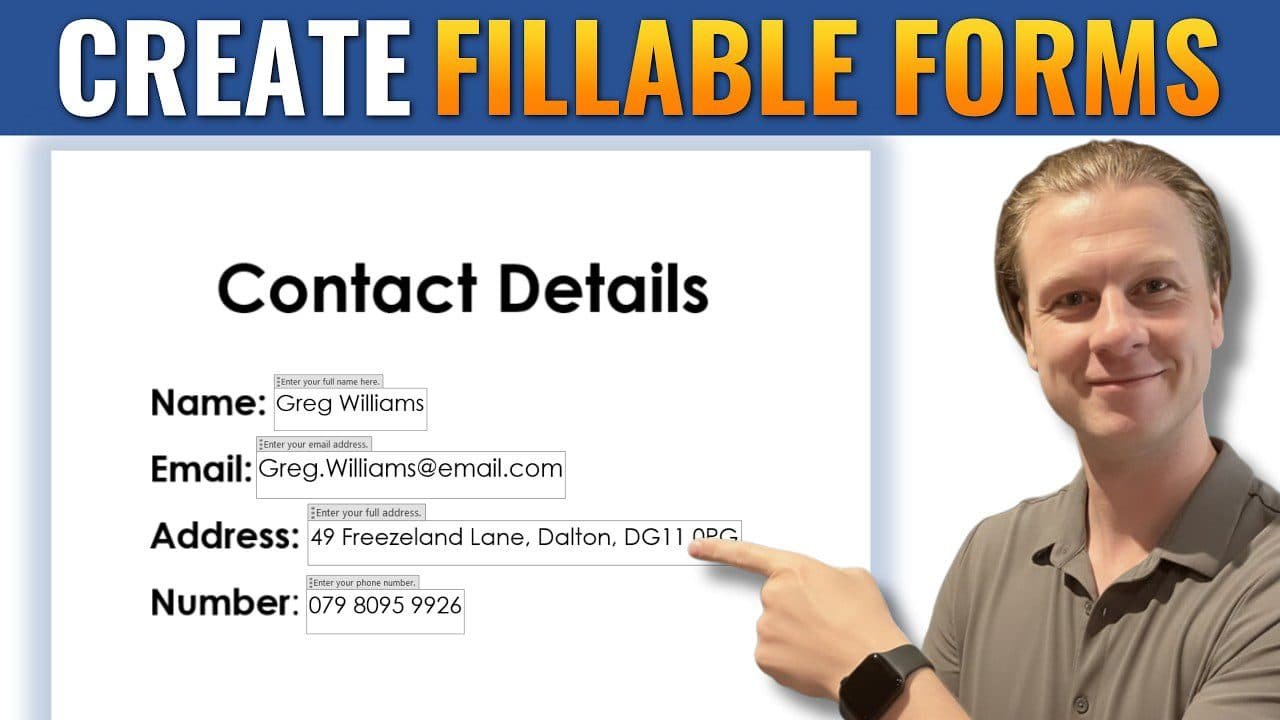
Learn how to create a fillable form in Microsoft Word using simple steps. By enabling the Developer tab, adding content controls, and protecting your document, you can quickly turn a basic file into an interactive form. This guide shows you how to build professional, user-friendly forms for surveys, applications, and more without needing any extra software.
How to Create Automatic Chapters in Word: 3 Easy Methods

Learn how to create auto chapters in Word using heading styles for better structure, navigation, and professional document formatting.
How to Create a Table of Contents in Word (4 Steps)

Learn how to create an automatic table of contents in Microsoft Word in just a few simple steps. This guide shows you how to apply heading styles, generate a clickable TOC, and update it as your document changes—helping you create professional, well-structured documents quickly.
How to Remove Formatting Marks in Word: 5 Easy Methods (Quick Guide)

Learn how to remove formatting marks in Word, including paragraph symbols, page breaks, and section breaks. This step-by-step guide shows how to turn off Show/Hide formatting and permanently delete layout marks without affecting your document structure.
How to Insert a Check Box in Word: 5 Easy Steps (Quick Guide)
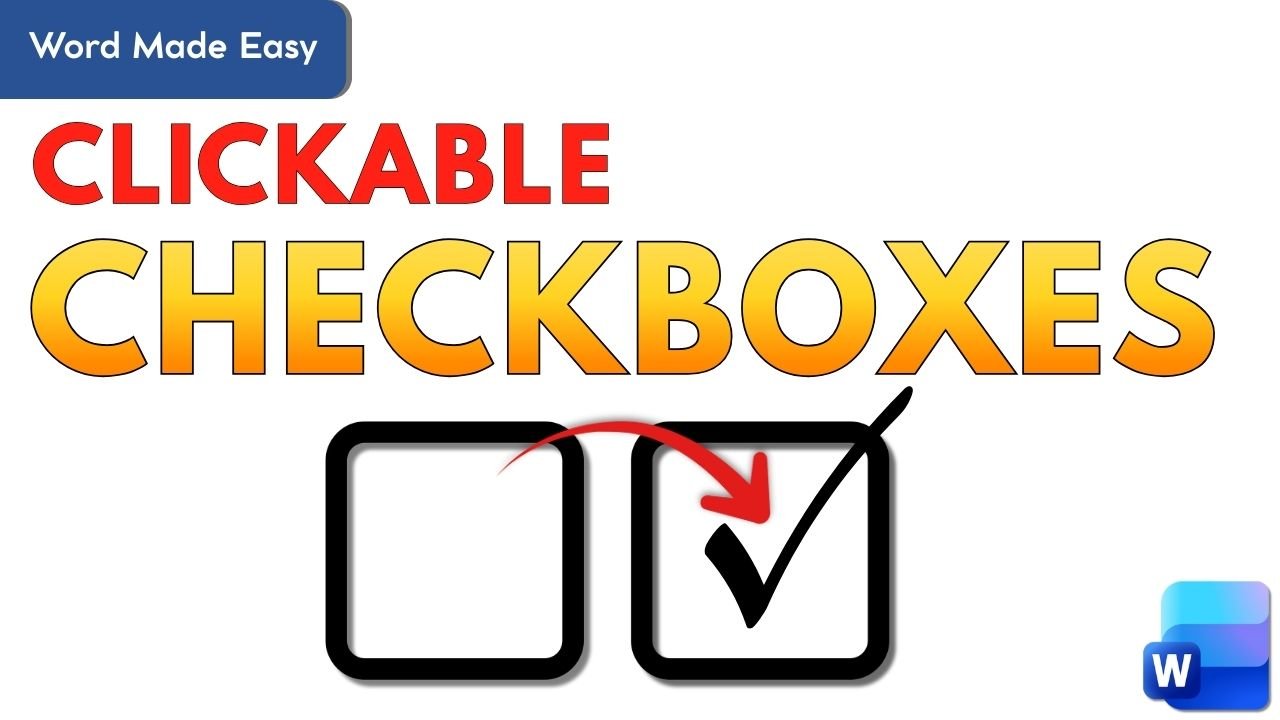
Learn how to insert a clickable checkbox in Microsoft Word using the Developer tab. This step-by-step guide shows you how to enable Developer tools, insert checkbox content controls, and change the default cross to a tick symbol.
How to Make an Image Transparent in Microsoft Word

Learn how to make an image transparent in Microsoft Word using shapes and picture fill. This quick, step-by-step guide shows how to adjust transparency and remove borders.
How to Indent in Word: 3 Easy Methods (Quick Guide)

Learn how to indent text in Microsoft Word using the ruler, keyboard shortcuts, and Paragraph settings. This step-by-step guide shows three easy ways to format paragraphs and lines.
Different Footers on Different Pages

Footers repeat by default in Microsoft Word, but you can change that. Learn how to use section breaks and unlink footers so each page can have its own footer.
How to Align Text in Word: 4 Easy Ways (Quick Guide)

Learn how to align text in Microsoft Word using left, centre, right, and justified alignment. This step-by-step guide also covers spacing and indentation for clean, professional documents.
How to Insert a Word Counter in Word: 3 Easy Steps

Learn how to insert a word counter directly into your Word document using Word’s built-in field tools. This easy guide shows how to add, update, and position an automatic word count for essays and professional documents.
How to Insert a Picture a into Shape in Word

Learn what it means to insert a picture into a shape in Word and how to do it step by step. This simple guide shows you how to place photos inside circles, stars, and other shapes in Microsoft Word to make your documents stand out.
How to Move an Image Freely in Word: 5 Easy Steps (Quick Guide)
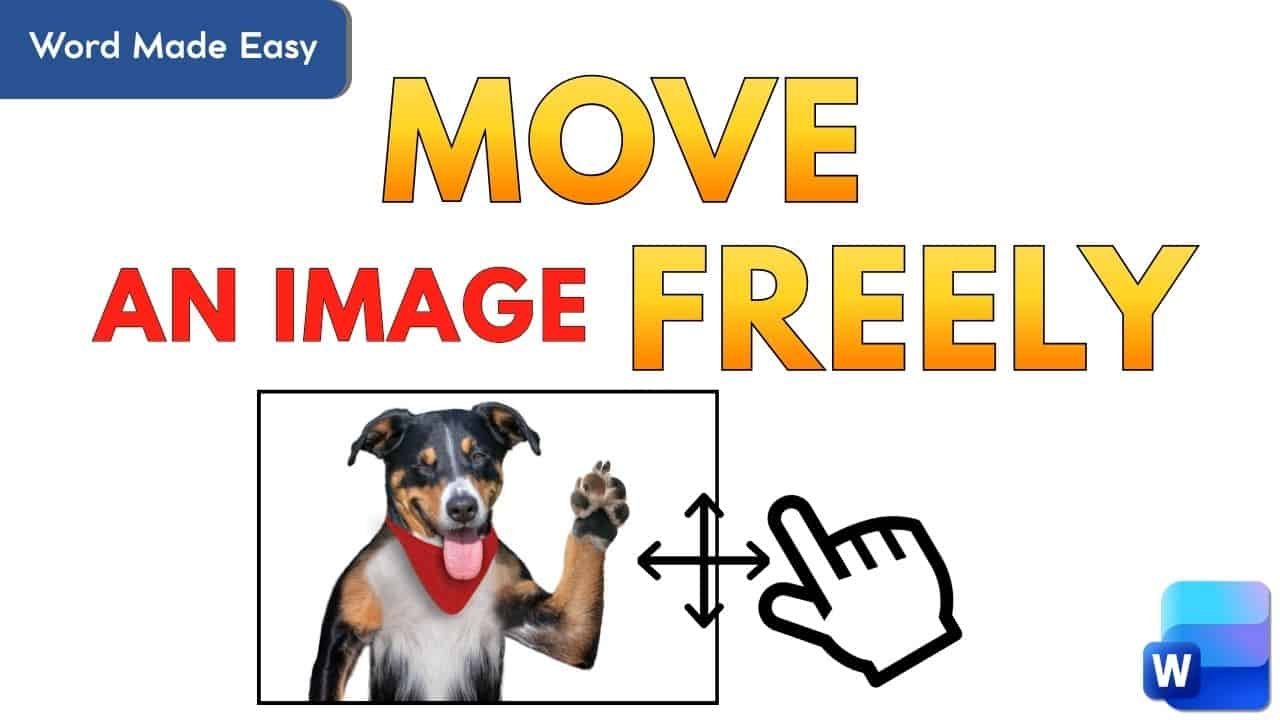
Learn how to move images exactly where you want them in Microsoft Word — without messing up your text layout. This guide shows how to unlock, drag, and position pictures freely in just a few clicks.
How to Change the Default Font in Microsoft Word
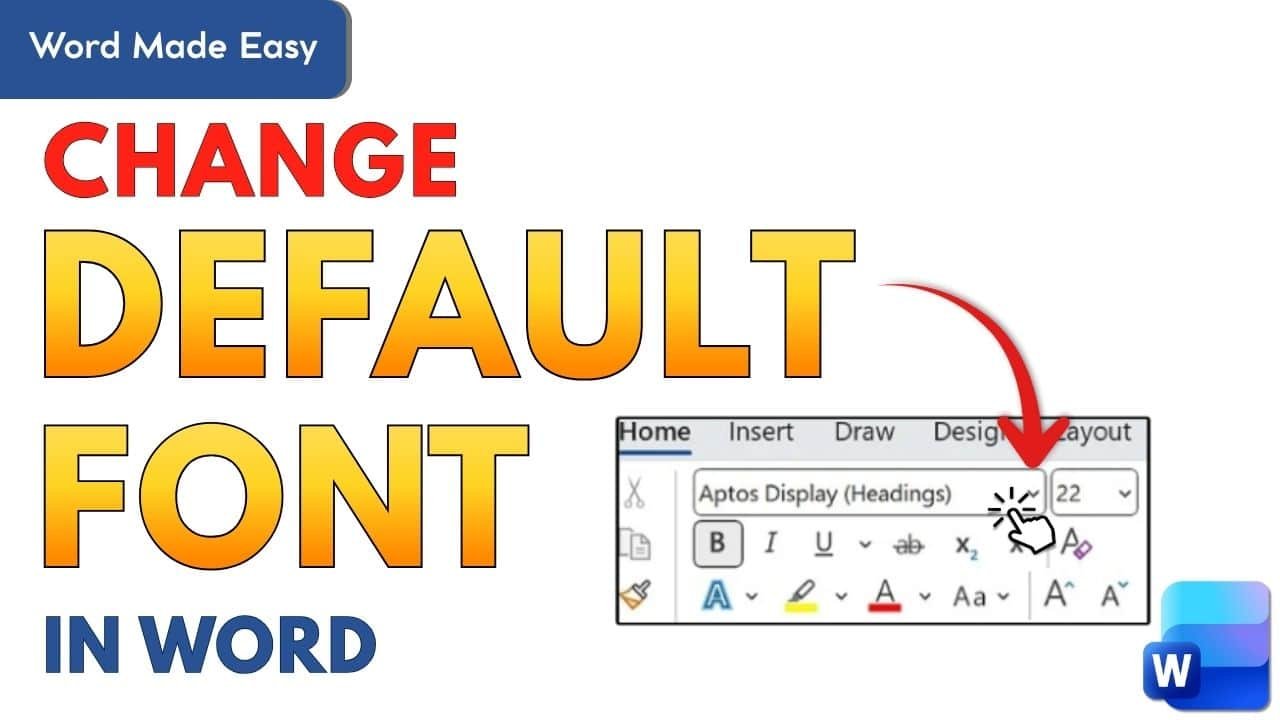
Learn how to change the default font in Microsoft Word so every new document opens with your preferred style and size. This step?by?step guide shows how to update the Normal template, apply changes globally or to a single file, and troubleshoot common issues.
How to Add Audio Files to Microsoft Word
Learn how to insert, rename, and move audio files inside a Word document using beginner-friendly steps. This guide shows how to embed MP3s, play them easily, and position them anywhere using a simple text box trick — ideal for interactive lessons, tutorials, or voice notes.
How to Merge Documents in Word: 3 Easy Methods
Learn how to merge multiple Microsoft Word documents into one file using the “Text from File” feature — no copying and pasting needed. Perfect for combining reports, fact sheets, chapters, or training materials in just a few clicks.
How to Insert a Table in Word: 3 Easy Methods
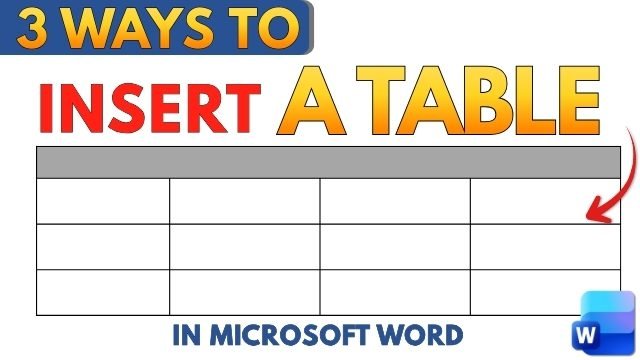
Learn three easy ways to insert a table in Microsoft Word — using the grid selector, custom rows and columns, or the draw tool. This guide also shows how to edit, resize, and distribute rows and columns evenly for clean, professional layouts.
Microsoft Word Keyboard Shortcuts Cheat Sheet (Free PDF)
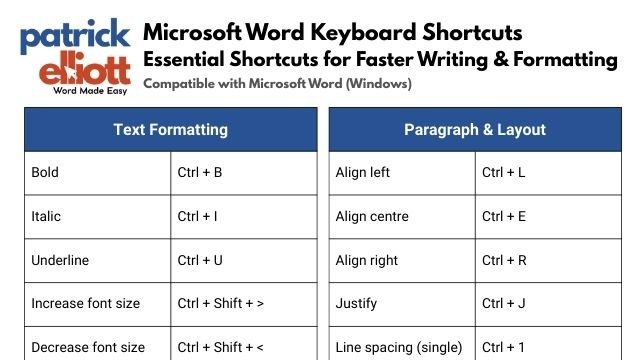
Work faster in Microsoft Word with this printable keyboard shortcuts cheat sheet. From formatting and navigation to editing and proofreading, these shortcuts help students, professionals, and everyday users save time and stay focused.
How to Convert a PDF to Word Document: 6 Steps
Learn how to convert a PDF to an editable Word document using Microsoft Word’s built-in tool—no extra software or internet required. This step-by-step guide shows how to drag and drop your PDF, enable editing, and fix common formatting issues with ease.
How to Write Fractions in Word
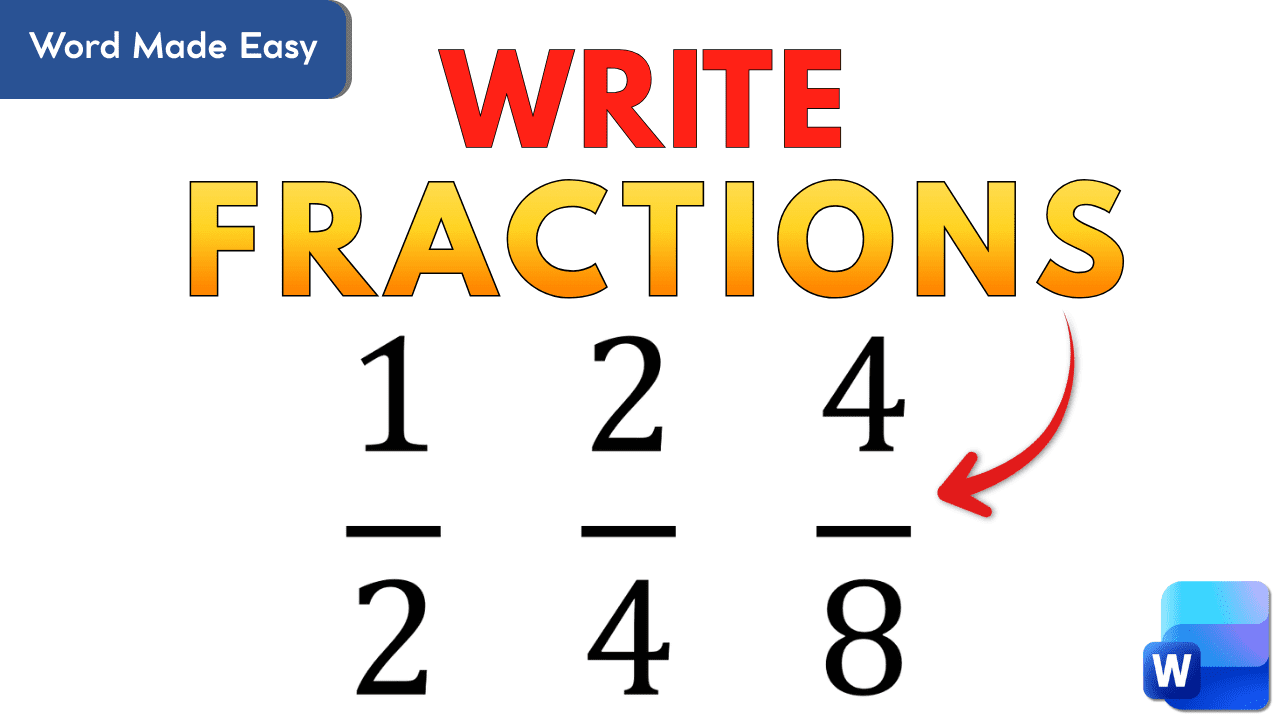
Learn how to write neat, professional fractions in Word using the Equation tool. This guide shows step-by-step how to format simple, stacked, and improper fractions with built-in shortcuts and templates—ideal for students, teachers, and anyone writing math content.
How to Delete an Empty Page in Microsoft Word
Learn how to remove blank pages in Word using three simple methods — Backspace, the Show/Hide ¶ tool, and the Navigation Pane. This guide explains why empty pages appear and how to delete them cleanly without affecting your formatting.
How to Use Dictation in Microsoft Word
Learn how to use Microsoft Word’s built-in dictation tool to convert speech to text in real time. This guide covers setup, settings, and tips for clear, accurate dictation—perfect for faster writing, accessibility, and hands-free typing.