You can insert a degree symbol in Word three ways — the Alt + 0176 shortcut, the Symbol menu, and the Equation Editor — for temperatures like °C and °F or angles such as 90°. The symbol isn’t on your keyboard, but each method takes seconds. This works in Word 2016, 2019, 2021, and Microsoft 365.
In this guide, you’ll learn three simple methods to insert a degree symbol in Word, when to use each, and how to fix the shortcut when it won’t work.
What Is the Degree Symbol?
The degree symbol (°) appears in:
- Temperatures — °C and °F
- Angles — 90°, 45°
- Scientific and technical documents
It isn’t a key on your keyboard, so Word gives you three quick ways to add it.
Watch the Video Tutorial
If you prefer to see this in action, the full video walkthrough is below, showing each method step by step.
How to Insert a Degree Symbol in Word: Step-by-Step
Pick the method that fits your keyboard and document — shortcut for speed, Symbol menu for any device, Equation Editor for maths.
Method 1: How to Insert a Degree Symbol in Word Using a Keyboard Shortcut
The fastest method — but it needs a physical numeric keypad.
Steps
- Turn Num Lock on.
- Hold the left Alt key.
- On the numeric keypad, type 0176.
- Release Alt.
? The degree symbol (°) appears instantly. Add C for °C or F for °F.
Method 2: How to Insert a Degree Symbol in Word from the Symbol Menu
No numeric keypad? This works on every device, including laptops.
Steps
- Click the Insert tab.
- Select Symbol ? More Symbols.
- In the Subset dropdown, choose Latin-1 Supplement.
- Select the Degree Sign (°).
- Click Insert, then Close.
? The dialog shows the character code 0176 — the same number as the Method 1 shortcut.
Method 3: How to Insert a Degree Symbol in Word Using the Equation Editor
Best for maths and technical documents — and if you’re building formulas, the same tool handles how to write fractions in Word too.
Steps
- Go to the Insert tab and click Equation (or press Alt + =).
- Inside the equation box, type
\degree. - Press Spacebar.
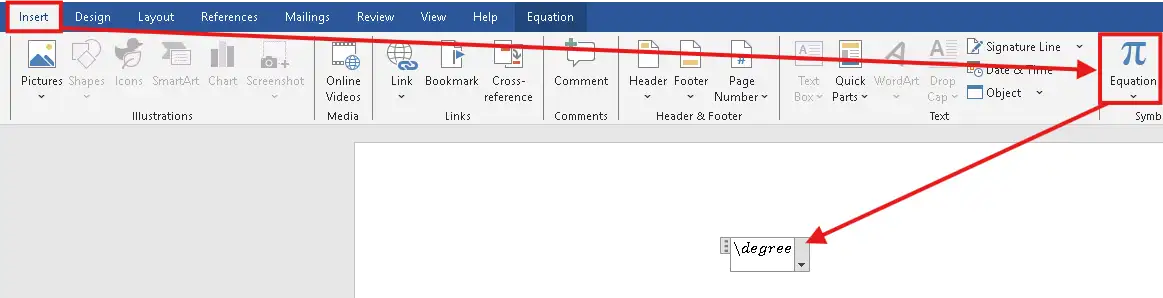
? The degree symbol appears in the equation, ready for values like 90° or 45°.
Which Method Should You Use?
| Method | Best for | Needs |
|---|---|---|
| Alt + 0176 shortcut | Fast, frequent use | Numeric keypad |
| Symbol menu | Laptops, beginners | Any device |
| Equation Editor | Formulas, technical writing | Any device |
Common Problems When Inserting a Degree Symbol in Word
Alt + 0176 does nothing
Your keyboard has no numeric keypad, or Num Lock is off. Turn Num Lock on, or use the Symbol menu instead.
You’re on a laptop with no keypad
Use Method 2 (Symbol menu) or Method 3 (Equation Editor) — neither needs a keypad. Some laptops offer Fn + a coloured number cluster as a substitute.
You used a superscript zero by mistake
A superscript “0” only looks like a degree symbol — it’s the wrong character and can break search and screen readers. Always use the real Degree Sign (°).
The symbol looks off in a different font
The degree sign renders in almost every standard font. If it looks wrong, switch the affected text to Calibri, Arial, or Times New Roman.
Pro Tips for the Degree Symbol
- Follow your style guide on spacing — 90° (no space) for angles, but 20 °C (thin space) is common for temperatures.
- After inserting once, copy and paste it for repeated use in the same document.
- Memorise Alt + 0176 — and grab the Microsoft Word keyboard shortcuts cheat sheet for the rest.
FAQs
How do I insert a degree symbol in Word?
To insert a degree symbol in Word, hold Alt and type 0176 on the numeric keypad, or use Insert ? Symbol ? More Symbols.
What is the shortcut for the degree symbol in Word?
Hold Alt and type 0176 on a numeric keypad with Num Lock on.
Why doesn’t Alt + 0176 work on my keyboard?
You likely have no numeric keypad, or Num Lock is off. Use the Symbol menu or Equation Editor instead.
How do I insert the degree symbol on a laptop?
Use Insert ? Symbol or the Equation Editor — neither needs a numeric keypad.
Which fonts support the degree symbol?
Almost all standard Word fonts, including Calibri, Arial, and Times New Roman.
Is the degree symbol the same as a superscript zero?
No. The degree symbol (°) is its own character and shouldn’t be replaced with a superscript “0”.
How do I type °C or °F in Word?
Insert the degree symbol, then type C or F straight after it — °C or °F.
Conclusion
You can insert a degree symbol in Word in seconds — the Alt + 0176 shortcut for speed, the Symbol menu on any device, or the Equation Editor for technical work.
These small formatting touches make documents look precise and professional. If you’re building structured or interactive documents, learn how to insert a clickable checkbox in Word next.
Related Tutorials
- How to Write Fractions in Word
- How to Insert a Clickable Checkbox in Word
- How to Use Superscript in Word

Recent Microsoft Word Tutorials

Looking for more help with Microsoft Word? Browse all step-by-step Word tutorials covering formatting, layout, pages, and document setup.
? View all Microsoft Word tutorials: https://wordmadeeasy.halmanweb.com/microsoft-word/
? Need more support – check out the official guidance: https://support.microsoft.com/en-au

Prefer watching instead of reading? Many Word tutorials are also available as short, step-by-step videos on the Word Made Easy YouTube channel.