
Microsoft Word
How to Create Bulleted Lists in Word: 2 Easy Methods
Learning how to create bulleted lists in Word gives you a quick way to organise related items without numbering them. You can turn existing lines into bullets or start a

Learning how to create bulleted lists in Word gives you a quick way to organise related items without numbering them. You can turn existing lines into bullets or start a
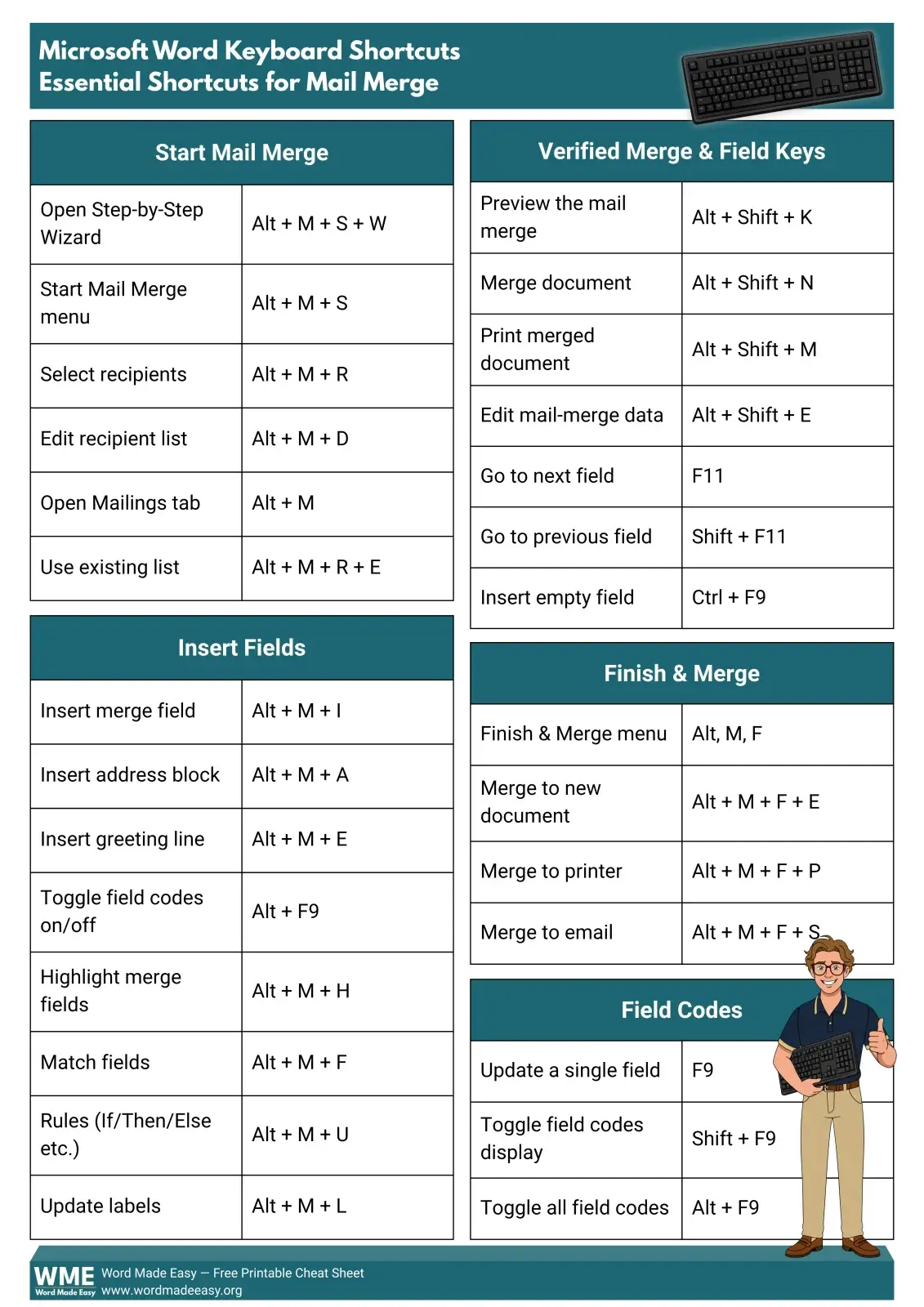
Mail merge shortcuts in Word enhance efficiency by minimising clicks while setting up recipients and inserting fields. This guide lists essential shortcuts for starting merges, previewing records, and finishing documents. Users are cautioned to verify shortcut compatibility with their Word version. A free printable PDF cheat sheet is available for reference.

To open a Word document in Google Docs, upload the DOCX file to Google Drive, then convert it into a genuine Google Doc using ‘File ? Save as Google Docs’. The original Word file remains intact, enabling you to keep both versions. This process ensures easy sharing and editing within Google Docs.
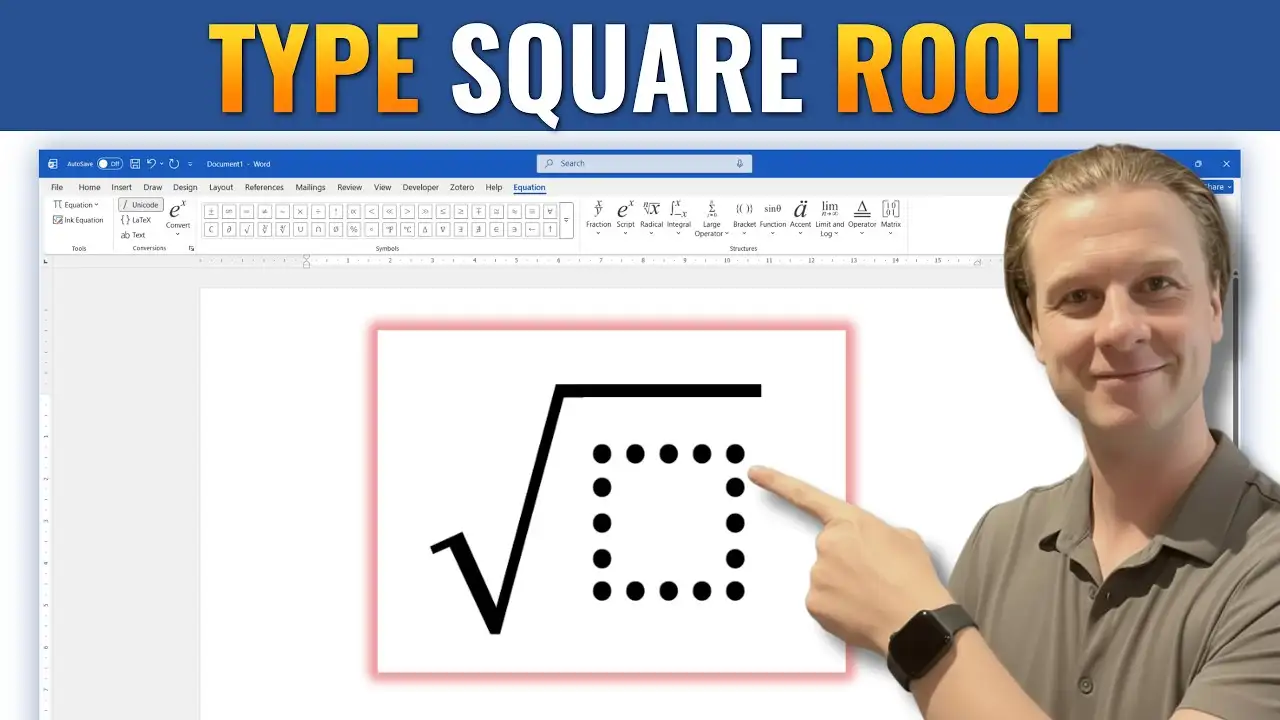
Learn how to type a square root symbol in Microsoft Word using the Equation Editor, keyboard shortcuts, and Unicode. This step-by-step guide covers multiple methods for inserting and formatting square root symbols in mathematical equations, academic papers, and technical documents.
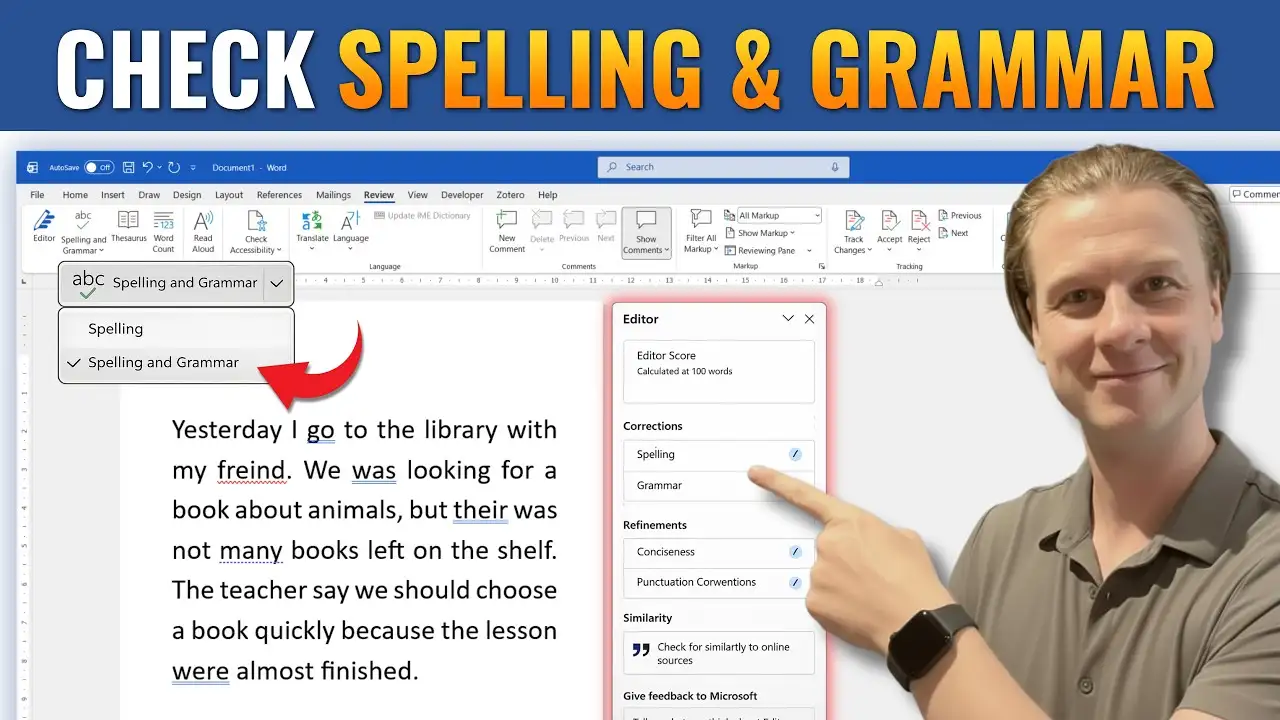
Learn how to check spelling and grammar in Microsoft Word with this step-by-step guide. Discover how to enable proofing tools, set the correct proofing language, fix spelling and grammar errors, and use Word’s Editor to create clear, professional, and error-free documents.
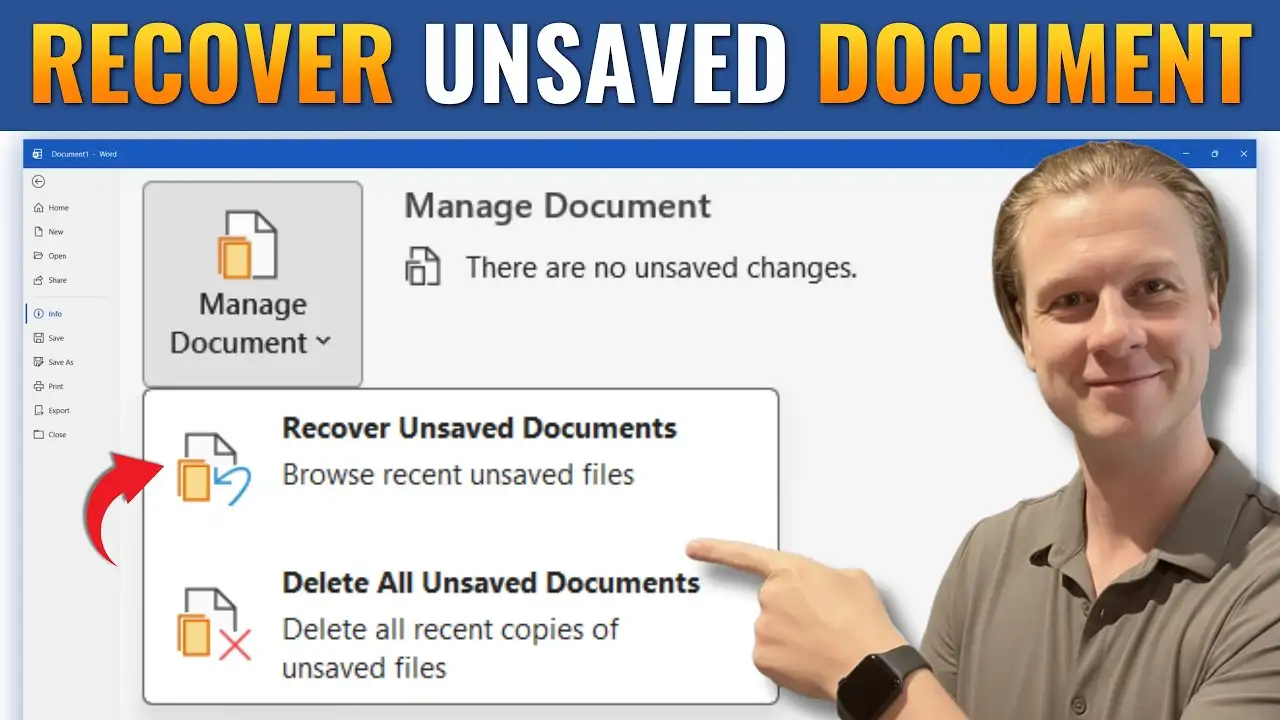
Learn how to recover an unsaved Microsoft Word document using AutoRecover and the Windows Temp folder. This step-by-step guide explains how to restore lost files, locate ASD recovery documents, and enable AutoRecover to help prevent future data loss.
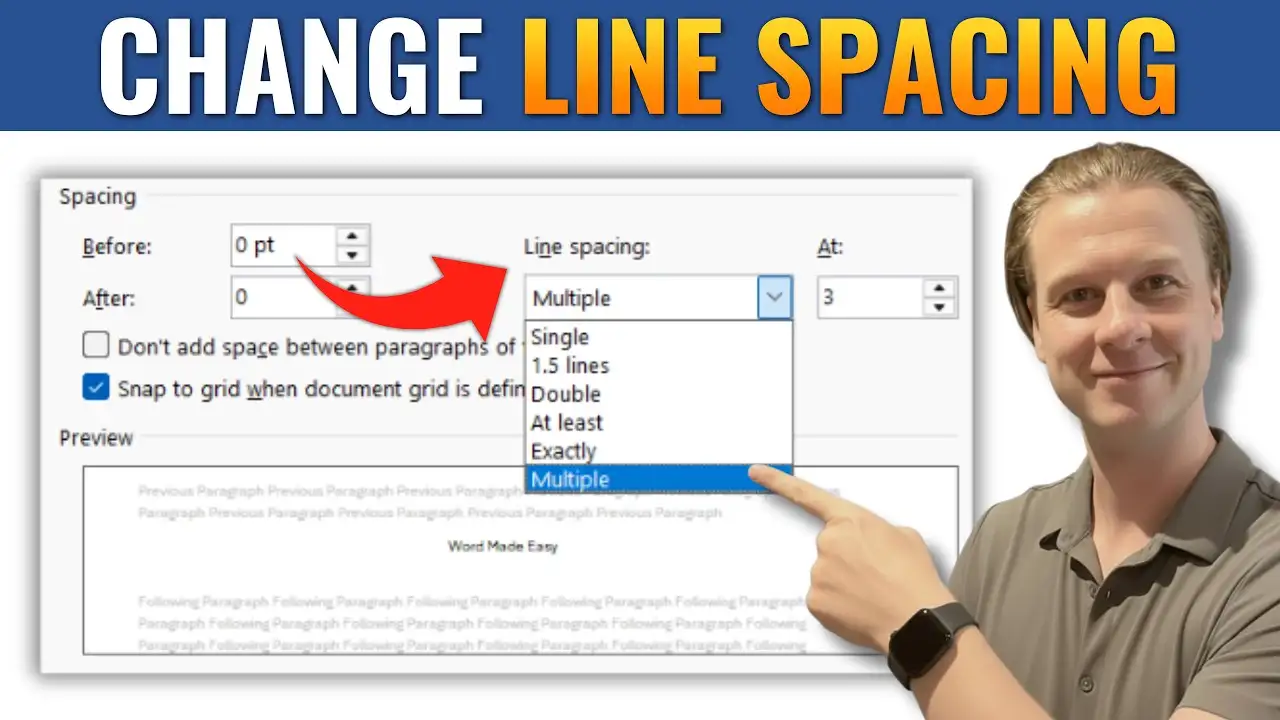
Learn how to change line spacing in Microsoft Word using simple tools, keyboard shortcuts, and custom settings. This guide explains how to adjust spacing for better readability, apply double spacing, and set default formatting for your documents.
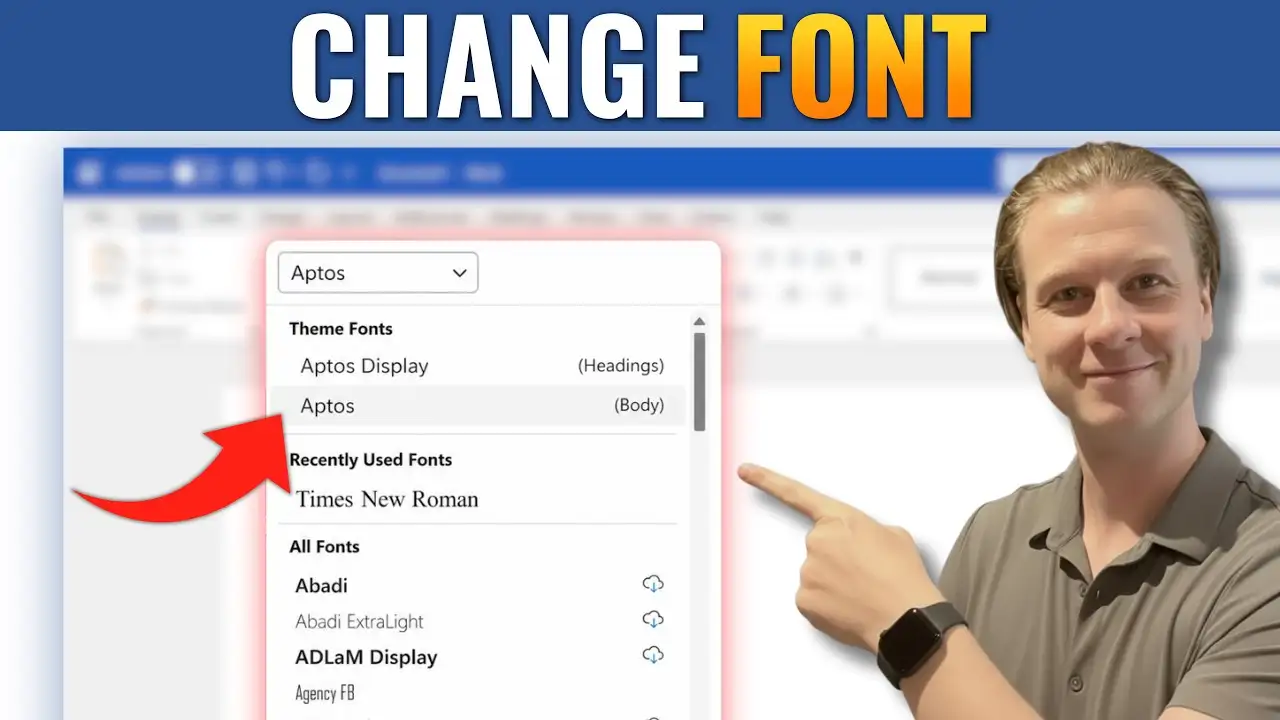
Learn how to change the font in Microsoft Word using the Font dropdown menu and simple keyboard shortcuts. This step-by-step guide explains how to select new fonts, customize document text, improve readability, and change default font settings in Word for professional-looking documents.
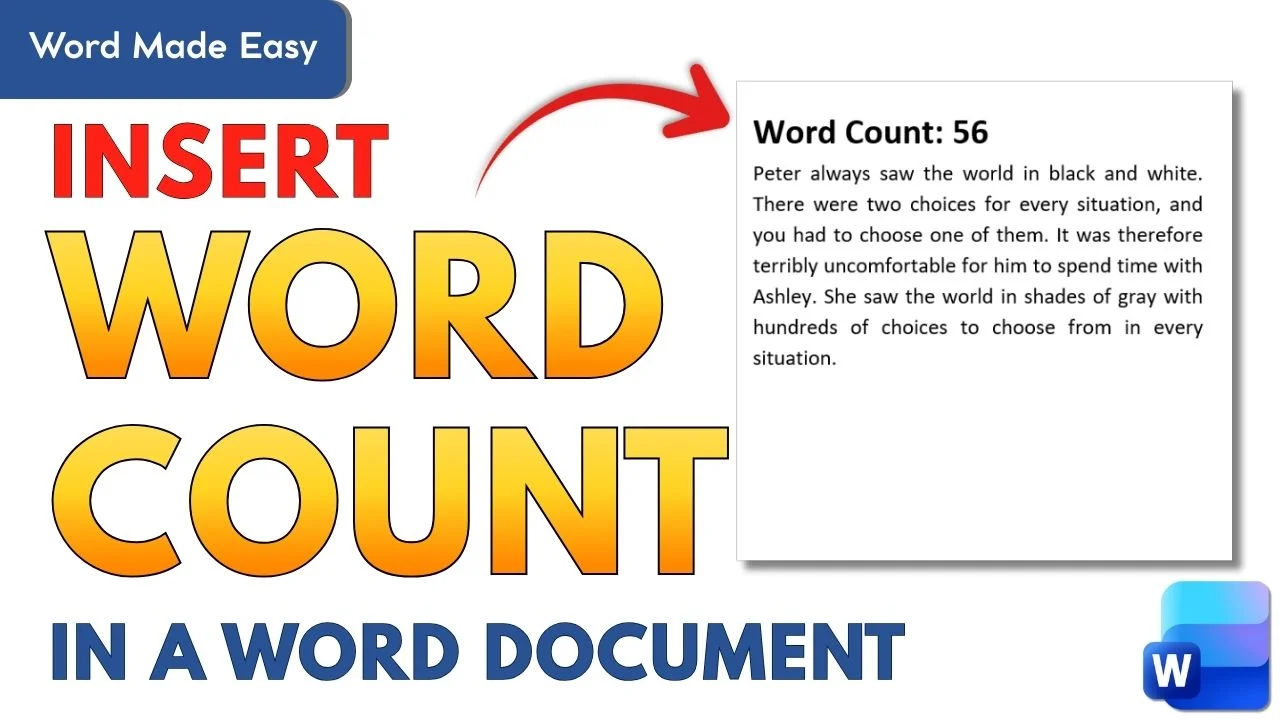
Learn how to insert a word counter directly into your Word document using Word’s built-in field tools. This easy guide shows how to add, update, and position an automatic word count for essays and professional documents.
Learn how to check spelling and grammar in Microsoft Word with this step-by-step guide. Discover how to enable proofing tools, set the correct proofing language, fix spelling and grammar errors, and use Word’s Editor to create clear, professional, and error-free documents.
Learn how to merge multiple Microsoft Word documents into one file using the “Text from File” feature — no copying and pasting needed. Perfect for combining reports, fact sheets, chapters, or training materials in just a few clicks.
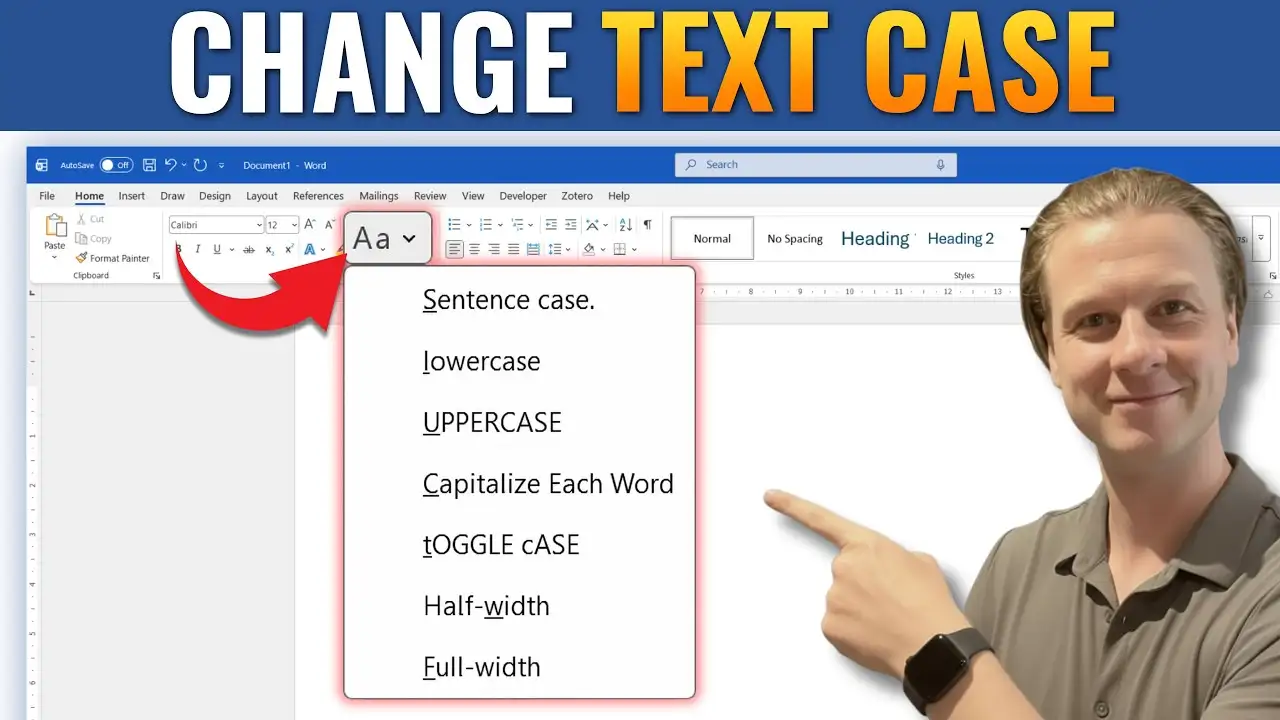
Microsoft Word includes a built-in Change Case tool that lets you change text case in Word instantly — no retyping required. Whether you’ve typed a heading in all caps by