To type square root symbol in Word, use the Equation Editor, the \sqrt equation shortcut, or the Unicode code 221A. If you use shortcuts often, the Microsoft Word Keyboard Shortcuts Cheat Sheet is worth keeping open.
In this guide, you’ll learn three reliable ways to add a square root symbol, format a proper radical, and fix the common problems that stop the symbol from appearing correctly.
What Is the Square Root Symbol in Word?
The square root symbol (?) is a mathematical radical used to show that a number or expression sits under a square root. In Microsoft Word, you can insert it as a plain symbol or as a full equation structure with a bar over the number.
It is commonly used in:
- Maths assignments and worksheets
- Scientific and engineering reports
- Statistics, finance, and research documents
- Formal documents that also need clean equation formatting — see the guide on how to write fractions in Word.
For quick typing, Unicode is enough. For professional maths layout, use Word’s Equation Editor.
Watch the Video Tutorial
If you prefer to see this in action, the full video walkthrough is below, showing each method step by step.
How to Type Square Root Symbol in Word: Step-by-Step
There are three practical ways to type square root symbol in Word. Use the Equation Editor for proper maths formatting, \sqrt for speed, or Unicode when you only need the ? character.
Method 1: How to Type Square Root Symbol in Word Using the Equation Editor
Use this method when you want the most professional result. Word creates a proper radical with a placeholder box and a horizontal bar that adjusts to the number or expression underneath.
Step 1: Open the Equation Editor
- Place your cursor where you want the square root symbol to appear.
- Press Alt + =.
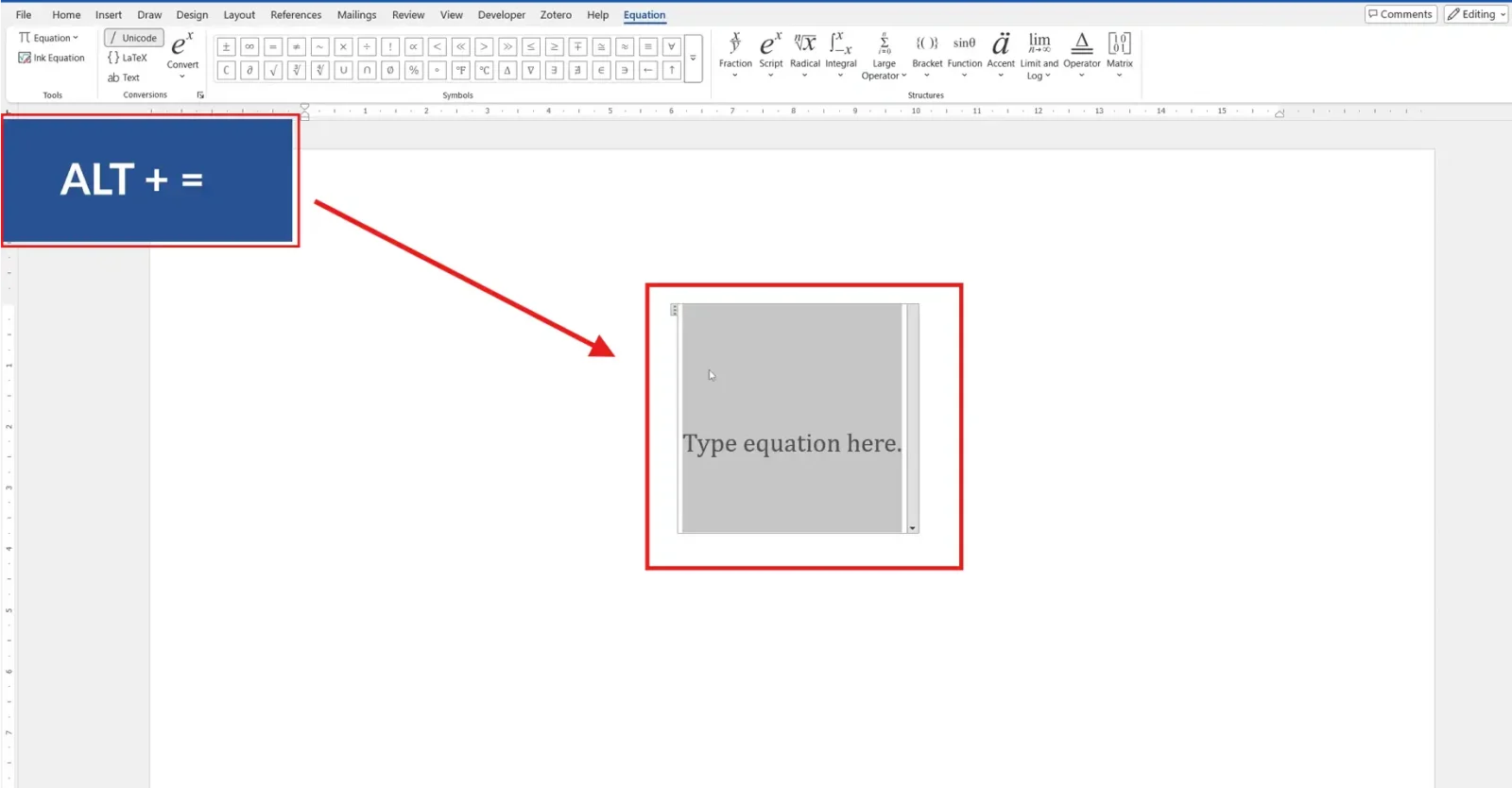
? Word opens a new equation field and shows the Equation tab on the ribbon.
Step 2: Insert the Square Root Template
- Go to the Equation tab.
- Click Radical.
- Select the first option, Square Root.
- Type your number inside the placeholder box.
Example:
?100
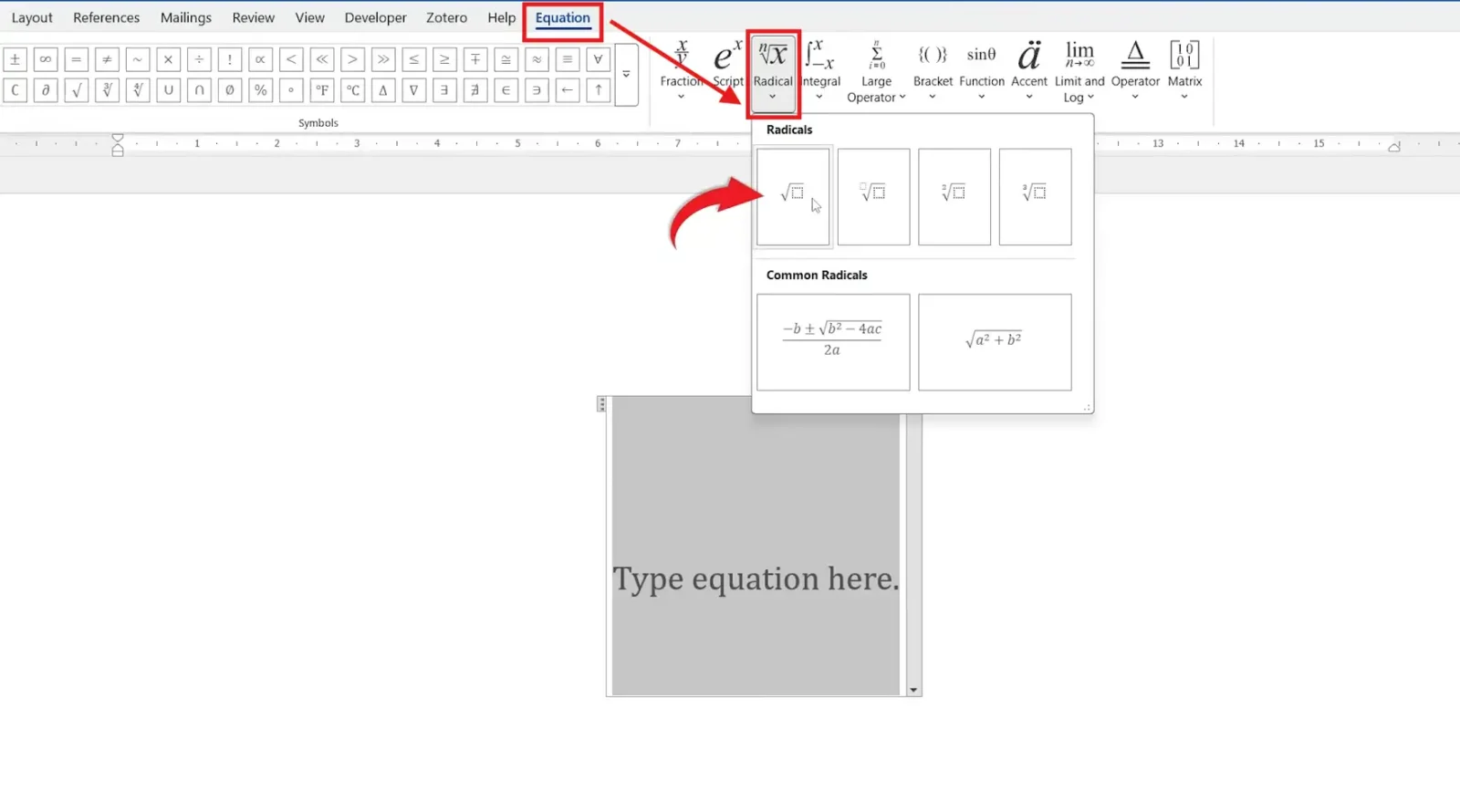
? You now have a clean square root equation. This is the best method for assignments, reports, and anything that needs proper mathematical formatting.
Method 2: How to Type Square Root Symbol in Word With the \sqrt Shortcut
This is the fastest equation method. No menus. No clicks. Just the equation shortcut.
Steps:
- Press Alt + = to open an equation field.
- Type
\sqrt. - Press Spacebar.
- Type the number inside the placeholder.
Example:
?25
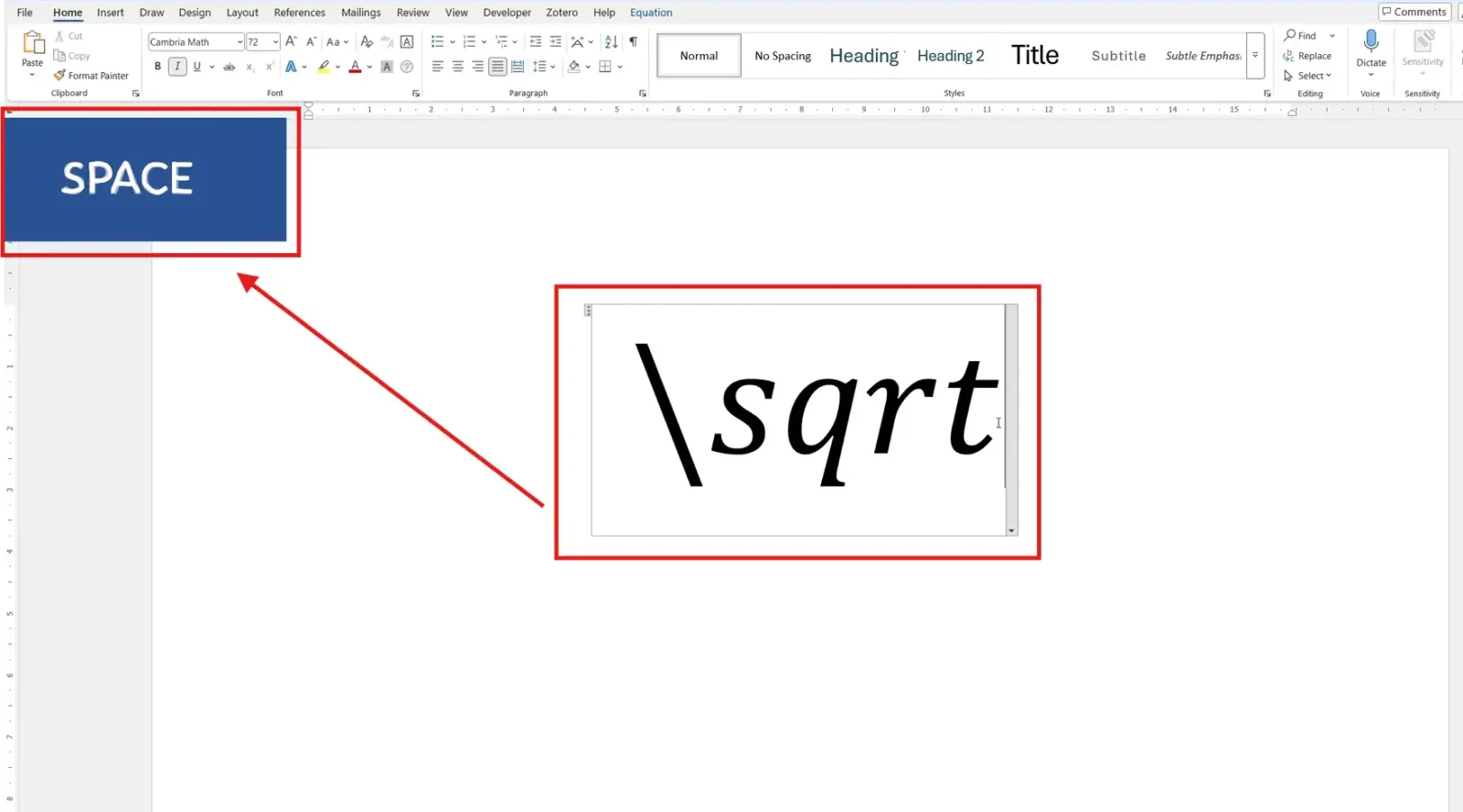
? Word instantly converts \sqrt into a square root structure. This is the fastest method by far if you already work inside equations.
Method 3: How to Type Square Root Symbol in Word Using Unicode
Use Unicode when you only need the plain ? symbol, not a full equation. This works well for quick notes, simple examples, and short technical labels.
Steps:
- Type
221A. - Press Alt + X.
Word converts the code into:
?
? Done. The Unicode method inserts the symbol only, so it is not ideal for longer equations — but it is perfect when you need a quick standalone square root character.
Which Method Should You Use?
All three methods work. The right one depends on whether you need speed, proper equation formatting, or a plain symbol.
| Method | Best For | Speed | Result |
|---|---|---|---|
| Equation Editor | Professional maths documents | Medium | Full radical structure |
\sqrt shortcut | Fast equation typing | Fastest | Full radical structure |
Unicode 221A | Plain symbol only | Fast | Standalone ? character |
If you write equations regularly, use Method 2. If you are formatting a formal maths document, use Method 1. If you only need the symbol, use Method 3.
Common Problems When Typing Square Root Symbol in Word
If you cannot type square root symbol in Word correctly, one of these four issues is usually the cause.
The \sqrt Command Does Not Convert
The \sqrt shortcut only works inside an equation field. Press Alt + = first, then type \sqrt and press Spacebar.
Alt + X Does Not Change 221A Into a Symbol
Make sure the cursor is directly after 221A before pressing Alt + X. If other text is selected, Word may convert the wrong characters.
The Square Root Bar Is Too Short
A plain ? symbol will not stretch over numbers. Use the Equation Editor or \sqrt shortcut if you need a proper radical bar over a longer expression.
The Symbol Looks Different in Another Font
Different fonts draw the ? character slightly differently. Use Word’s equation formatting for consistent output, especially before exporting or sharing a document — and for final document layout, see how to change line spacing in Word.
Pro Tips
- Use
\sqrtinside the Equation Editor if you write maths often. It is the fastest repeatable method. - Use Unicode only for the standalone ? symbol. It does not create a full equation structure.
- Keep equation formatting consistent across your document. Avoid mixing plain symbols and full radicals in the same worksheet.
- Build longer technical documents with headings and navigation — see the guide on how to create a table of contents in Word.
FAQs
How do I type square root symbol in Word?
To type square root symbol in Word, press Alt + =, click Radical, then choose Square Root. You can also type \sqrt inside an equation and press Spacebar.
What is the shortcut for square root in Word?
The equation shortcut is \sqrt followed by Spacebar. You must first open an equation field with Alt + =.
How do I insert the square root symbol without Equation Editor?
Type 221A, then press Alt + X. Word converts the Unicode value into the ? symbol.
Why is \sqrt not working in Word?
\sqrt does not work in normal body text. Open the Equation Editor first with Alt + =, then type \sqrt and press Spacebar.
Can I edit the number inside a square root in Word?
Yes. Click inside the equation placeholder and change the number or expression. Word automatically adjusts the square root bar as needed.
Which square root method looks most professional?
The Equation Editor method looks most professional because it creates a proper radical structure, not just a plain ? character.
Does the square root symbol work in Word Online?
Yes, the square root symbol can appear in Word Online, but the desktop version gives better control over equation formatting and keyboard shortcuts.
Can I use square root symbols with fractions in Word?
Yes. Use the Equation Editor to combine radicals, fractions, superscripts, and other maths structures. For the fraction part, follow how to write fractions in Word.
Conclusion
Typing square root symbol in Word is simple once you know which method fits the job. Use the Equation Editor for polished maths, \sqrt for speed, and Unicode for the plain ? character.
If you create maths worksheets, scientific reports, or technical documents often, learn the equation shortcut first. Then pair it with the Microsoft Word Keyboard Shortcuts Cheat Sheet so your formatting stays fast and consistent.
Related Tutorials
- How to Write Fractions in Word
- How to Insert a Degree Symbol in Microsoft Word
- Microsoft Word Keyboard Shortcuts Cheat Sheet

Recent Microsoft Word Tutorials

Looking for more help with Microsoft Word? Browse all step-by-step Word tutorials covering formatting, layout, pages, and document setup.
? View all Microsoft Word tutorials: https://wordmadeeasy.halmanweb.com/microsoft-word/
? Need more support – check out the official guidance: https://support.microsoft.com/en-au

Prefer watching instead of reading? Many Word tutorials are also available as short, step-by-step videos on the Word Made Easy YouTube channel.