You can often recover an unsaved Word document using built-in tools that quietly save temporary copies of your work while you type. If Word crashed, your PC shut down, or you closed a file without saving, those temporary copies may still hold your latest changes — and getting into the habit of saving early (even to save a Word document as a PDF) makes recovery far less likely to be needed.
In this guide, you’ll learn two reliable methods to recover an unsaved Word document: the Recover Unsaved Documents feature and the Windows Temp folder. You’ll also learn how to enable AutoRecover so it doesn’t happen again.
Can You Recover an Unsaved Word Document?
Yes. Microsoft Word automatically creates AutoRecover (.ASD) files while you work. If your document wasn’t saved before Word closed, you can usually restore it from these temporary files. This works in Word 2016, 2019, 2021, and Microsoft 365.
Recovery is most likely to succeed when:
- Word crashed unexpectedly
- Your computer shut down without warning
- You closed a document without saving
- AutoRecover was enabled beforehand
? The sooner you attempt recovery, the better your chances.
Watch the Video Tutorial
If you prefer to see this in action, the full video walkthrough is below, showing each method step by step.
How to Recover an Unsaved Word Document: Step-by-Step
Try Method 1 first — it’s the fastest. If Word doesn’t list your file, Method 2 searches Windows directly.
Method 1: How to Recover an Unsaved Word Document Using Word
The quickest route is Word’s own recovery feature.
Step 1: Open Word
Launch Microsoft Word without opening another document.
Step 2: Open the Info Menu
- Click the File tab.
- Select Info from the left-hand menu.

Step 3: Access Document Recovery
Under Info:
- Click Manage Document.
- Select Recover Unsaved Documents.
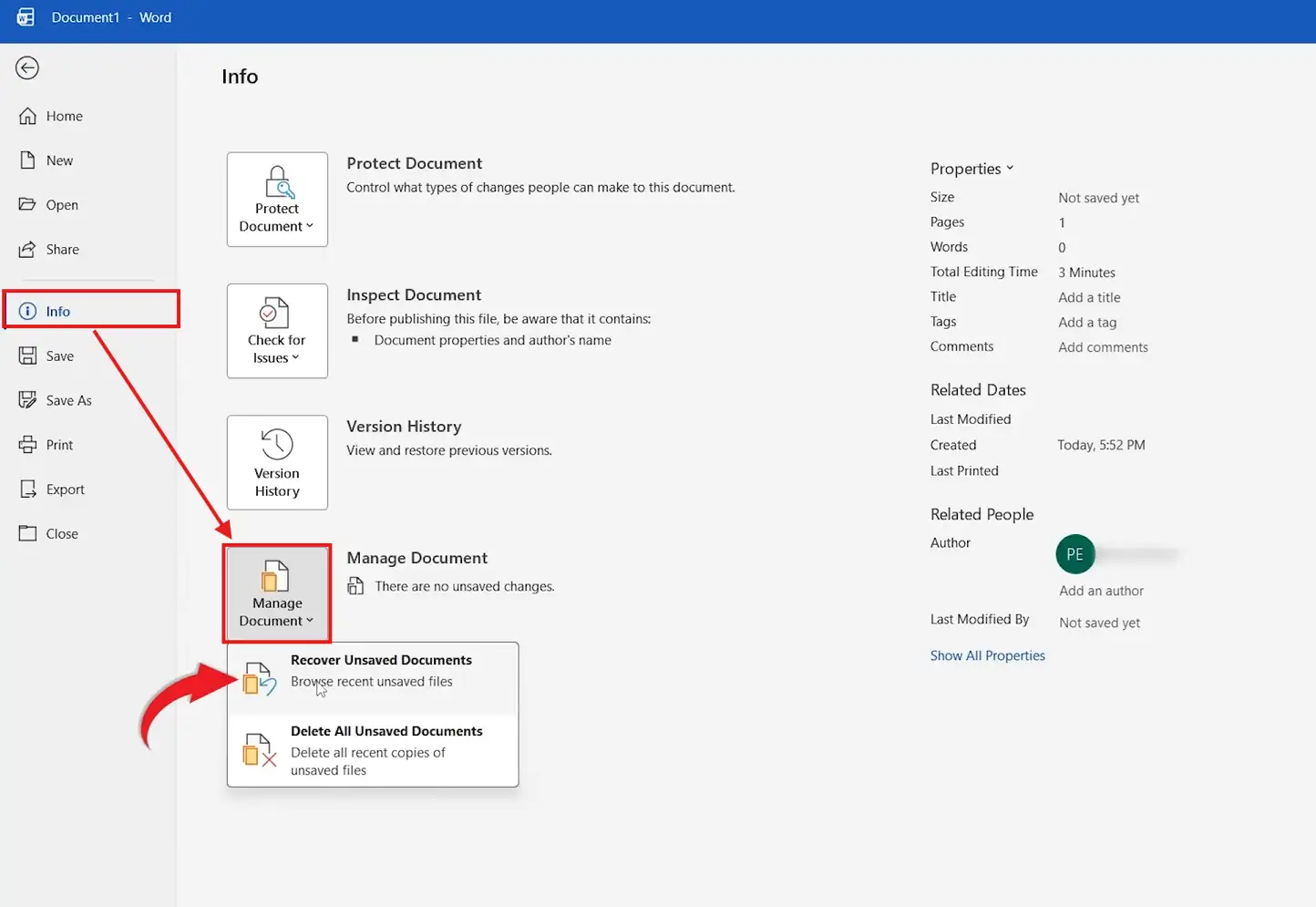
Word opens the folder where unsaved documents are stored.
Step 4: Open the Recovery File
- Select the file you want to restore.
- Click Open.
- Save it straight away with File ? Save As.
? The document reopens. Save it now so you don’t lose it a second time.
What Are ASD Files?
When AutoRecover is enabled, Word periodically saves temporary recovery files with the .ASD extension. These hold recent versions of your document and are used to restore work after an interruption. If Word detects an available .ASD file, it can often recover most or all of your unsaved changes.
Method 2: How to Recover an Unsaved Word Document from the Temp Folder
If Method 1 doesn’t find your file, search the Windows temporary files folder manually.
Step 1: Open the Run Dialog
Press Windows + R.

The Run window appears.
Step 2: Open the Temp Folder
Type the following, then click OK:
%temp%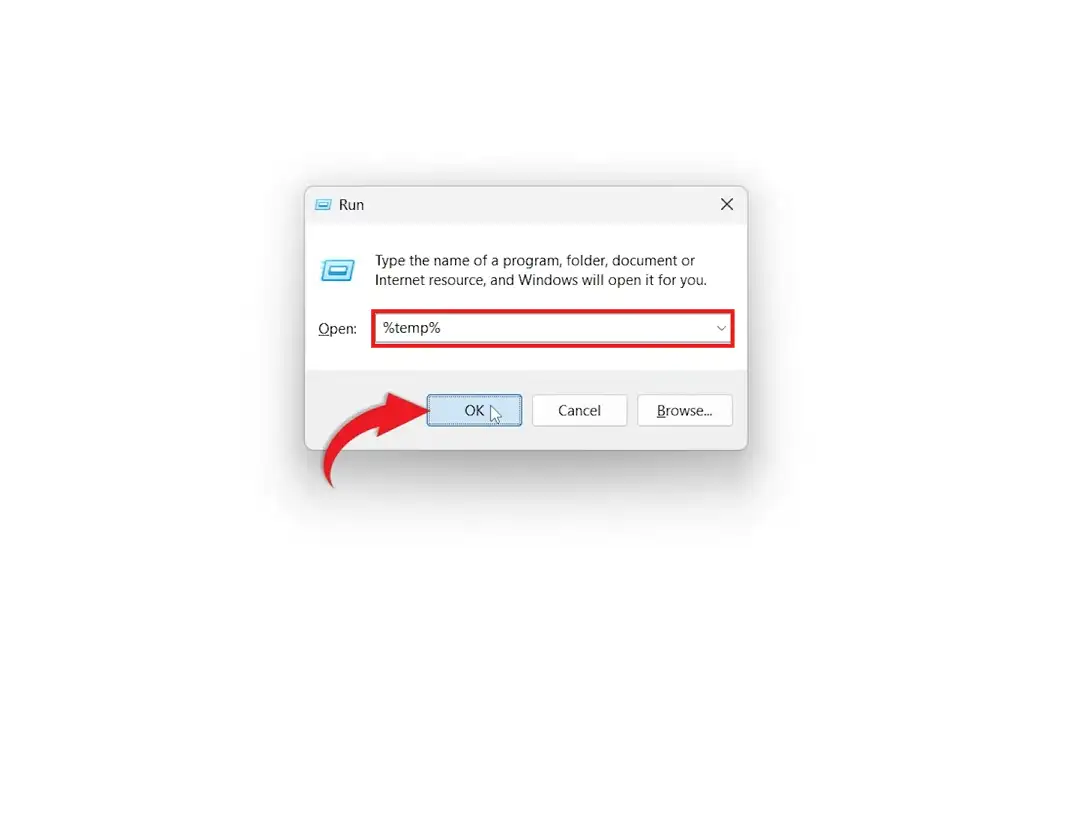
Windows opens your temporary files folder.
Step 3: Filter the Files
The Temp folder can hold hundreds of files. To find yours faster:
- Right-click the column headers if Type isn’t visible.
- Enable the Type column.
- Sort or filter by Type.
Look for files labelled:
- Microsoft Word Auto Recovery Document
- Files with the .ASD extension
Step 4: Open the Recovery File
- Double-click the .ASD file.
- Word launches and attempts to recover the document.
- Save the recovered file immediately.
? If the file opens, use File ? Save As straight away to keep it.
Which Method Should You Use?
| Method | Best for |
|---|---|
| Recover Unsaved Documents | The first thing to try — fastest and simplest |
| Temp folder (%temp%) | When Word doesn’t list the file automatically |
Common Problems When Recovering Unsaved Documents
The Recover Unsaved Documents folder is empty
AutoRecover was likely turned off, so no .ASD file was created. Try Method 2, then enable AutoRecover for next time.
No .ASD file appears in the Temp folder
Sort by Date modified to bring recent files to the top, and check whether the document was stored in OneDrive instead of locally.
The recovered file is an older version
AutoRecover only saves at set intervals, so the last few minutes may be missing. Lower the interval (below) to reduce future gaps.
The .ASD file won’t open
Open Word first, then use File ? Open ? Browse, set the file type to All Files, and point it at the .ASD file directly.
How to Enable AutoRecover in Word
To improve your chances next time:
- Click File ? Options ? Save.
- Tick Save AutoRecover information every X minutes (set it to 5).
- Tick Keep the last AutoRecovered version if I close without saving.
A shorter interval means more frequent backups — and if the document holds sensitive material, it’s worth learning to password protect a Word document once it’s saved.
Pro Tips to Avoid Losing Documents
- Save constantly with Ctrl + S — it’s the single best habit for protecting your work, and you’ll find more time-savers in the Microsoft Word keyboard shortcuts cheat sheet.
- Store files in OneDrive so every change syncs automatically to the cloud.
- Consolidating drafts? Learn how to merge multiple Word documents into one file instead of juggling separate copies.
FAQs
How do I recover an unsaved Word document?
To recover an unsaved Word document, go to File ? Info ? Manage Document ? Recover Unsaved Documents, then open the available recovery file.
Where are Word AutoRecover files stored?
Word stores AutoRecover files as .ASD files in its recovery folder, and copies often appear in the Windows %temp% folder.
What is an ASD file?
An .ASD file is a temporary AutoRecover file Word creates to restore unsaved work after a crash or unexpected shutdown.
Can I recover a document I closed without saving?
Yes — as long as AutoRecover was enabled and Word saved an AutoRecover file before the document closed.
Does OneDrive recover unsaved Word documents?
If the file was stored in OneDrive, check Version History on the OneDrive website to restore an earlier version.
Why can’t I find my unsaved document?
If AutoRecover was disabled or no temporary file was created, the document may not be recoverable.
How often does Word save AutoRecover files?
By default every 10 minutes. Lower it to 5 minutes under File ? Options ? Save for more frequent backups.
Conclusion
You can usually recover an unsaved Word document through the Recover Unsaved Documents feature or by searching the Windows Temp folder for .ASD files.
From here, enable AutoRecover, save often, and keep files in OneDrive — and if you regularly move work between formats, it helps to know how to convert a PDF to a Word document without losing your content.
Related Tutorials
- How to Save a Word Document as a PDF
- How to Password Protect a Word Document
- How to Merge Multiple Word Documents Into One File

Recent Microsoft Word Tutorials

Looking for more help with Microsoft Word? Browse all step-by-step Word tutorials covering formatting, layout, pages, and document setup.
? View all Microsoft Word tutorials: https://wordmadeeasy.halmanweb.com/microsoft-word/
? Need more support – check out the official guidance: https://support.microsoft.com/en-au

Prefer watching instead of reading? Many Word tutorials are also available as short, step-by-step videos on the Word Made Easy YouTube channel.