Knowing how to insert a PDF into Word is useful whenever you need to combine reference materials, attach supporting files, or edit PDF content directly inside a report. Microsoft Word lets you embed a PDF as an object, display it as an icon, or convert it into fully editable text.
In this guide, you’ll learn both methods, when to use each one, and how to fix common issues when a PDF won’t open or convert properly.
Why Insert a PDF into Word?
Adding a PDF to a Word document is useful for:
- Combining multiple documents into one file
- Sharing supporting materials and references
- Creating reports with attached source documents
- Embedding forms and manuals
- Editing PDF content directly in Word
The right method depends on whether you want to view, open, or edit the PDF.
Watch the Video Tutorial
If you prefer to see this in action, the full video walkthrough is below, showing each method step by step.
How to Insert a PDF into Word: Step-by-Step
There are two main approaches: embedding the PDF as an object, or converting it into editable Word text. Both are covered below.
Method 1: How to Insert a PDF into Word as an Embedded Object
This is the most common method and places the PDF directly inside your document.
- Open your Word document and click where you want the PDF to appear.
- Select the Insert tab.
- In the Text group, click Object.
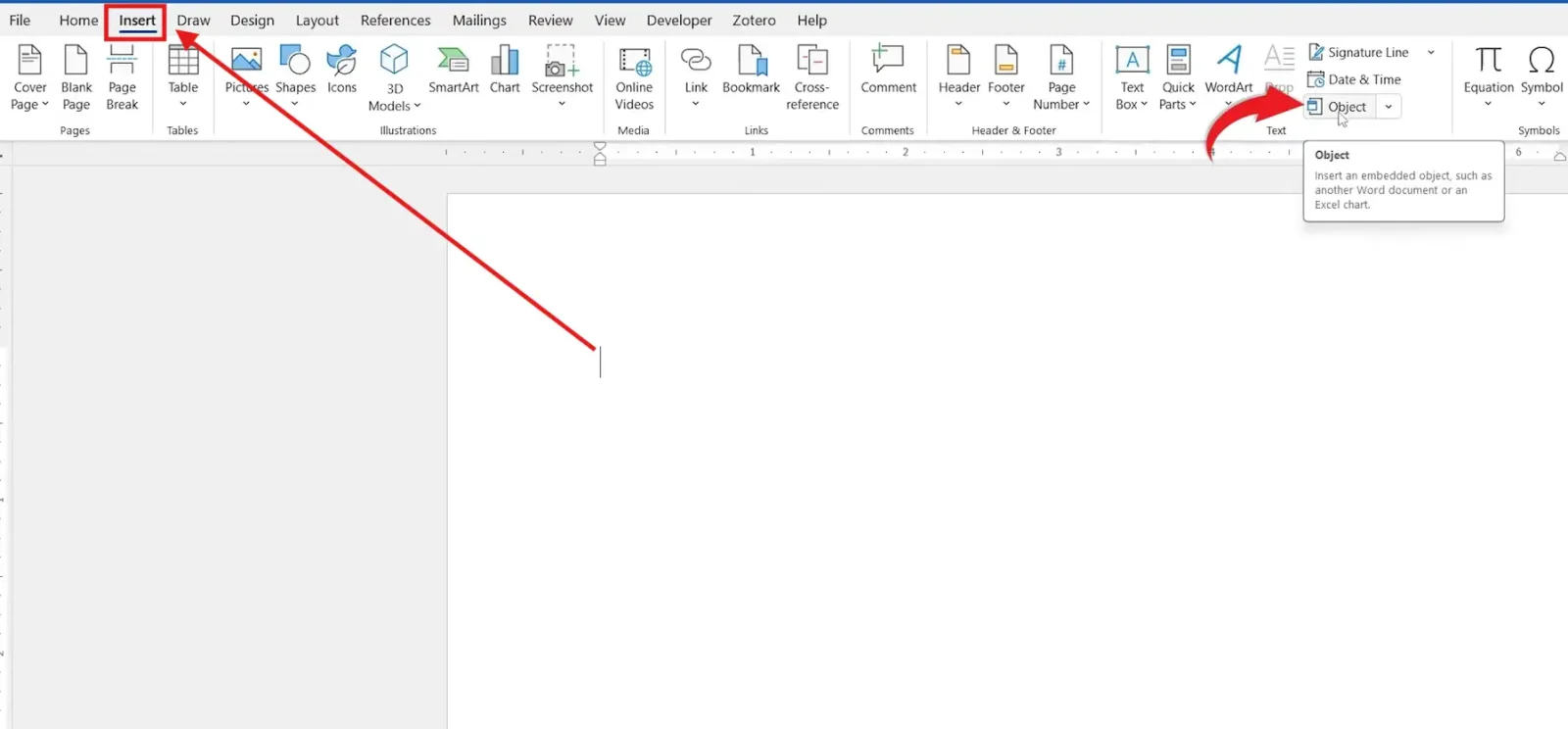
- Choose Object from the drop-down menu.
- Select the Create from File tab and click Browse.
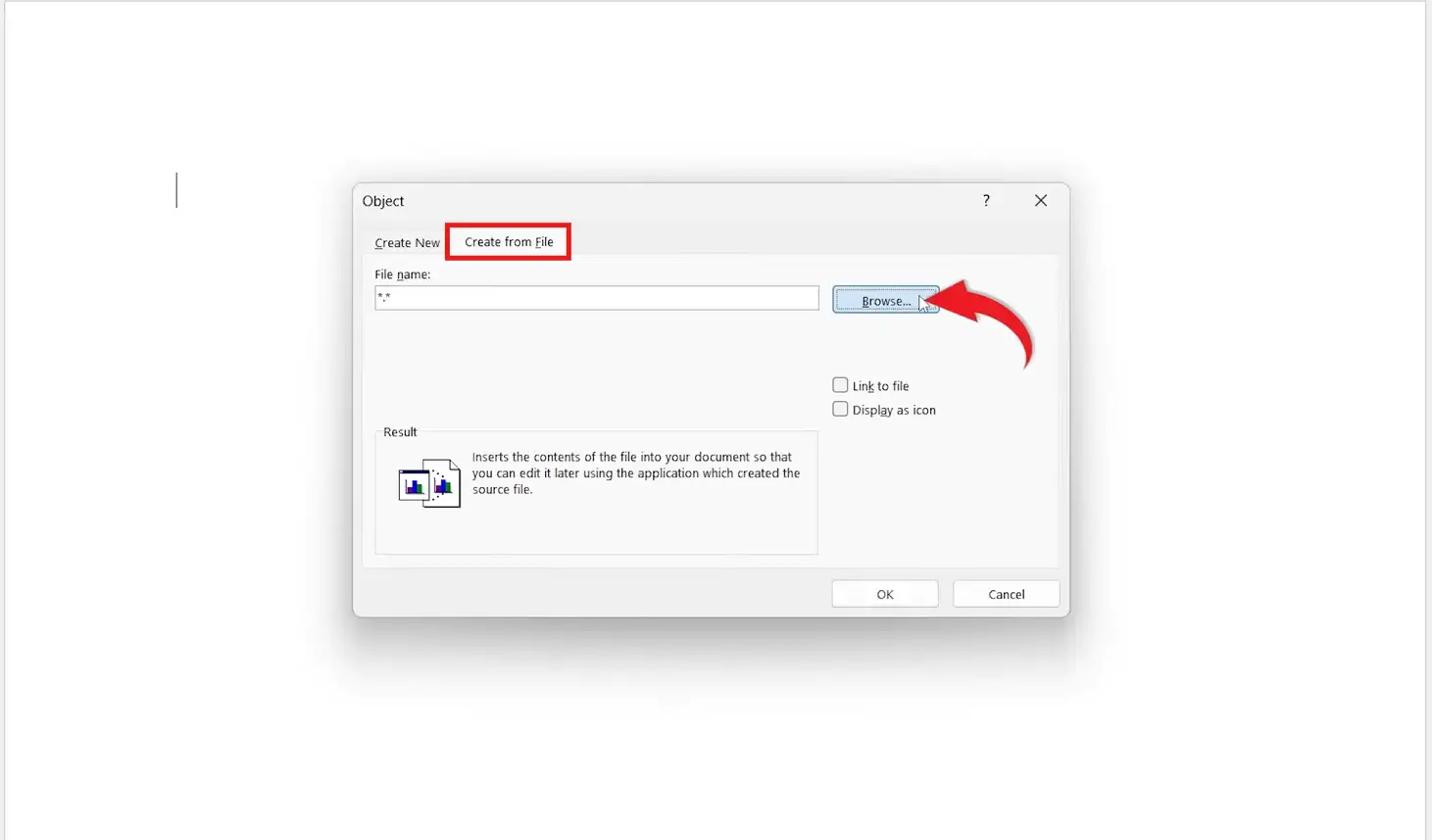
- Locate your PDF file, select it, and click Insert.
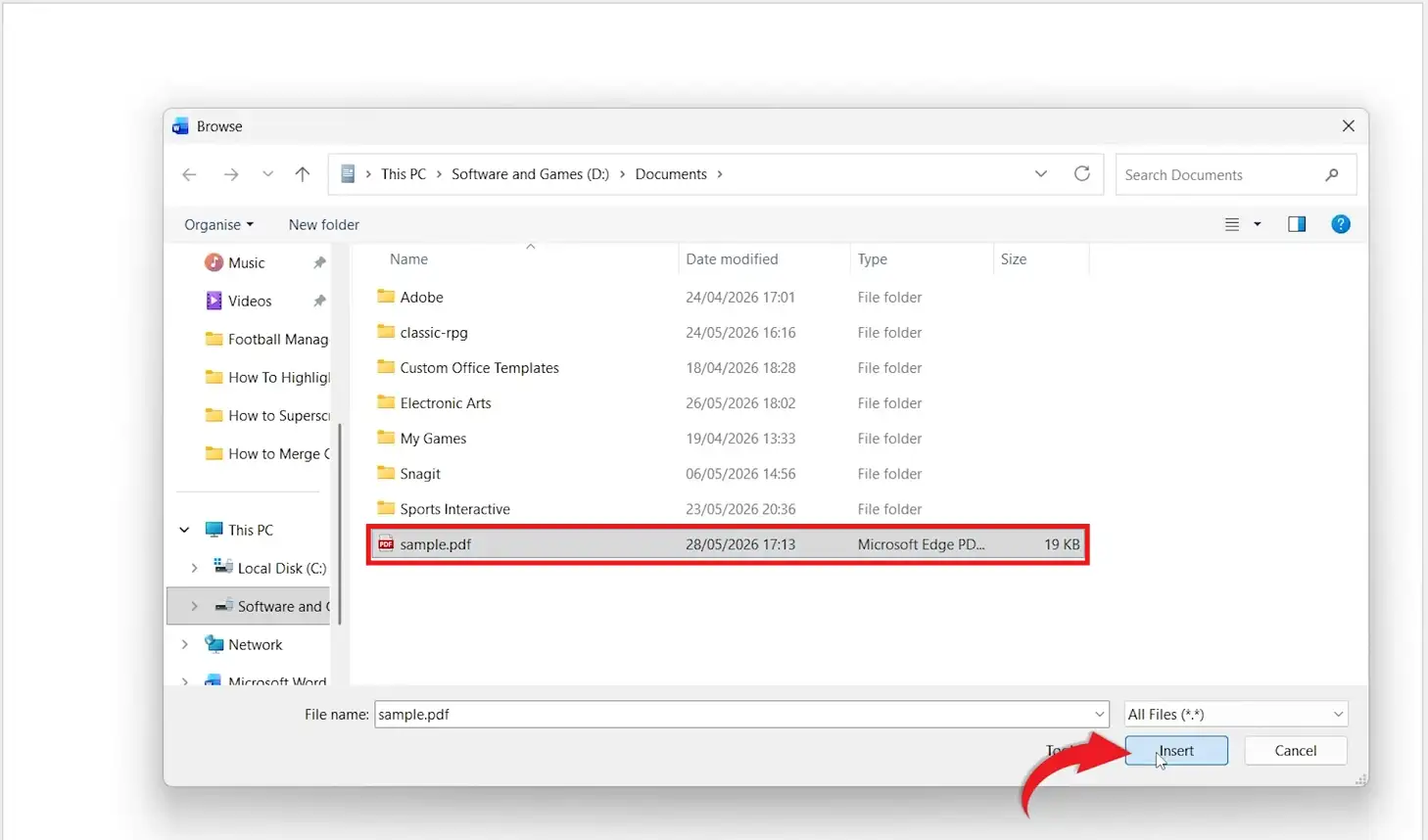
Word now offers a few options for how the PDF object behaves.
Leave Everything Unticked (Recommended)
With both boxes unchecked, the PDF is fully embedded — it travels with the document, requires no external links, and stays accessible when shared. This is the best choice for most users.
Display as Icon
This inserts the PDF as a clickable icon instead of showing the document itself. You can change the icon and rename the displayed file — useful for a cleaner layout.
Link to File
This connects to the original PDF location, keeping the Word file smaller and updating automatically if the PDF changes. The downside: links break if the file is moved, renamed, or shared without it — for this reason, embedding is usually preferred.
Opening and Managing an Embedded PDF
Double-click the PDF object and select Open to view it in your default PDF reader (Edge, Adobe Acrobat, or Chrome). To rename the object, view its properties, or open it again later, right-click the object and select Object.
Method 2: How to Insert a PDF into Word as Editable Text
If you need to edit the PDF’s content rather than just display it, Word can convert the file into an editable document.
- Open Microsoft Word and click File ? Open ? Browse.
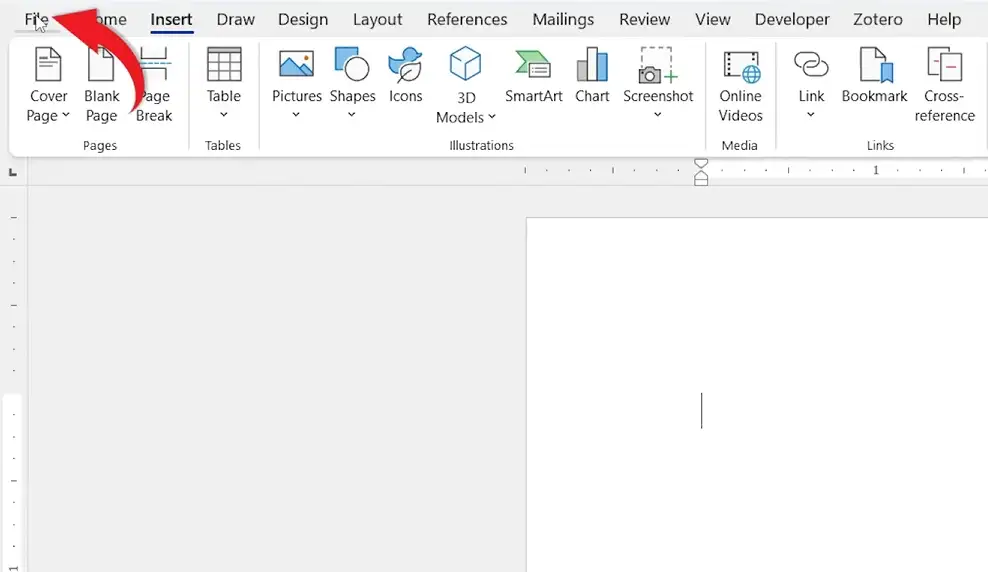
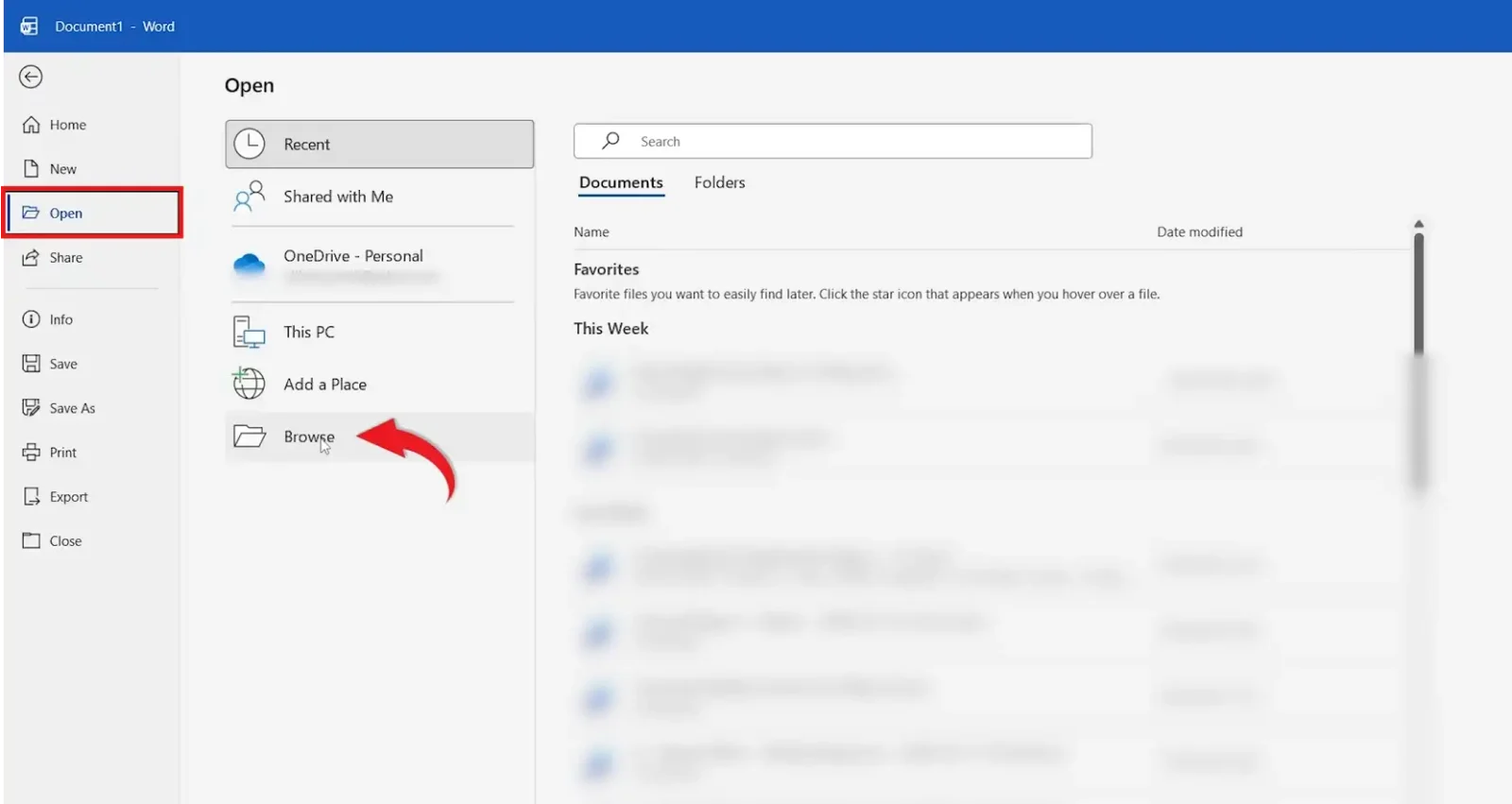
- Locate and select your PDF file, then click Open.
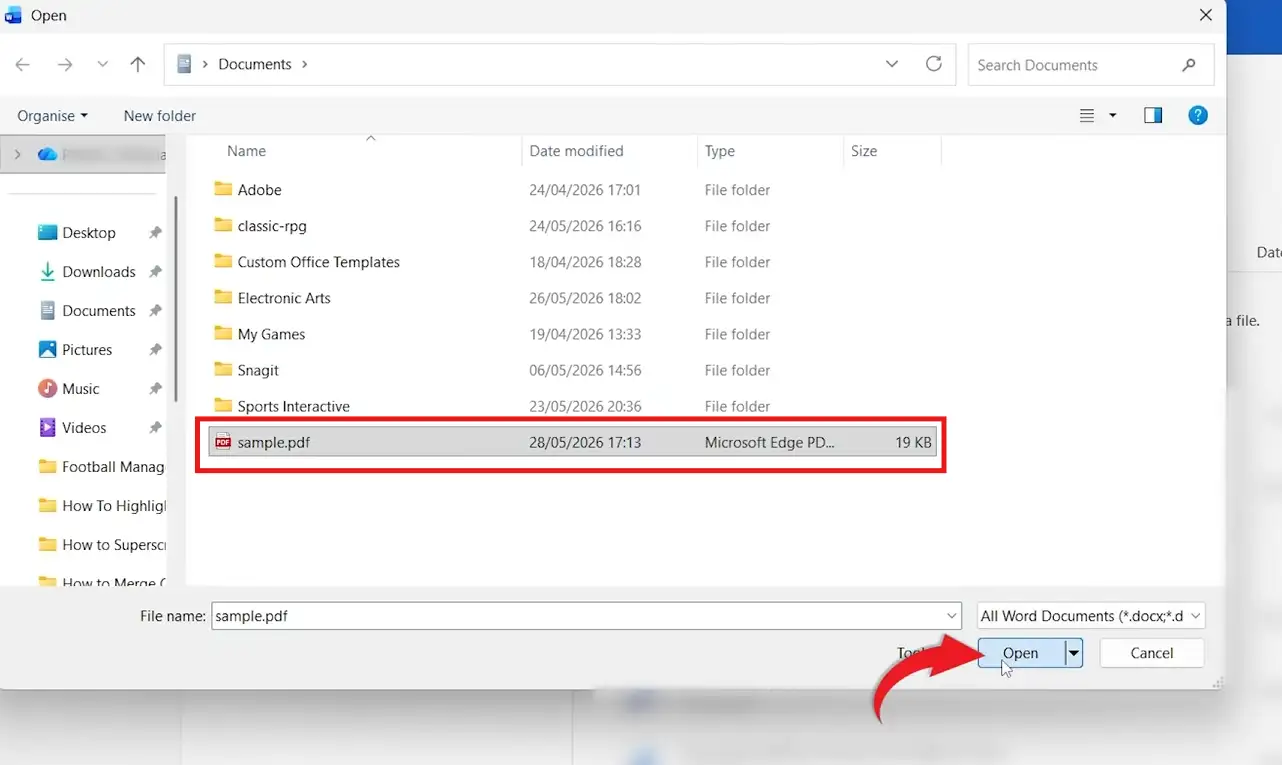
- Click OK when Word explains it will convert the PDF into an editable document.
- Click Enable Editing if prompted, and confirm any further messages.
Word converts the PDF content into editable text and objects you can modify directly. This works best with text-based PDFs, simple layouts, standard reports, articles, and basic forms — formatting often stays close to the original.
Conversion is less reliable with scanned documents (which are essentially images), flattened PDFs saved as a single image layer, files with charts, diagrams, SmartArt, or embedded objects, and large multi-page documents where layouts can shift.
Which Method Should You Use?
| Feature | Embedded PDF (Method 1) | Converted PDF (Method 2) |
|---|---|---|
| View PDF inside Word | Yes | No |
| Open original PDF | Yes | No |
| Edit PDF content | No | Yes |
| Keeps original formatting | Yes | Sometimes |
| Easy to share | Yes | Yes |
Common Problems When Inserting PDFs
PDF Won’t Open
Make sure a PDF reader is installed and set as the default application.
PDF Displays as an Icon
This happens when Display as Icon was selected during insertion — re-insert and leave the boxes unticked instead.
Formatting Changes After Conversion
Complex PDFs often lose some formatting during conversion — review the converted document carefully before relying on it.
Link to File Stops Working
The original PDF may have been moved, renamed, or deleted — re-link or switch to embedding instead.
Pro Tips
- Embed PDFs rather than linking when sharing documents — links can break once the file leaves your computer.
- Keep the original PDF as a backup before converting it, in case formatting shifts.
- If you only need a quick reference rather than an editable copy, an Excel-style data table may suit better — see our guide on how to insert an Excel sheet in Word.
- Once your document is finished, you can save it back as a PDF — see our guide on how to save a Word document as a PDF.
FAQs
How do I insert a PDF into Word?
Go to Insert ? Object ? Create from File, select your PDF, and click OK.
Can I edit a PDF after inserting it into Word?
Not when it’s embedded as an object. To edit the content, open the PDF directly in Word and let it convert (Method 2).
What does Display as Icon do?
It inserts the PDF as a clickable icon instead of showing the document object itself.
Should I use Link to File when I insert a PDF into Word?
Only if you need the PDF to update automatically when the source file changes. Otherwise, embedding is more reliable.
Can Word convert a PDF into editable text?
Yes — open the PDF directly in Word and allow it to convert (Method 2 above).
Why doesn’t my PDF convert correctly?
Scanned PDFs, flattened files, and complex layouts with charts or SmartArt can cause formatting issues during conversion.
Can I combine multiple PDFs into one Word document?
Convert each PDF separately, then combine the resulting Word files — see our guide on how to merge multiple Word documents into one file.
Conclusion
Now you know how to insert a PDF into Word — whether by embedding it as an object for sharing, displaying it as an icon, or converting it into editable text.
If your converted PDF includes tables that need cleaning up, our guide on three ways to insert a table in Word covers formatting them correctly afterwards.
Related Tutorials
- How to Convert a PDF to a Word Document
- How to Save a Word Document as a PDF
- How to Insert an Excel Sheet in Word

Recent Microsoft Word Tutorials

Looking for more help with Microsoft Word? Browse all step-by-step Word tutorials covering formatting, layout, pages, and document setup.
? View all Microsoft Word tutorials: https://wordmadeeasy.halmanweb.com/microsoft-word/
? Need more support – check out the official guidance: https://support.microsoft.com/en-au

Prefer watching instead of reading? Many Word tutorials are also available as short, step-by-step videos on the Word Made Easy YouTube channel.