If you want to turn off dark mode in Word, the fix is usually one dropdown deep — but if the theme keeps snapping back to black, it’s because Windows, Office, or Focus Mode is overriding your choice. This guide walks through every switch that controls how Microsoft Word looks, so you can lock in light mode and have it stick.
In this guide, you’ll learn five ways to disable dark mode, how to keep the page white while keeping the dark interface, how to fix it when Word ignores your setting, and how to switch it off in Word Online.
What Is Dark Mode in Word?
Dark mode swaps Word’s traditional white interface for a darker theme — black ribbon, dark grey toolbars, and (depending on your settings) a dark document page. It’s easier on the eyes in low light, but it isn’t always the right choice.
Light mode tends to work better when you’re:
- Preparing a document for print — what you see matches what you’ll get
- Reviewing long-form text where contrast matters more than ambience
- Sharing screens or recording tutorials
- Formatting a clean, professional document where the page colour is part of the design — much like when you add a background in Microsoft Word
Watch the Video Tutorial
If you prefer to see this in action, the full video walkthrough is below, showing each method step by step.
How to Turn Off Dark Mode in Word: Step-by-Step
Word’s dark mode is controlled by three different layers — the Office Theme, the Windows system theme, and View-tab toggles like Focus Mode and Dark Mode in Word Online. The methods below cover all three so you can pin down whichever one is causing the problem.
Method 1: How to Turn Off Dark Mode in Word Using Office Theme
This is the quickest fix and the one that works for most people. It changes the Office Theme directly from your Account screen.
Steps to Change the Office Theme
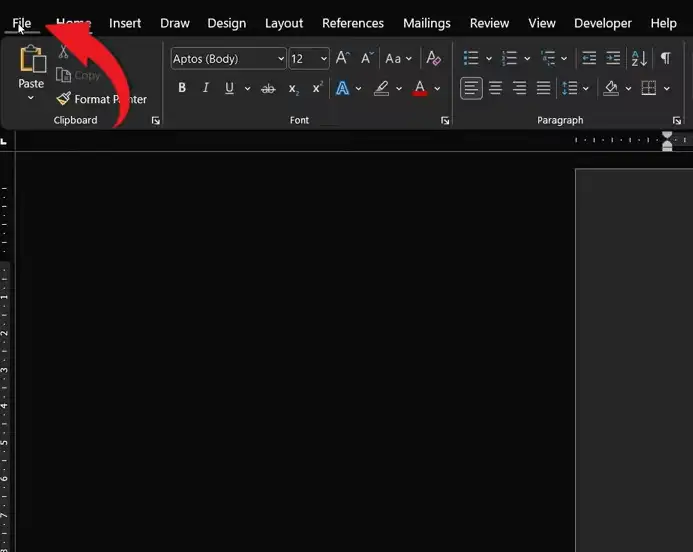
- Click File in the top-left corner.
- Select Account from the left sidebar.
- Find Office Theme on the right.
- Click the dropdown and select White (or Colorful if you want a coloured ribbon with a light interface).
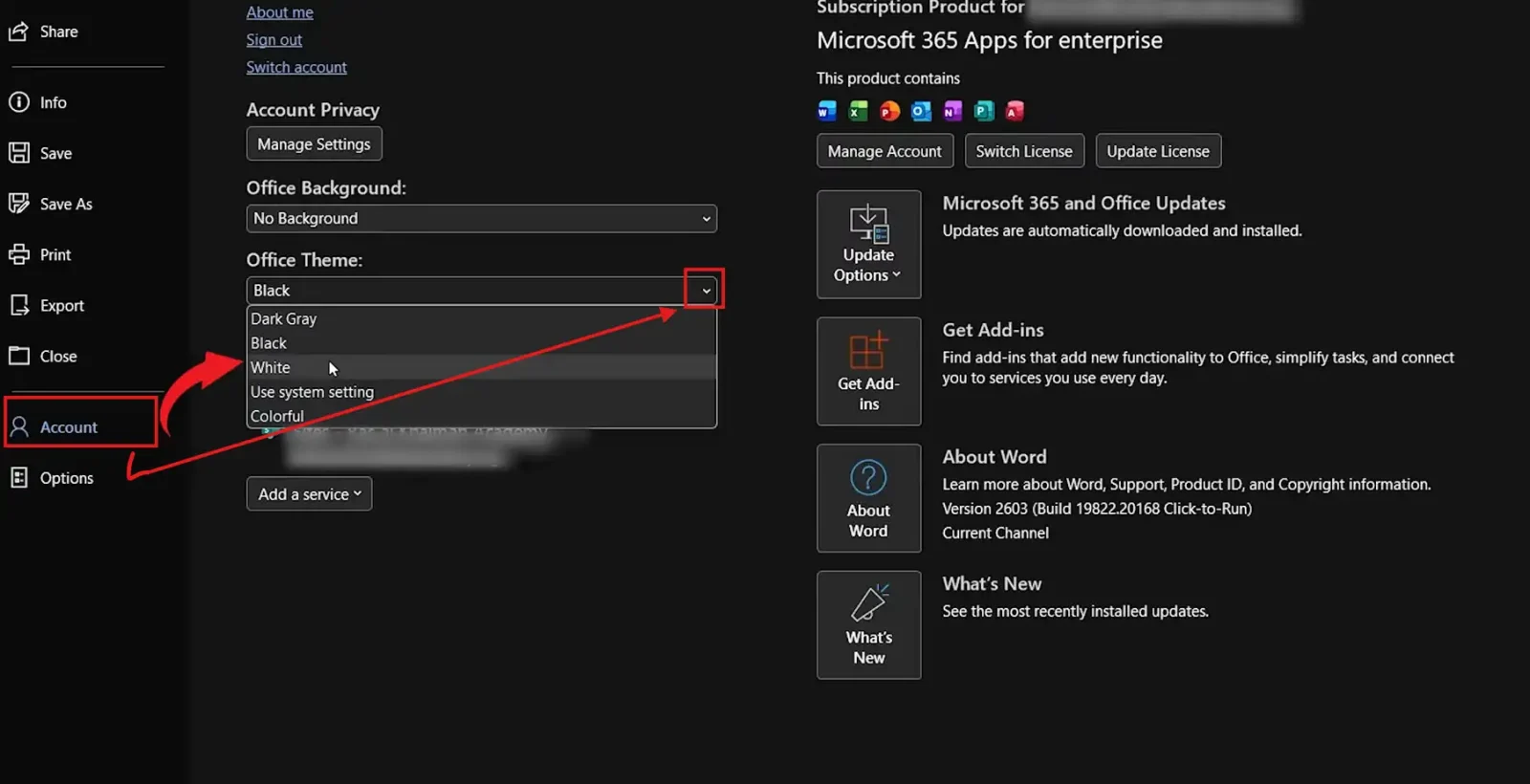
? The interface should switch to light mode immediately, no restart needed. If it doesn’t, jump straight to Method 3 — Windows is overriding the setting.
Method 2: How to Turn Off Dark Mode in Word Using Word Options
If the Account-screen route didn’t take, you can force the change through Word Options. This applies the theme at a deeper level and tends to stick when the Account screen ignores you.
Steps to Change the Theme in Word Options
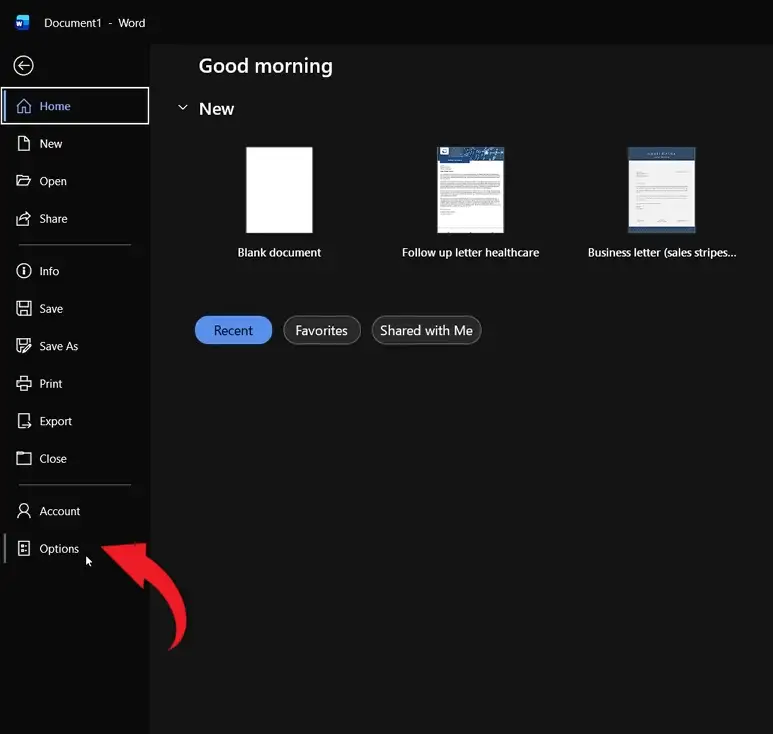
- Click File.
- Select Options at the bottom of the sidebar.
- In the Word Options window, make sure you’re on the General tab.
- Scroll down to Personalize your copy of Microsoft Office.
- Set Office Theme to White.
- Click OK.

? This setting applies across all Office apps — Excel and PowerPoint will switch too. If you only want Word in light mode, Method 1 is the better route.
Method 3: How to Turn Off Dark Mode in Word by Changing Windows Settings
If Word keeps snapping back to dark mode no matter what you set in Office, the problem is Windows. The “Use system setting” option in Office Theme lets Windows drive the appearance — so changing it at the OS level is the real fix.
Steps to Change the Windows Theme
- Press Windows + I to open Settings.
- Click Personalization.
- Select Colors.
- Under Choose your mode, set it to Light.
? Word picks up the change instantly if your Office Theme is set to Use system setting. If you want Windows in dark mode but Word in light, change Choose your default app mode to Light and leave Choose your default Windows mode on Dark.
Method 4: How to Turn Off Dark Mode in Word by Disabling Focus Mode
Focus Mode isn’t technically dark mode, but it’s the most common reason people think Word has flipped to dark — it hides the ribbon and dims everything to a near-black background. If your screen suddenly went dark and won’t show the menus, this is what’s happening.
Steps to Turn Off Focus Mode
- Press Esc to bring the ribbon back if it’s hidden.
- Go to the View tab.
- Click Focus to toggle it off.
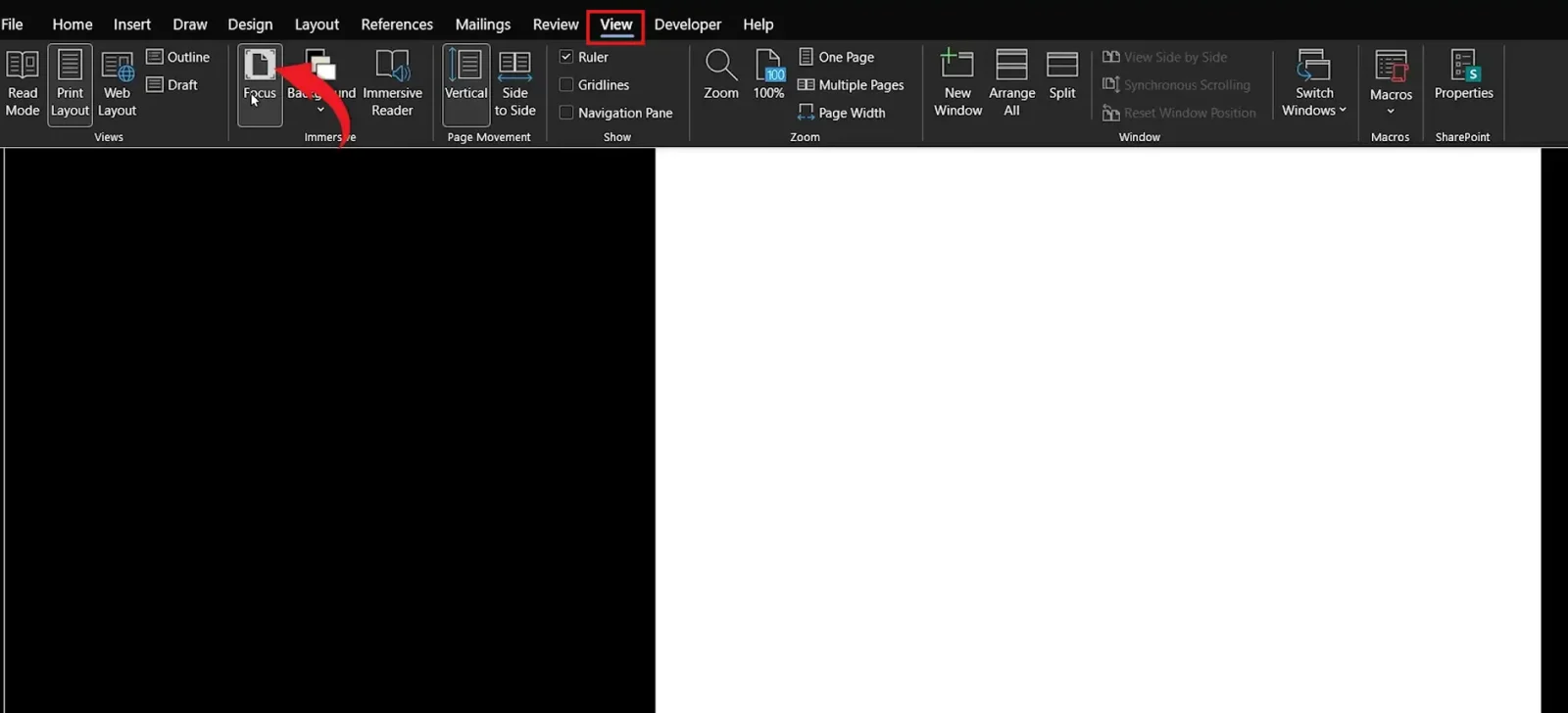
? The ribbon, sidebars, and document chrome all come back to normal view. If the interface is still dark after this, it’s a genuine Office Theme issue — go back to Method 1.
Method 5: How to Turn Off Dark Mode in Word Online
Word in the browser has a separate dark mode toggle — Office Theme settings don’t reach it because it runs through your browser, not the desktop app.
Steps to Disable Dark Mode in Word Online
- Open your document in Word for the web.
- Click the View tab.
- Find Dark Mode in the ribbon.
- Toggle it off.
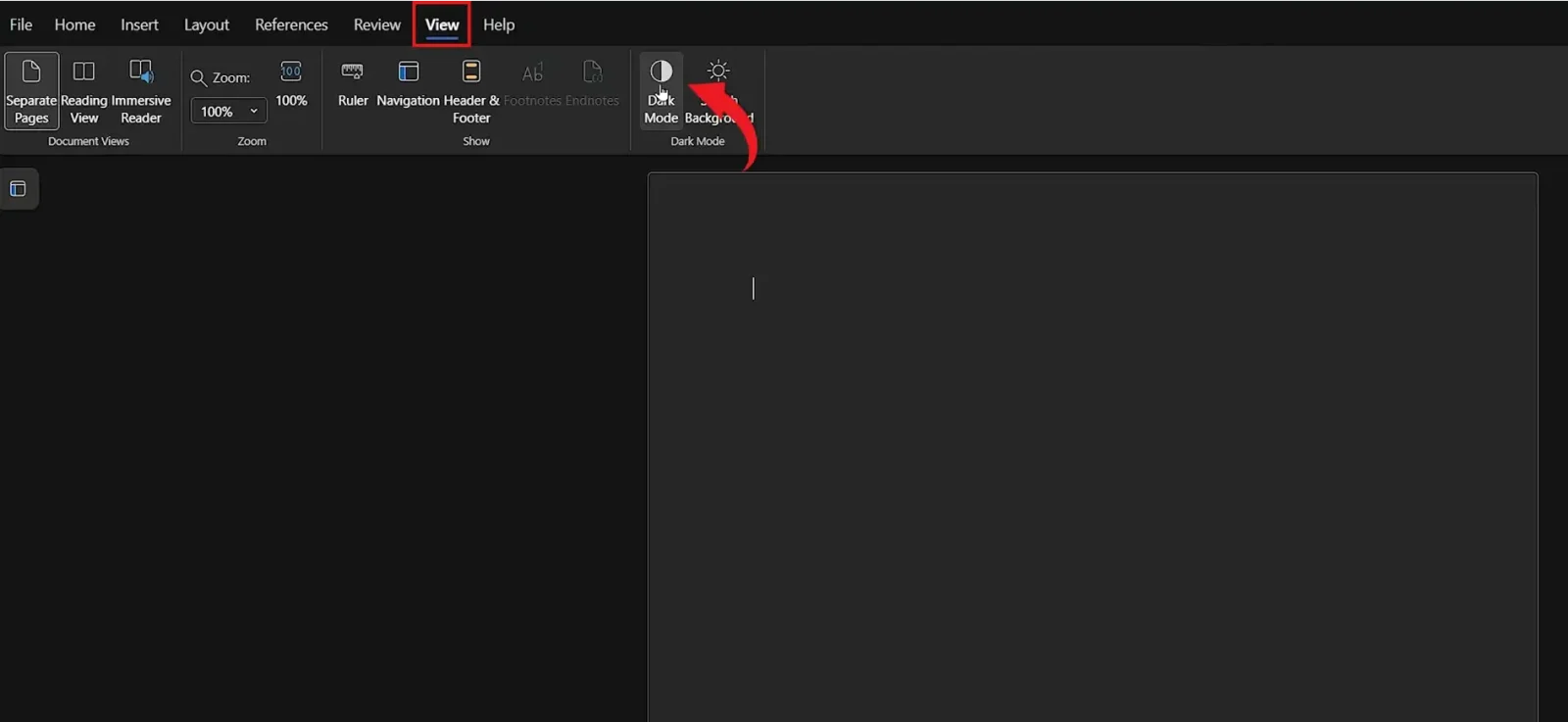
? The page and ribbon switch back to white instantly. The setting saves to your Microsoft account, so it’ll stick across browsers and devices.
Which Method Should You Use?
| Method | Best For | Where It Lives |
|---|---|---|
| Office Theme (Account) | Quick, Word-only change | File ? Account |
| Word Options (General) | When Account screen ignores you | File ? Options ? General |
| Windows Settings | Theme keeps reverting to dark | Settings ? Personalization |
| Focus Mode | Screen suddenly went dark with no ribbon | View tab ? Focus |
| Word Online toggle | Using Word in a browser | View tab ? Dark Mode |
? Start with Method 1 — if the change doesn’t stick, it’s Windows (Method 3) or Focus Mode (Method 4) causing it.
Keep Dark Mode but Make the Document Page White
If you like the dark ribbon and toolbars but want the actual page to stay white — the most popular setup for long writing sessions — Word has a built-in option for exactly this.
- Go to File ? Options ? General.
- Keep Office Theme set to Black or Dark Gray.
- Tick Never change the document page color.
- Click OK.
? The interface stays dark, the page stays white. Best of both — and what you see on screen now matches what prints.
Common Problems When Turning Off Dark Mode in Word
Dark Mode Won’t Turn Off No Matter What I Click
This is almost always Windows overriding Office. Check your Office Theme — if it’s set to Use system setting, the OS is in charge. Either change it to White (Method 1) or switch Windows itself to Light (Method 3). Restart Word if the change still doesn’t show.
Only the Interface Changed, Not the Document Page
The Office Theme switched but the page is still dark. Go to File ? Options ? General and tick Never change the document page color. The page will lock to white regardless of the interface theme.
Screen Is Dark and the Ribbon Has Disappeared
That’s Focus Mode, not dark mode. Press Esc to bring the ribbon back, then go to View ? Focus and toggle it off.
Settings Change but Word Looks the Same
Close every open Word document, fully quit Word, then reopen it. Theme changes sometimes need a clean restart, especially on older Office versions. If it still doesn’t apply, check for Office updates via File ? Account ? Update Options.
Pro Tips for a Comfortable Word Setup
- Use light mode for editing, reviewing, and anything you’re about to print — what’s on screen is what comes out of the printer.
- Switch to dark mode in low-light environments, but keep the page white using the Never change the document page color option.
- Speed up everything you do once your view is set — see the full Microsoft Word keyboard shortcuts cheat sheet for the shortcuts that save real time.
- Combine Read Mode (View tab ? Read Mode) with a white page for focused reviewing — easier on the eyes than full dark mode.
- If you screen-share or record tutorials, lock the theme to White — dark mode washes out badly on most projectors and recording software.
FAQs
How do I turn off dark mode in Word?
To turn off dark mode in Word, go to File ? Account ? Office Theme and select White. If the change doesn’t stick, also set Windows to Light mode via Settings ? Personalization ? Colors, since the system theme can override Office.
Why is Word stuck in dark mode?
Your Office Theme is most likely set to Use system setting, which hands control to Windows. Either change the Office Theme to White, or switch your Windows app mode to Light.
Can I keep dark mode but make the page white?
Yes. Go to File ? Options ? General, keep the Office Theme on Black or Dark Gray, and tick Never change the document page color. The ribbon stays dark, the page stays white.
Does dark mode affect printing?
No. Dark mode only changes how Word looks on screen. Documents always print with their actual page colour — usually white — regardless of your interface theme.
How do I turn off dark mode in Word Online?
Open the document in your browser, click the View tab, and toggle Dark Mode off. Word Online uses its own setting that’s separate from the desktop app’s Office Theme.
Do I need to restart Word after changing settings?
Usually not — the change is instant. If it doesn’t apply, close every Word document, quit Word fully, and reopen it. That clears any cached theme state.
Can I turn off dark mode in Word but keep it in Excel and PowerPoint?
Not really — Office Theme is a shared setting across all Microsoft 365 apps. If you change it in Word, it changes everywhere. The closest workaround is setting Windows to Light mode and leaving individual apps to follow the system.
Conclusion
Once you know which layer controls the appearance — Office Theme, Word Options, Windows, Focus Mode, or the Word Online toggle — turning off dark mode in Word is a thirty-second job. Start with Method 1, work down the list if it doesn’t stick, and check Windows settings if Word keeps reverting on its own.
Lock in the right view, then speed up the rest of your workflow — the Format Painter in Microsoft Word is one of the fastest ways to clean up formatting once your interface is set the way you want it.
Related Tutorials
- How to Change Background Colour in Word
- How to Add a Background in Microsoft Word
- How to Use Format Painter in Microsoft Word

Recent Microsoft Word Tutorials

Looking for more help with Microsoft Word? Browse all step-by-step Word tutorials covering formatting, layout, pages, and document setup.
? View all Microsoft Word tutorials: https://wordmadeeasy.halmanweb.com/microsoft-word/
? Need more support – check out the official guidance: https://support.microsoft.com/en-au

Prefer watching instead of reading? Many Word tutorials are also available as short, step-by-step videos on the Word Made Easy YouTube channel.