To duplicate a page in Word, you copy its content and paste it onto a new page — and if you work with longer structured documents, the Navigation Pane gives you an even faster way to copy entire sections at once. For more on managing content in Word, see the guide on how to delete an extra page in Word.
In this guide, you’ll learn two methods to duplicate pages and sections in Word, how to choose the right approach for your document, and fixes for the most common problems.
Why Duplicate a Page in Word?
Word doesn’t include a dedicated Duplicate Page button — unlike PowerPoint, where right-clicking a slide gives you that option instantly. Instead, you replicate pages by copying content and pasting it onto a new page.
This is useful when:
- Building templates with repeated layouts
- Creating forms or worksheets that repeat across pages
- Expanding reports with identical section structures
- Reusing consistent formatting without rebuilding it
- Duplicating entire document chapters in long-form work
Watch the Video Tutorial
If you prefer to see this in action, the full video walkthrough is below, showing each method step by step.
How to Duplicate a Page in Word: Step-by-Step
There are two methods: copy-paste for single pages, and the Navigation Pane for duplicating entire headed sections in longer documents.
Method 1: How to Duplicate a Page in Word Using Copy-Paste
This is the fastest approach for single-page documents — forms, letters, flyers, or any document where you want an identical second page without needing the Navigation Pane.
Steps:
- Click anywhere in your Word document.
- Press Ctrl + A to select all content on the page.
- Press Ctrl + C to copy.
- Click at the very end of the page content.
- Press Ctrl + Enter to insert a page break.
- Click on the new blank page.
- Press Ctrl + V to paste.

? You now have an exact duplicate of the original page. If the formatting shifts after pasting, click the Paste Options button that appears and select Keep Source Formatting.
For longer documents with chapters or sections, this method lets you duplicate an entire headed section in a few clicks — without manually selecting every line of content.
Step 1: Apply a Heading Style
- Select the title of the section you want to duplicate.
- Click the Home tab.
- In the Styles group, click Heading 1 (or the appropriate heading level).
? Word now recognises this as a section it can display in the Navigation Pane.
Step 2: Open the Navigation Pane
- Click the View tab.
- Tick the Navigation Pane checkbox in the Show group.
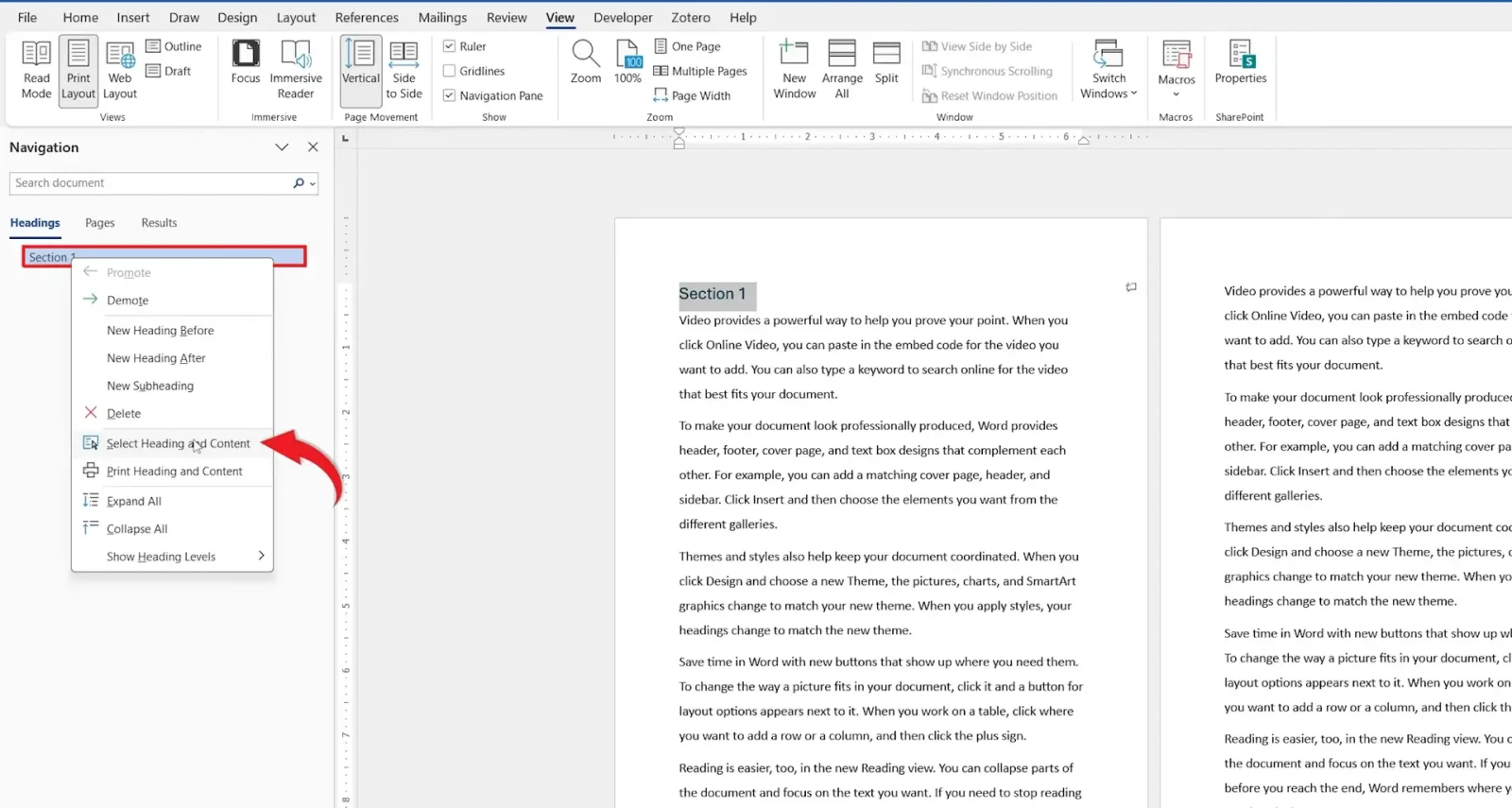
? The Navigation Pane opens on the left, showing your document’s headings as a clickable list.
Step 3: Select and Duplicate the Section
- Right-click the heading in the Navigation Pane.
- Select Select Heading and Content.
- Press Ctrl + C to copy.
- Click the location in your document where you want the duplicate to appear.
- Press Ctrl + V to paste.
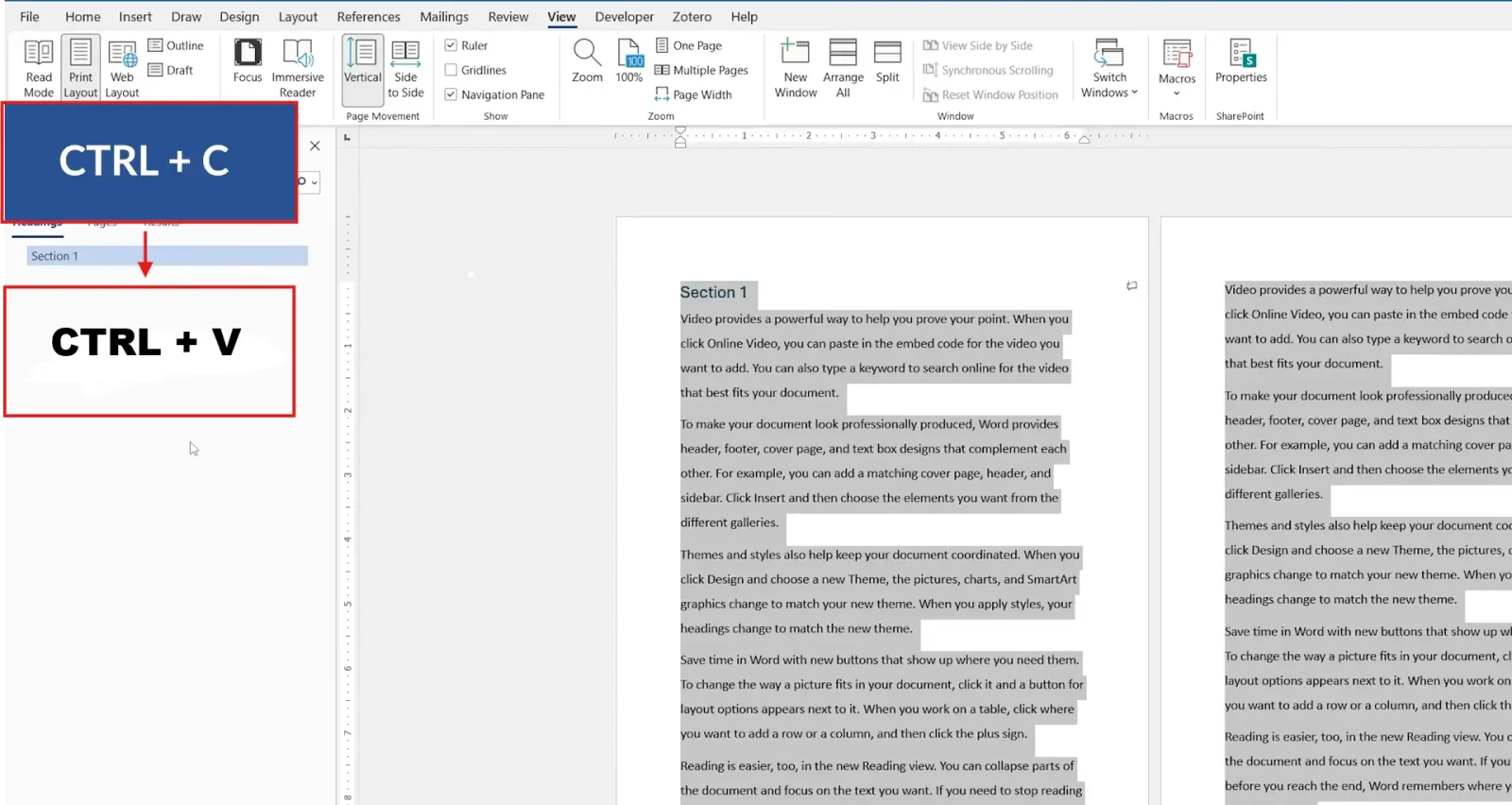
? The entire section — heading and all content beneath it — is duplicated at the cursor position. Repeat Ctrl + V to paste additional copies.
Which Method Should You Use?
- Single page or short document? Use Method 1 — select all, copy, insert a page break, paste.
- Long document with headings? Use Method 2 — the Navigation Pane selects an entire section in one right-click.
- Need to duplicate the same section multiple times? Method 2 is faster — paste repeatedly with Ctrl + V.
Common Problems When Duplicating a Page in Word
Formatting Changes After Pasting
When you paste, a small Paste Options icon appears near the pasted content. Click it and select Keep Source Formatting to preserve fonts, spacing, and styles from the original page.
Page Break Not Creating a New Page
Use Ctrl + Enter to insert a hard page break. Pressing Enter repeatedly only adds blank lines — it doesn’t force a new page and will cause layout problems when content is added later.
Navigation Pane Not Showing Headings
The Navigation Pane only displays text formatted with Word’s built-in Heading styles. If your section titles are bold or large text without a Heading style applied, they won’t appear. Select the title and apply Heading 1 from the Styles group on the Home tab.
Duplicate Content Appears in the Wrong Location
Word pastes content exactly where the cursor is. Click to position your cursor at the precise insertion point before pressing Ctrl + V. If it lands in the wrong place, press Ctrl + Z to undo, reposition, and paste again — for more on managing your document layout, see the guide on how to use different page numbers in Word.
Pro Tips for Duplicating Pages in Word
- Use section breaks for independent formatting. If each duplicated page needs its own headers, footers, or page numbering, insert a Section Break (Next Page) from Layout ? Breaks instead of a standard page break.
- Save reusable pages as Quick Parts. Select the page content, go to Insert ? Quick Parts ? Save Selection to Quick Part Gallery — you can then insert the page in any document without reopening the original.
- Paste multiple copies in one go. After copying, position your cursor and press Ctrl + V repeatedly — each press adds another copy without re-copying the source.
- Keep your heading structure consistent. When using Method 2, heading levels determine what the Navigation Pane groups together — for a full overview of document structure tools, see the guide on how to insert a hyperlink in Word to link between sections once your structure is in place.
FAQs
How do I duplicate a page in Word?
Select all content with Ctrl + A, copy with Ctrl + C, insert a page break with Ctrl + Enter, then paste with Ctrl + V. This duplicates the page exactly.
Does Word have a duplicate page button?
No. Word doesn’t include a one-click duplicate page feature. You duplicate pages by copying content and pasting it onto a new page using a page break.
What is the keyboard shortcut to duplicate a page in Word?
There’s no single shortcut. The fastest sequence is Ctrl + A ? Ctrl + C ? move to end ? Ctrl + Enter ? Ctrl + V.
Why doesn’t my Navigation Pane show headings?
The Navigation Pane only lists text formatted with Word’s built-in Heading styles. Apply Heading 1 (or another level) from the Home tab to make section titles visible in the pane.
Will duplicating a page preserve all formatting?
Yes, if you select Keep Source Formatting from the Paste Options icon after pasting. Without this, Word may apply the destination document’s default styles.
Can I duplicate a page in Word Online?
Yes. The copy-paste method works in Word Online, though the Navigation Pane in the browser version has limited functionality compared to the desktop app.
Can I duplicate multiple pages at once?
Yes. Select all content across multiple pages, copy, position your cursor at the target location, and paste. For sections with headings, use the Navigation Pane method — right-click each heading and select Select Heading and Content before copying.
Conclusion
There’s no dedicated button to duplicate a page in Word, but both methods covered here are quick once you know the steps.
Use Method 1 — copy, page break, paste — for single pages and short documents. Use Method 2 — Navigation Pane with Heading styles — whenever you’re working on reports, manuals, or any document where sections repeat.
Once your duplicated pages are in place, it’s worth reviewing how your document is structured overall — the guide on how to delete an extra page in Word covers exactly what to do if the paste adds unwanted blank pages to your document.
Related Tutorials
- How to Delete an Extra Page in Word
- How to Use Different Page Numbers in Word
- How to Use Double Line Spacing in Word

Recent Microsoft Word Tutorials

Looking for more help with Microsoft Word? Browse all step-by-step Word tutorials covering formatting, layout, pages, and document setup.
? View all Microsoft Word tutorials: https://wordmadeeasy.halmanweb.com/microsoft-word/
? Need more support – check out the official guidance: https://support.microsoft.com/en-au

Prefer watching instead of reading? Many Word tutorials are also available as short, step-by-step videos on the Word Made Easy YouTube channel.