Knowing how to remove headers and footers in Word is essential the moment a template stops working for you — cover pages need a clean top, reports need different sections, and sometimes you just want the page back to plain text.
In this guide, you’ll learn three reliable methods to remove headers and footers in Microsoft Word — full document removal, first-page-only removal, and section-by-section removal for documents that mix layouts. If you’re working with page numbering at the same time, the guide on how to remove page numbers in Word covers the related cleanup.
Headers and footers are the top and bottom strips of every Word page — they sit outside the main body area and repeat automatically across every page in the document unless you tell Word otherwise.
They’re typically used for:
- Page numbers and section markers
- Document titles and chapter names
- Author names, dates, and version numbers
- Confidentiality notices and watermarks
- Company logos and branding strips
If you also need to insert them before removing them, see how to insert page numbers in Word for the matching setup guide.
Watch the Video Tutorial
If you prefer to see this in action, the full video walkthrough is below, showing each method step by step.
There are three reliable ways to remove headers and footers in Word, and the right one depends on the scope. Full removal wipes them from every page, the Different First Page option clears just the opening page, and section breaks let you remove headers and footers from specific page ranges.
This is the fastest method when you want them gone everywhere — the built-in Remove command strips them from every page in a single click.
Steps:
- Go to the Insert tab
- Click Header
- Choose Remove Header at the bottom of the menu
- Click Footer
- Choose Remove Footer
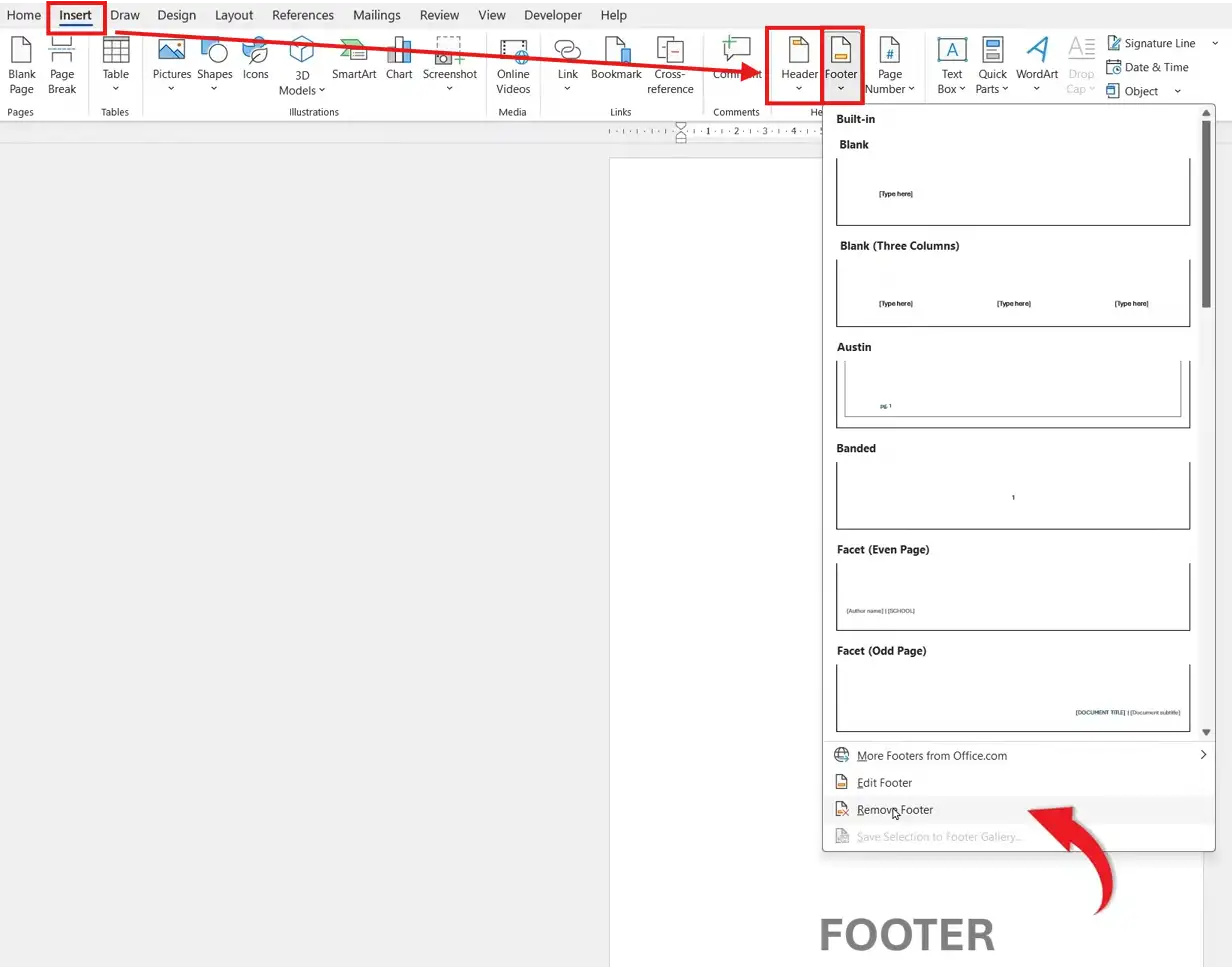
? Both header and footer disappear from every page instantly. The Remove command also clears any page numbers, dates, or images that lived inside them — so use Method 2 or 3 if you only want to wipe one page or one section.
This is the right method for reports, assignments, and any document with a dedicated cover page that needs a clean opening while the rest of the document keeps its headers and footers intact.
Steps:
- Double-click the header area at the top of the first page
- The Header & Footer contextual tab opens automatically
- Tick the Different First Page checkbox
- Delete any content showing in the first page header and footer
- Click Close Header and Footer
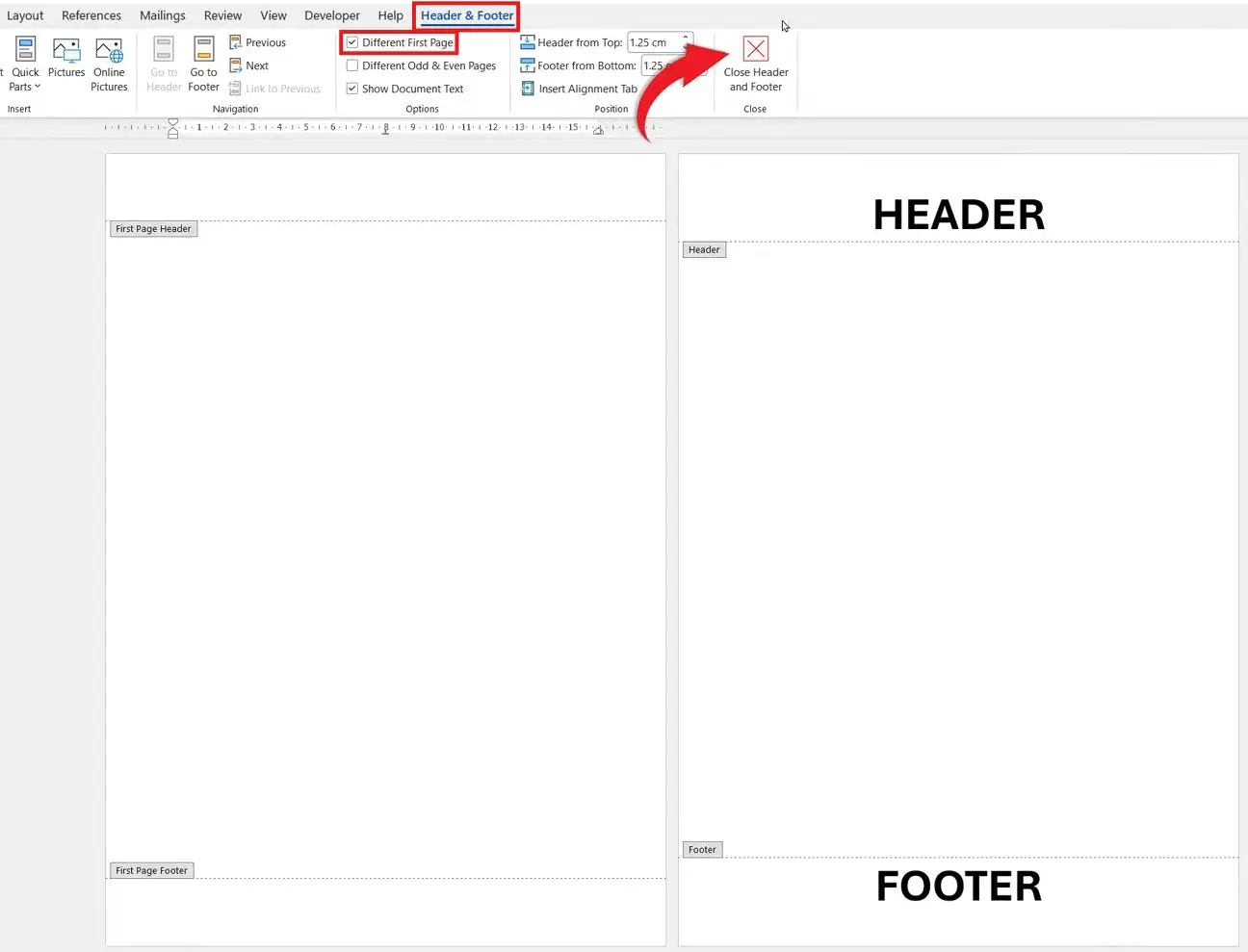
? The first page now has its own independent header and footer — empty by default — while pages 2 onwards keep whatever you had before. The setting is per-document, so it sticks every time you reopen the file.
This is the power-user method for longer documents — reports with separate chapters, books with front matter, or anything where different page ranges need different headers and footers.
Steps:
- Place your cursor at the start of the page where you want the change
- Go to Layout ? Breaks ? Next Page to insert a section break
- Double-click the header or footer in the new section
- In the Header & Footer tab, click Link to Previous to switch it off
- Delete the header or footer content — it now only affects this section
- Click Close Header and Footer
? The Link to Previous button is the critical step — without unlinking, Word treats every section as one continuous header and your deletion wipes the whole document. For a deeper walkthrough of section breaks in action, see how to put different footers on each page in Word.
Which Method Should You Use?
| Method | Best For | Speed |
|---|---|---|
| Insert ? Remove | Wiping headers and footers from the whole document | Fastest |
| Different First Page | Cover pages and title pages that need a clean top | Fast |
| Section breaks | Multi-chapter or mixed-layout documents | Slowest |
The header still appears on other pages
You probably deleted content manually instead of using the Remove command. The header area itself is still active — go to Insert ? Header ? Remove Header to clear it properly.
The Different First Page option didn’t remove anything
Ticking the box only enables a separate first-page header — you still need to delete the existing content from the first page header and footer manually. Double-click the first page header, select everything inside, and press Delete.
Removing one section’s header deleted them all
You forgot to switch off Link to Previous before deleting. Press Ctrl + Z to undo, double-click the header in your target section, click Link to Previous to break the chain, then delete again.
The header is gone but blank space remains at the top
This is page margin space, not the header. Go to Layout ? Margins ? Custom Margins and reduce the Top margin value to tighten the page top.
Pro Tips
- Double-click anywhere in the header or footer area to jump straight into editing mode — much faster than navigating through the Insert tab
- Removing a header or footer also removes any page numbers inside it — use the dedicated page number removal method if you want to keep the header but lose the numbering
- The Different First Page setting also works for cover pages auto-generated via Insert ? Cover Page — they enable it automatically
- If you need different numbering formats across sections (Roman numerals for front matter, Arabic for body), the section break technique here also powers different page numbers in Word
FAQs
How do I remove headers and footers in Word from all pages?
Go to Insert ? Header ? Remove Header, then repeat with Insert ? Footer ? Remove Footer. Both clear instantly from every page in the document.
How do I remove a header only from the first page?
Double-click the first page header, tick Different First Page in the Header & Footer tab, then delete the content from the first page header and footer. Pages 2 onwards stay intact.
Why is my header still appearing after I deleted it?
Deleting text inside a header only empties it — the header area is still active. Use Insert ? Header ? Remove Header to clear it properly, or check whether section breaks are keeping a copy active elsewhere.
Can I have different headers on each page?
Yes, but each page needs its own section. Insert a Next Page section break before every page that needs a different header, unlink it from the previous section, then edit each header independently.
Is removing a header in Word permanent?
No. Headers and footers can be re-added at any time through Insert ? Header or Insert ? Footer, and the same Remove command works in reverse with a fresh built-in design.
Can I remove the header but keep the page numbers?
Yes, if your page numbers live in the footer. Use Insert ? Header ? Remove Header on its own — this leaves the footer (and any page numbers in it) untouched.
Can I remove headers from odd or even pages only?
Yes. Double-click any header, tick Different Odd & Even Pages in the Header & Footer tab, then delete the content from whichever odd or even header you want clear.
Conclusion
Knowing how to remove headers and footers in Word is a small skill that fixes a surprising number of layout problems — clean cover pages, mixed numbering schemes, and document sections that need their own identity all come down to these three methods.
Pick the right scope for the job — full removal for cleanup, Different First Page for cover pages, section breaks for mixed layouts — and pair it with how to remove page numbers in Word to finish the cleanup properly.
Related Tutorials
- How to Insert Page Numbers in Word
- How to Put Different Footers on Each Page in Word
- Different Page Numbers in Word

Recent Microsoft Word Tutorials

Looking for more help with Microsoft Word? Browse all step-by-step Word tutorials covering formatting, layout, pages, and document setup.
? View all Microsoft Word tutorials: https://wordmadeeasy.halmanweb.com/microsoft-word/
? Need more support – check out the official guidance: https://support.microsoft.com/en-au

Prefer watching instead of reading? Many Word tutorials are also available as short, step-by-step videos on the Word Made Easy YouTube channel.