If you want to learn how to insert page numbers in Word, this guide covers the 4 easy steps. Knowing how to insert page numbers in Word keeps your documents organised and easy to navigate – essential for reports, assignments, and professional documents. You’ll learn how to insert page numbers in Word using the Insert tab, choose where they appear, and verify they’re set up correctly.
Adding page numbers in Word takes just a few clicks once you know where to find them. The basic version is covered here – for advanced setups like different numbers per section or Roman numerals, see the guide on how to insert different page numbers in Word.
Why Insert Page Numbers in Word
Before you learn how to insert page numbers in Word, it helps to understand why they matter. Page numbers help:
- Improve document structure
- Make navigation easier
- Keep multi-page documents organised
- Create a more professional appearance
- Help readers reference specific pages quickly
Whether you’re working on a report or a simple document, page numbers are a must-have feature – and if you’re building a longer document, pairing them with a table of contents will make navigation even easier.
Watch the Video Tutorial
If you prefer to see this in action, the full video walkthrough is below, showing each method step by step.
How to Insert Page Numbers in Word: Step-by-Step
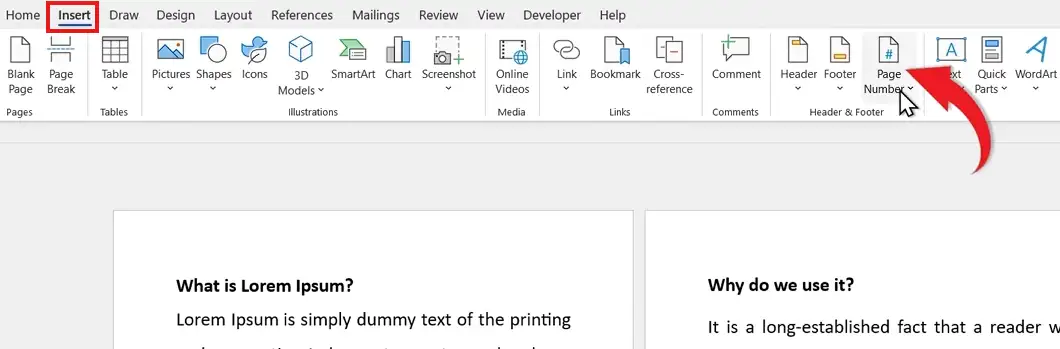
Step 1: Open the Insert Tab
To insert page numbers in Word, start at the Insert tab – this is where all of Word’s page-numbering tools live.
- Open your document in Word
- Go to the Insert tab in the ribbon
- Find the Header & Footer section
Step 2: Click the Page Number Button
The Page Number button is the core tool you’ll use to insert page numbers in Word.
- Click Page Number in the Header & Footer section
- A dropdown menu will appear showing position options
Choose where you want the numbers to appear:
- Top of Page – numbers in the header
- Bottom of Page – numbers in the footer (most common)
- Page Margins – for advanced layouts
- Current Position – wherever your cursor is
Step 3: Choose a Page Number Style
After picking a position, Word shows you a gallery of styles to choose from when you insert page numbers in Word.

Popular style options:
- Plain Number 1 – left-aligned
- Plain Number 2 – centered (most professional)
- Plain Number 3 – right-aligned
- Page X of Y – shows current page out of total
- Bold Numbers / Accent styles – for branded documents
Click your chosen style and Word automatically adds page numbers to every page in the document.
After you insert page numbers in Word, exit the header/footer editing mode to return to your document:
- Click Close Header and Footer on the ribbon, or
- Double-click anywhere in the main document area
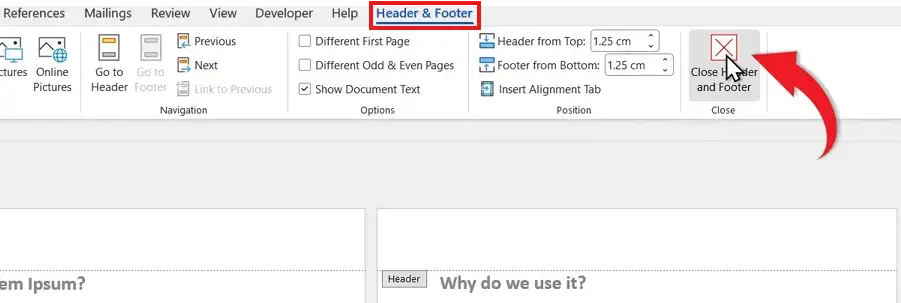
Your page numbers will remain visible at the top or bottom of every page.
How to Check Your Page Numbers
To confirm your page numbers are working correctly after you insert them in Word:
- Go to the View tab
- Click Navigation Pane
- Select Pages
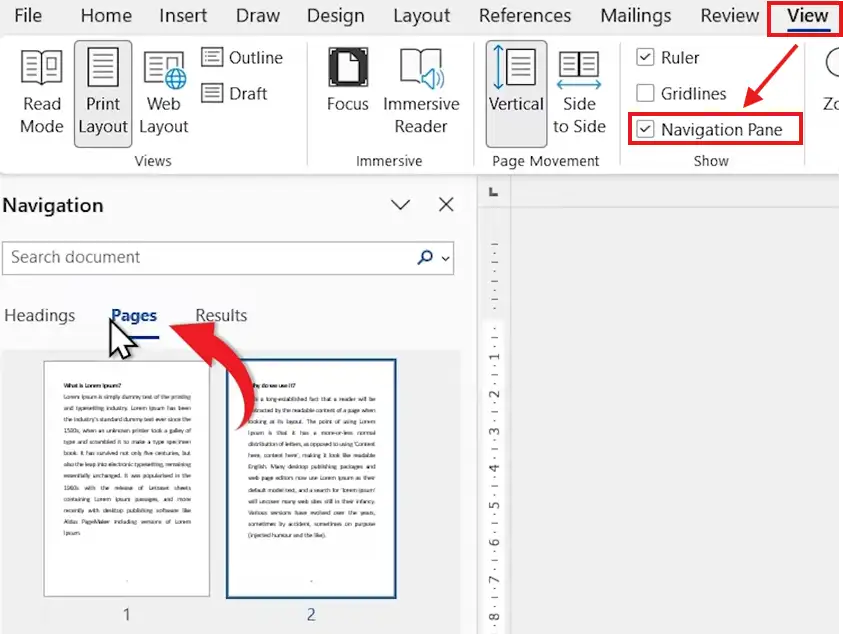
You’ll see all pages listed (Page 1, Page 2, Page 3, etc.). You can click any page to jump directly to it.
How to Remove Page Numbers in Word
If you need to remove page numbers in Word later, the process takes seconds:
- Go to the Insert tab
- Click Page Number
- Select Remove Page Numbers at the bottom of the menu
This removes page numbers from every page in the document. To remove the page number from just the first page, see the FAQ below.
Common Page Number Positions
When you insert page numbers in Word, these are the most popular placements:
- Bottom Center – most commonly used, looks clean and professional
- Top Right – common in academic papers and business reports
- Bottom Right – formal documents and contracts
- Page Margins – book-style layouts with sidebar numbers
Choose a position that matches the style of your document.
Pro Tips When You Insert Page Numbers in Word
- Use bottom center for clean, professional formatting
- Keep numbering consistent throughout the document
- Use different formats for headers and footers if needed – the guide on different footers on different pages covers this in detail
- Preview your document before sharing or printing
- For advanced setups (Roman numerals, restart numbering, different per section), see the guide on how to insert different page numbers in Word
FAQs
How do I insert page numbers in a Word document?
Go to the Insert tab, click Page Number in the Header & Footer section, choose a position (Top of Page, Bottom of Page, etc.), then pick a style. Word adds the numbers to every page automatically.
How do I add page numbers to a Word document?
The fastest way to add page numbers to a Word document is via Insert ? Page Number ? Bottom of Page ? Plain Number 2. This gives you centered numbers at the bottom of every page in seconds.
How do I remove the page number from the first page in Word?
Double-click the page number to enter the header/footer area. In the Header & Footer tab, tick Different First Page. The page number disappears from page 1 but stays on every other page.
How do I remove all page numbers in Word?
Go to Insert ? Page Number ? Remove Page Numbers. This removes page numbers from every page in the document.
How do I start page numbers from page 2 in Word?
Tick Different First Page in the Header & Footer tab to skip page 1. For more advanced setups (like restarting numbering at a specific page), see the full guide on how to insert different page numbers in Word.
Can I customise page number styles in Word?
Yes. Click Page Number ? Format Page Numbers to change formats including Roman numerals (i, ii, iii), letters (a, b, c), or standard numbers (1, 2, 3).
Why aren’t my page numbers showing in Word?
Three common causes: (1) you’re still in editing mode inside the header/footer – click outside it; (2) the header/footer area is hidden – go to View ? Print Layout; (3) the document has section breaks that disrupt numbering – check Page Number ? Format Page Numbers.
What’s the difference between a header and a page number?
A header is the entire top area of the page (where you can put document titles, dates, etc). A page number is just the number itself, which can be placed inside the header, footer, or page margin.
Conclusion
Now that you know how to insert page numbers in Word in 4 easy steps – opening the Insert tab, clicking Page Number, choosing a style, and closing header/footer view – you can add professional numbering to any document in seconds.
For most documents, bottom-center page numbers (Plain Number 2) give the cleanest, most professional look. With just a few clicks, your document is easier to read, navigate, and share.
Related Tutorials
- How to Insert Different Page Numbers in Microsoft Word
- Different Footers on Different Pages
- How to Create a Table of Contents in Microsoft Word

Recent Microsoft Word Tutorials

Looking for more help with Microsoft Word? Browse all step-by-step Word tutorials covering formatting, layout, pages, and document setup.
? View all Microsoft Word tutorials: https://wordmadeeasy.halmanweb.com/microsoft-word/
? Need more support – check out the official guidance: https://support.microsoft.com/en-au

Prefer watching instead of reading? Many Word tutorials are also available as short, step-by-step videos on the Word Made Easy YouTube channel.
Use This Method for Simple, Continuous Page Numbers
This guide is for documents that need one continuous sequence, such as 1, 2, 3 throughout the file. It covers the quickest way to insert page numbers, choose their position and change the starting number without dividing the document into separately formatted sections.
If your cover, contents and main text need different numbering styles or different starting values, use the guide to using different page numbers in one Word document instead.