You can create barcodes in Word using the built-in DISPLAYBARCODE field — no fonts to install, no add-ons, no external tools. It generates Code 128, Code 39, EAN-13, and UPC-A codes directly inside your document. This works in Word 2016, 2019, 2021, and Microsoft 365.
In this guide, you’ll learn how to create barcodes in Word step by step, edit an existing barcode, and switch between the main barcode systems for retail, inventory, and internal use.
What You Need Before You Start
Before you create barcodes in Word, have these ready:
- A product ID or number
- The correct digit count for your barcode type (13 for EAN-13, 12 for UPC-A)
- The barcode system you want — Code 128, Code 39, EAN-13, or UPC-A
Watch the Video Tutorial
If you prefer to see this in action, the full video walkthrough is below, showing each method step by step.
How to Create Barcodes in Word: Step-by-Step
Barcodes in Word are built from a field code. Once you know the four steps, you can produce and edit any supported type.
Method 1: How to Create Barcodes in Word Using the DISPLAYBARCODE Field
This is the core method every barcode type uses.
Steps
- Click where you want the barcode to appear.
- Press Ctrl + F9 to insert the field brackets
{ }. - Inside the brackets, type
DISPLAYBARCODE "12345678" CODE128and replace the number with your product ID. - Highlight the whole field and press F9 to update it.
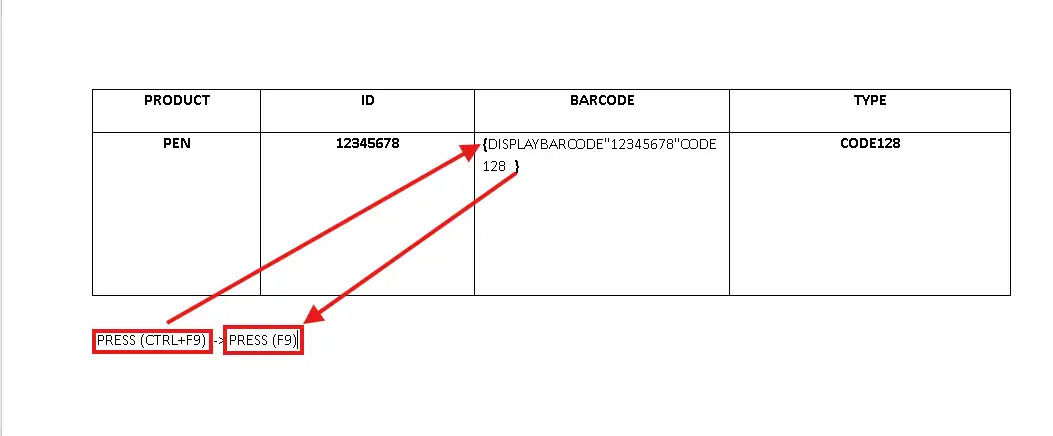
? Your barcode appears instantly, generated straight from the field code.
Understanding the Barcode Field Code
Every barcode follows the same structure:
DISPLAYBARCODE "ProductID" BarcodeType
- ProductID — your unique number, in quotes
- BarcodeType — the format, e.g.
CODE128orCODE39
Change the type keyword and the same field produces a different barcode — field codes power other automation too, such as how to insert a word counter in Word that updates on its own.
Method 2: How to Create Barcodes in Word by Editing an Existing One
Reuse a barcode instead of building each one from scratch.
Steps
- Right-click the barcode.
- Select Toggle Field Codes.
- Change the number or the barcode type.
- Press F9 to update.
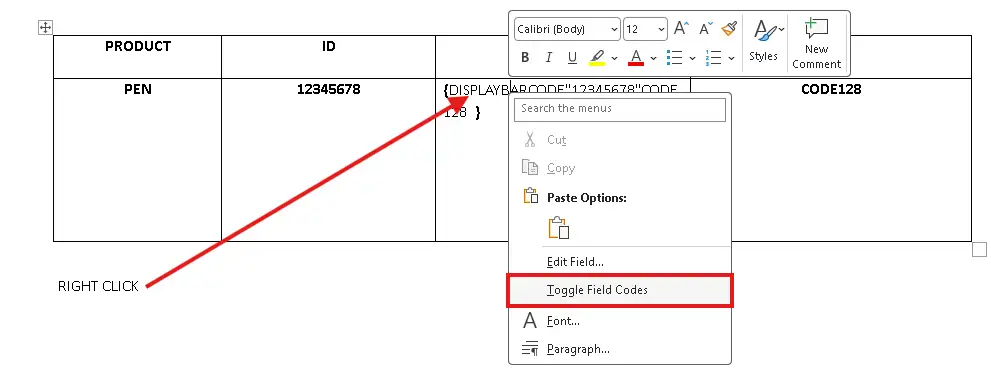
? The barcode redraws from the edited code — the fastest way to make a batch.
Barcode Types You Can Use in Word
Code 128 (most flexible)
Supports letters, numbers, and symbols with no strict length — best for general use.
DISPLAYBARCODE "12345678" CODE128
Code 39
Uppercase letters and numbers — common in inventory systems. Just swap the type:
DISPLAYBARCODE "ABC12345" CODE39
EAN-13 (retail)
Used in retail and global trade. Enter the 12 data digits and Word calculates the 13th check digit for you.
DISPLAYBARCODE "123456789012" EAN13
UPC-A
Common in North America. Enter the 11 data digits; Word adds the 12th check digit.
DISPLAYBARCODE "12345678901" UPCA
Which Barcode Should You Use?
| Type | Best for | Digits |
|---|---|---|
| Code 128 | General use, mixed characters | Any length |
| Code 39 | Inventory, warehouse labels | Any length |
| EAN-13 | Retail products worldwide | 12 data + check |
| UPC-A | Retail in North America | 11 data + check |
Common Problems When Creating Barcodes in Word
The field shows as text, not a barcode
You typed the field without updating it. Highlight the whole field and press F9. The brackets must come from Ctrl + F9, not typed manually.
EAN-13 or UPC-A won’t generate
The digit count is wrong. EAN-13 needs 12 data digits and UPC-A needs 11 — Word adds the final check digit. An incorrect length throws an error.
The barcode won’t scan
It’s printed too small or the type doesn’t match your scanner. Increase the size and print at high quality; keep clear white space around the code.
Edits don’t show up
Word doesn’t refresh field codes automatically. After any change, select the barcode and press F9 again to redraw it.
Pro Tips for Faster Barcodes
- Build one barcode, then copy, paste, and edit the code for the rest.
- Keep your product IDs in a list so you can paste them straight into the field.
- Learn the field-code keys once and the rest is speed — the Microsoft Word keyboard shortcuts cheat sheet covers Ctrl + F9, F9, and more.
- Building a product or inventory sheet? Add a fillable form in Word so people can enter data directly.
FAQs
How do I create barcodes in Word?
To create barcodes in Word, press Ctrl + F9, type DISPLAYBARCODE "yourID" CODE128 inside the brackets, then highlight it and press F9.
Do I need a barcode font in Word?
No. The DISPLAYBARCODE field is built in, so no fonts or add-ons are required.
Why isn’t my barcode working?
Usually the digit count or type is wrong, or the field wasn’t updated — highlight it and press F9.
Can I create multiple barcodes quickly?
Yes. Copy an existing barcode, use Toggle Field Codes to edit the number, and press F9.
Which barcode type should I use?
Use Code 128 for general flexibility, and EAN-13 or UPC-A for retail products that need standard formats.
Will barcodes made in Word scan properly?
Yes, as long as the format and digit count are valid and the barcode is printed clearly at a readable size.
Can I use these barcodes on product labels?
Yes — Code 128 and Code 39 suit internal labels, while EAN-13 and UPC-A are the standards for retail sale.
Conclusion
You can create barcodes in Word with a single field code — no fonts, no add-ons — and switch between Code 128, Code 39, EAN-13, and UPC-A by changing one keyword.
Once the structure clicks, editing and reusing barcodes takes seconds. To keep automating your documents, try adding a QR code in Word using the same field-code approach.
Related Tutorials
- How to Create a QR Code in Word
- How to Insert a Word Counter in Word
- How to Create a Fillable Form in Word

Recent Microsoft Word Tutorials

Looking for more help with Microsoft Word? Browse all step-by-step Word tutorials covering formatting, layout, pages, and document setup.
? View all Microsoft Word tutorials: https://wordmadeeasy.halmanweb.com/microsoft-word/
? Need more support – check out the official guidance: https://support.microsoft.com/en-au

Prefer watching instead of reading? Many Word tutorials are also available as short, step-by-step videos on the Word Made Easy YouTube channel.