Learning how to create bulleted lists in Word gives you a quick way to organise related items without numbering them. You can turn existing lines into bullets or start a new list from scratch — and if you want to tidy the surrounding formatting too, see how to change line spacing in Word.
In this guide, I’ll show you both methods, plus how to change the bullet style before or after you create your list.
What Is a Bulleted List in Word?
A bulleted list separates related items with a symbol rather than numbers. It’s useful when the order of the items doesn’t matter, such as a list of fruit, features, requirements, or things to remember.
Common uses include:
- Shopping and ingredient lists
- Project requirements and notes
- Lists of features, ideas, or examples
Word supports several bullet styles, and you can change the appearance of a list after you’ve created it. Microsoft also documents creating lists from existing text and changing bullet styles in Word. See Microsoft’s official guide to creating bulleted or numbered lists.
Watch the Video Tutorial
If you prefer to see this in action, the full video walkthrough is below, showing each method step by step.
How to Create Bulleted Lists in Word: Step-by-Step
Method 1: How to Create Bulleted Lists in Word from Existing Text
Use this method when you’ve already typed each list item on a separate line.
Select the text you want to bullet
Select all the lines you want to turn into a bulleted list. For example, you might have a list containing:
- Apples
- Bananas
- Oranges
Apply the bullets
- Go to the Home tab.
- Find the Paragraph group.
- Click Bullets.
- Choose the bullet style you want.

? Each selected line is now a separate bullet point.
Change the bullet style
If you want a different appearance, select the list and click the downward arrow next to Bullets. Choose another style from the gallery.
? The selected bullet style is applied to the list.
Method 2: How to Create Bulleted Lists in Word from Scratch
Use this method when you haven’t typed the list yet and want Word to create each bullet as you work — and if you’re tidying a longer document afterwards, you can also alphabetise a list in Word.
Choose a bullet style before typing
- Place your cursor where you want the list to begin.
- Click the downward arrow next to Bullets on the Home tab.
- Choose your preferred bullet style.
- Type the first item in your list.
- Press Enter to move to the next bullet.
- Continue typing each item.
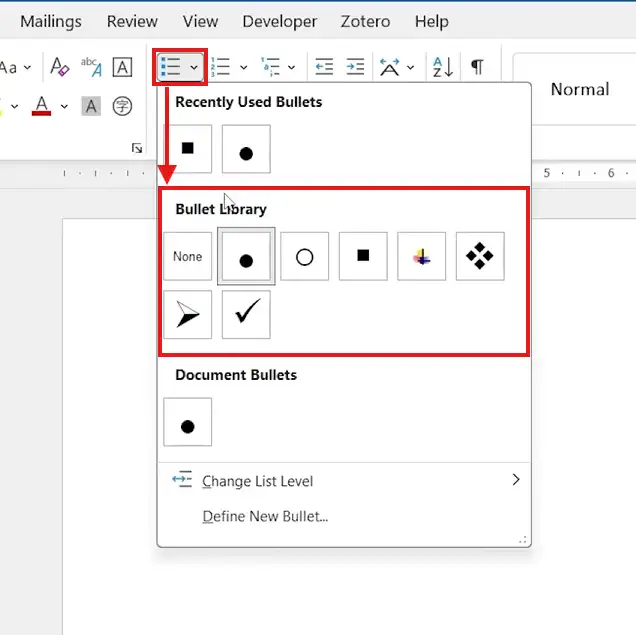
? Word automatically places a new bullet each time you press Enter.
Stop the bulleted list
When you’ve finished your list, press Enter twice. Word stops the bullet formatting and moves you to a normal paragraph.
? Your list ends cleanly, and the next paragraph is no longer part of the bullets.
Which Method Should You Use?
Quick Recommendation
If you’ve already typed the items, use Method 1. If you’re starting with a blank line, Method 2 is faster.
| Method | Best For | What You Do |
|---|---|---|
| Method 1 | Existing text | Select the text and click Bullets |
| Method 2 | A new list | Choose Bullets, then type |
| Change style | Existing list | Use the arrow next to Bullets |
Common Problems When Creating Bulleted Lists in Word
Bullets are not appearing
Make sure you’ve selected the text you want to format, then go to Home ? Bullets. If you’re starting a new list, click Bullets before typing.
Only one bullet appears
Check that each list item is on its own paragraph. Press Enter between items rather than inserting line breaks within the same paragraph.
The wrong bullet style is selected
Click the downward arrow beside Bullets and choose another style from the available gallery.
The bullets keep appearing
Press Enter twice at the end of the list. This turns off the bulleted-list formatting.
Pro Tips for Creating Bulleted Lists in Word
- Keep each list item on its own paragraph so Word can format the bullets correctly.
- Choose the bullet style before typing if you already know how you want the finished list to look.
- Indent a bullet with Tab to create sub-levels — and for aligning wrapped list text neatly, see how to create a hanging indent in Word.
- Press Enter twice when you want to finish a list and return to normal paragraph text.
FAQs
How do I create bulleted lists in Word?
To create bulleted lists in Word, select your existing text and choose Home ? Bullets, or select a bullet style first and then start typing.
How do I make a bulleted list in Word?
To make a bulleted list in Word, go to Home, click Bullets, and type your items. Press Enter between each item.
How do I add bullets to existing text in Word?
Select the existing lines, then choose Home ? Bullets. Each selected paragraph becomes a separate bulleted item.
How do I change the bullet style in Word?
Click the downward arrow next to Bullets and select another style from the gallery. You can do this before creating the list or after selecting an existing list.
How do I create a sub-bullet in Word?
Place your cursor at the start of a bullet and press Tab. Word demotes that item to a sub-level with its own bullet style.
How do I stop a bulleted list in Word?
Press Enter twice after the final item. Word stops the list formatting and returns to normal text.
Can I create a bulleted list before typing?
Yes. Select a bullet style from Home ? Bullets before typing the first item, then press Enter for each new bullet.
Conclusion
Learning how to create bulleted lists in Word gives you two practical options: convert existing lines into bullets or start a new list directly from the Bullets menu.
Use Home ? Bullets to apply a list style, press Enter between items, and press Enter twice when you’re finished. You can also change the bullet style at any point.
Once your lists are formatted, you can improve the overall document structure with How to Create a Table of Contents in Word.
Related Tutorials

Recent Microsoft Word Tutorials

Looking for more help with Microsoft Word? Browse all step-by-step Word tutorials covering formatting, layout, pages, and document setup.
? View all Microsoft Word tutorials: https://wordmadeeasy.halmanweb.com/microsoft-word/
? Need more support – check out the official guidance: https://support.microsoft.com/en-au

Prefer watching instead of reading? Many Word tutorials are also available as short, step-by-step videos on the Word Made Easy YouTube channel.