To open a Word document in Google Docs, upload the DOCX file to Google Drive and then save a converted copy as a Google Doc. Your original Word file remains available, so you can keep both versions — and if you also need a fixed copy for sharing, see how to save a Word document as a PDF.
In this guide, you’ll learn how to upload your Word document, find it in Google Drive, and convert it into a genuine Google Doc without deleting your original file.
What Is Opening a Word Document in Google Docs?
A Word document normally uses the .docx file format. Google Drive can upload that file and let you open it in Google Docs, but there is an important distinction: opening the uploaded file is not the same as converting it into a native Google Doc.
There are two useful stages:
- Upload: put your existing Word document into Google Drive.
- Open: double-click the uploaded file to view it through Google Docs.
- Convert: use File ? Save as Google Docs to create a native Google Doc.
Watch the Video Tutorial
If you prefer to see this in action, the full video walkthrough is below, showing each method step by step.
How to open a word document in Google Docs: Step-by-Step
Method 1: How to open a word document in Google Docs by uploading it
Start with the Word file saved on your computer. You will upload that file to Google Drive before opening it in Google Docs.
Upload the Word document to Google Drive
- Open Google Drive in your web browser.
- Click New
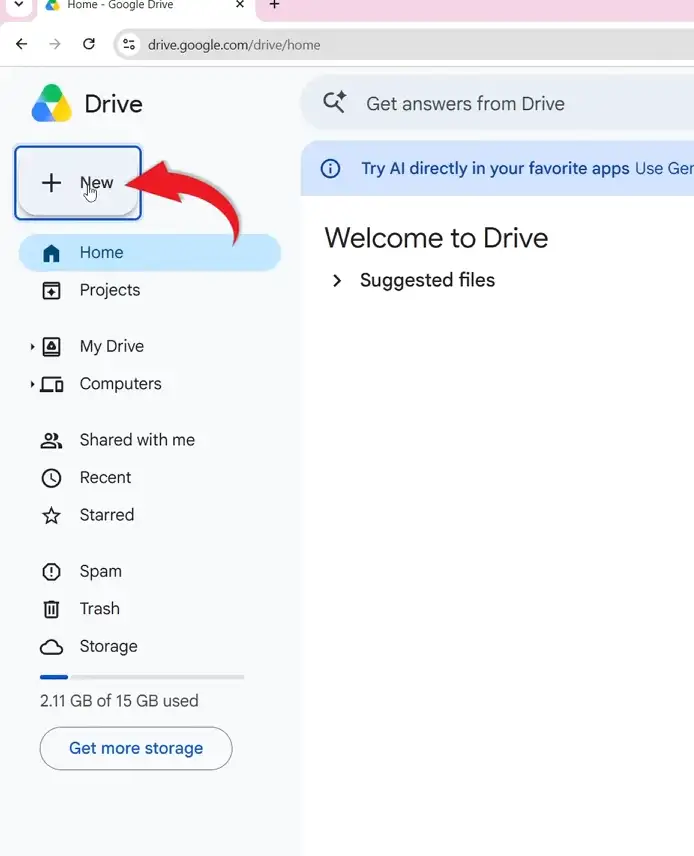
- Select File upload.
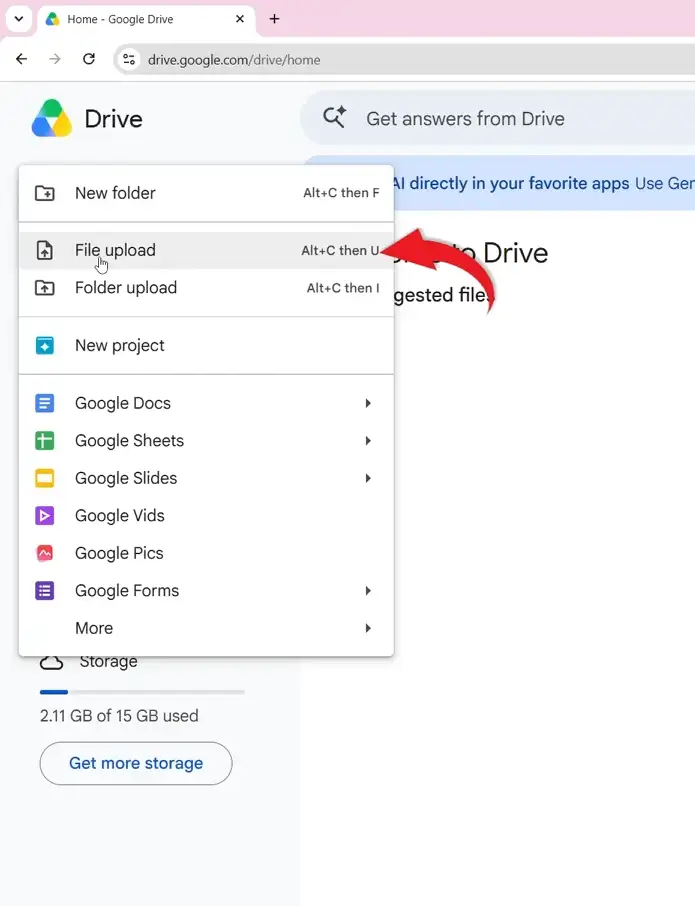
- Navigate to the folder where your Word document is saved.
- Select the file and click Open.
- Wait for the upload to finish. The time depends on your internet connection and the size of the file.
? Your Word document is now stored in Google Drive, while the original file remains on your computer.
Open the uploaded Word document
- In Google Drive, locate the Word file you just uploaded.
- If necessary, select Show file location to find the uploaded file in its folder.
- Double-click the Word document.
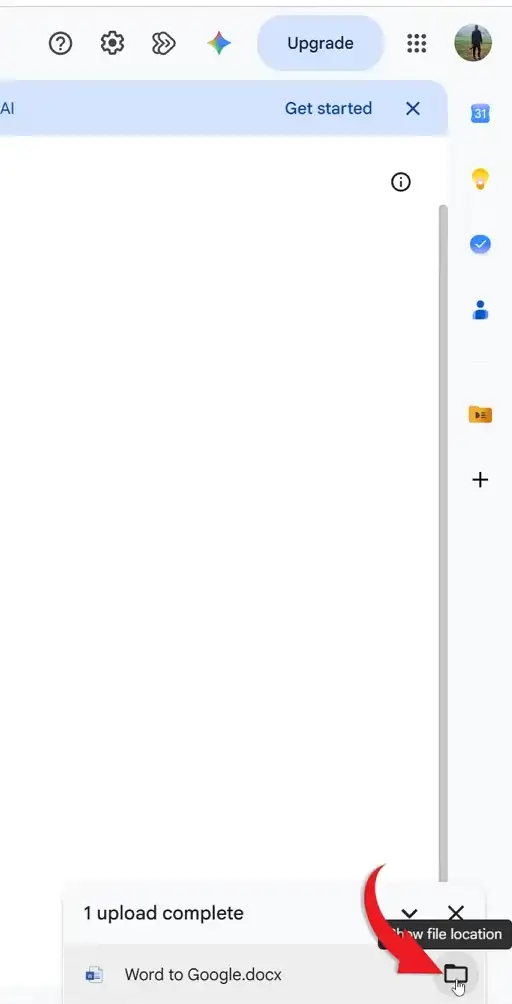
? Google Docs opens the uploaded Word document, but at this point it is still a Word file rather than a native Google Doc.
Method 2: How to open a word document in Google Docs by converting it
If you want a genuine Google Doc that you can work with as a Google file, convert the uploaded Word document after opening it.
Save the Word document as a Google Doc
- With the uploaded document open, click File.
- Select Save as Google Docs.
- Wait for Google Docs to create the new file.
- When the new tab opens, check the file type at the top.
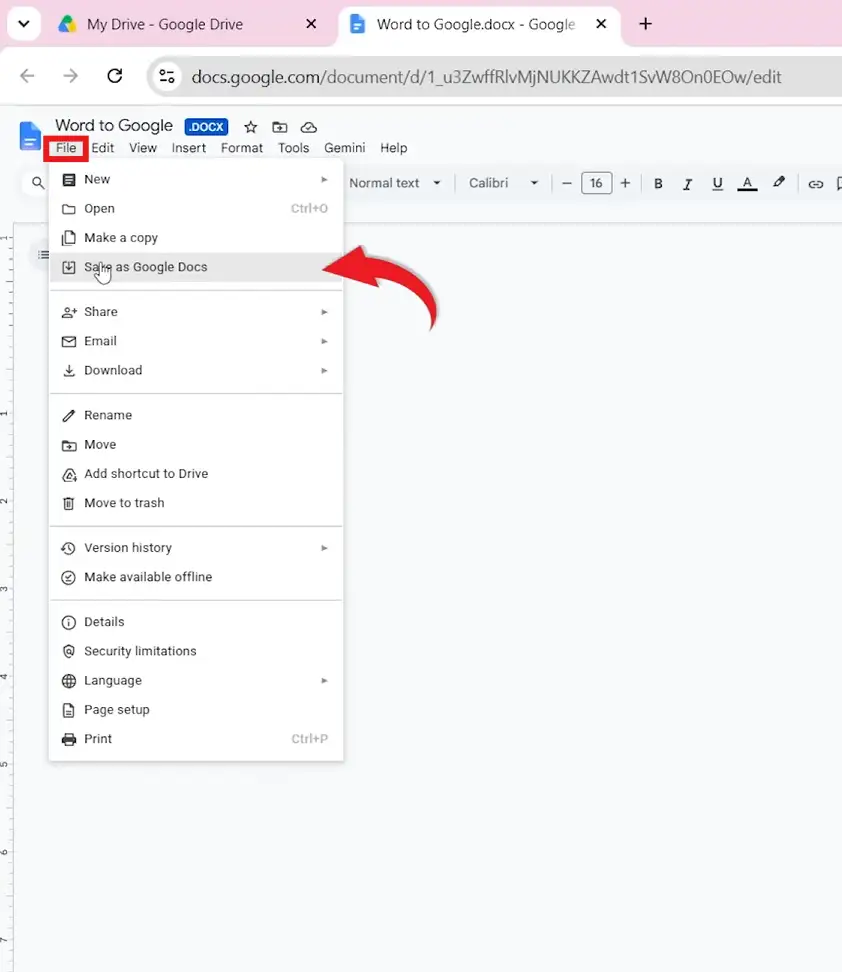
? You now have a native Google Doc. The original .docx file remains in Google Drive, and the original Word document is still on your computer.
Check which version you are using
- Look at the original uploaded file in Google Drive.
- A file ending in .docx is still the Word version.
- The newly created file is the Google Docs version.
? Keeping both versions makes it clear which file is the original Word document and which one is the Google Docs copy.
Which Method Should You Use?
| Option | Best For | Result |
|---|---|---|
| Upload and open | Quickly viewing or editing the Word file | Google Docs opens the .docx file |
| Save as Google Docs | Working with a native Google Docs file | A new Google Doc is created |
| Keep the original | Preserving your Word version | The .docx remains available |
Best choice: If you need a proper Google Doc, use File ? Save as Google Docs. If you only need to open the document, uploading and double-clicking the .docx may be enough.
Common Problems When Opening a Word Document in Google Docs
The Word file will not upload
Check that the file is saved on your computer and that your internet connection is working. Try uploading the file again from New ? File upload.
The upload takes too long
Large files and slower internet connections can increase upload time. Wait for Google Drive to finish before opening the file.
The file still says .docx
That means you are still viewing the uploaded Word version. Use File ? Save as Google Docs to create the native Google Docs version.
Formatting looks different after conversion
A Word document and a Google Doc use different editing environments, so some formatting may not transfer exactly. Check headings, tables, spacing, images, and other important elements after conversion.
Pro Tips for Opening Word Documents in Google Docs
- Keep your original .docx file until you’ve checked the converted Google Doc.
- Use clear filenames so the Word and Google Docs versions are easy to distinguish.
- If you’re moving several Word files between folders first, learning how to merge multiple Word documents into one file can help you organise the source material before uploading it.
- After conversion, review the document before sharing it. If text formatting needs attention, see how to change the font in Word for help with the original file.
? Treat the converted Google Doc as a separate working copy until you’ve confirmed that everything transferred correctly.
Frequently Asked Questions
How do I open a Word document in Google Docs?
How to open a Word document in Google Docs is straightforward: upload the .docx file to Google Drive, double-click it, and use File ? Save as Google Docs if you want a native Google Doc.
Can I open a DOCX file in Google Docs?
You can open a DOCX file in Google Docs by uploading it to Google Drive and then double-clicking the uploaded file.
Does Google Drive convert a Word document automatically?
Google Drive can open the uploaded Word document without immediately creating a native Google Doc. To create one, select File ? Save as Google Docs.
How do I save a Word file as a Google Doc?
To save a Word file as a Google Doc, open the uploaded file in Google Docs and select File ? Save as Google Docs. Google creates a separate Google Docs version.
Will converting a Word document delete the original file?
Converting a Word document does not delete the original file described in this workflow. The original .docx remains available in Google Drive, and the source Word file remains on your computer.
Why does my uploaded Word file still say .docx?
Your uploaded Word file still says .docx because you are viewing the original Word-format version. Use File ? Save as Google Docs to create a native Google Doc.
Can I edit a Word document in Google Docs without converting it?
You can open the uploaded Word document in Google Docs, but this guide recommends converting it with File ? Save as Google Docs when you want a native Google Docs file.
Where is my original Word document after I upload it?
Your original Word document remains on your computer. Google Drive also keeps the uploaded .docx version, separate from the Google Docs copy created through Save as Google Docs.
Conclusion
How to open a Word document in Google Docs comes down to two stages: upload the .docx file to Google Drive, then decide whether you want to keep working with the uploaded Word file or create a native Google Doc.
The safest approach is to keep the original Word file while you check the converted version. That gives you a fallback if formatting needs to be corrected.
Once your document is ready, you may also want to organise its structure with a table of contents in Word before sharing the final version.
Related Tutorials

Recent Microsoft Word Tutorials

Looking for more help with Microsoft Word? Browse all step-by-step Word tutorials covering formatting, layout, pages, and document setup.
? View all Microsoft Word tutorials: https://wordmadeeasy.halmanweb.com/microsoft-word/
? Need more support – check out the official guidance: https://support.microsoft.com/en-au

Prefer watching instead of reading? Many Word tutorials are also available as short, step-by-step videos on the Word Made Easy YouTube channel.