Knowing how to remove hyperlinks in Word turns a cluttered, blue-and-underlined document back into clean prose — useful for printable reports, resumes, and anything you’re sharing where the links no longer serve a purpose. To put links back in later, see our guide on how to insert a hyperlink in Word.
In this guide, you’ll learn four ways to remove hyperlinks in Word — one link at a time, an entire document at once, or by stopping Word from creating them in the first place.
Why Hyperlinks Appear in Word
Before you remove hyperlinks in Word, it helps to know how they appeared in the first place. They’re either:
- Auto-created when you type or paste a URL and press space or enter
- Manually inserted — see our full walkthrough on how to insert a hyperlink in Word for the reverse process
- Carried in from pasted content — copying from a website usually brings the underlying links across with the text
All three end up the same way visually — blue, underlined text that redirects when clicked — and all three respond to the same removal methods below.
Watch the Video Tutorial
If you prefer to see this in action, the full video walkthrough is below, showing each method step by step.
How to Remove Hyperlinks in Word: Step-by-Step
There are four reliable ways to remove hyperlinks in Word. Method 1 strips a single link with right-click, Method 2 does it through the Edit Hyperlink dialog, Method 3 clears every link in the document at once, and Method 4 catches the auto-created link the moment it appears.
Method 1: How to Remove Hyperlinks in Word Using Right-Click
The fastest way to remove a single hyperlink — two clicks, no dialog box.
Steps:
- Right-click the hyperlink
- Select Remove Hyperlink
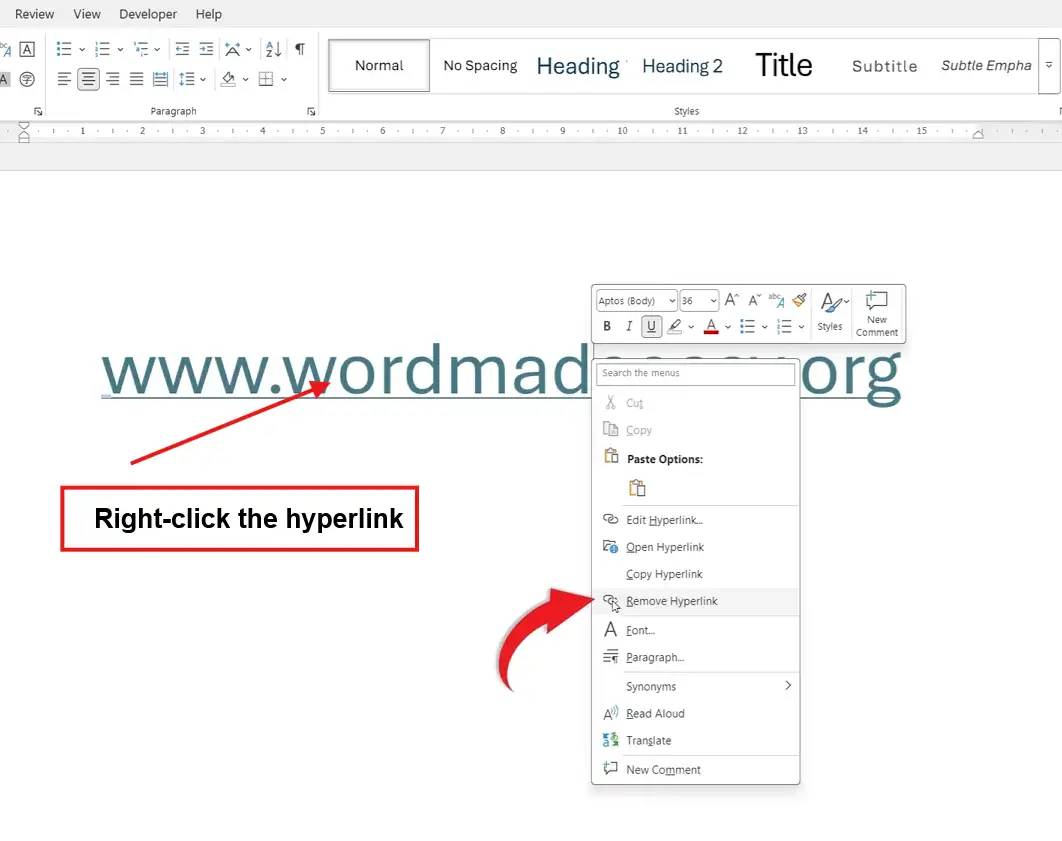
? The link disappears and the text stays exactly where it was — no styling, no underline, no blue colour.
Method 2: How to Remove Hyperlinks in Word via Edit Hyperlink
This method takes one extra click but gives you the chance to confirm the URL before removing it — useful if you might want to edit the link instead of deleting it.
Steps:
- Right-click the hyperlink
- Click Edit Hyperlink
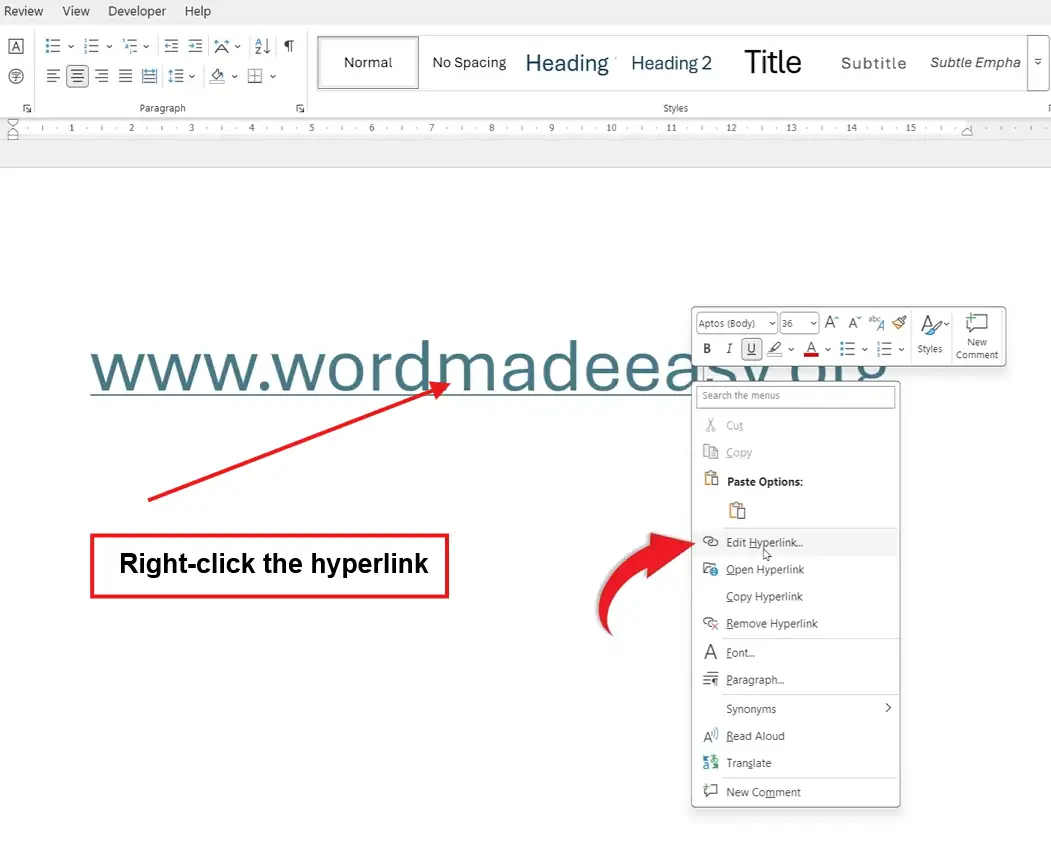
- In the Edit Hyperlink dialog, click Remove Link
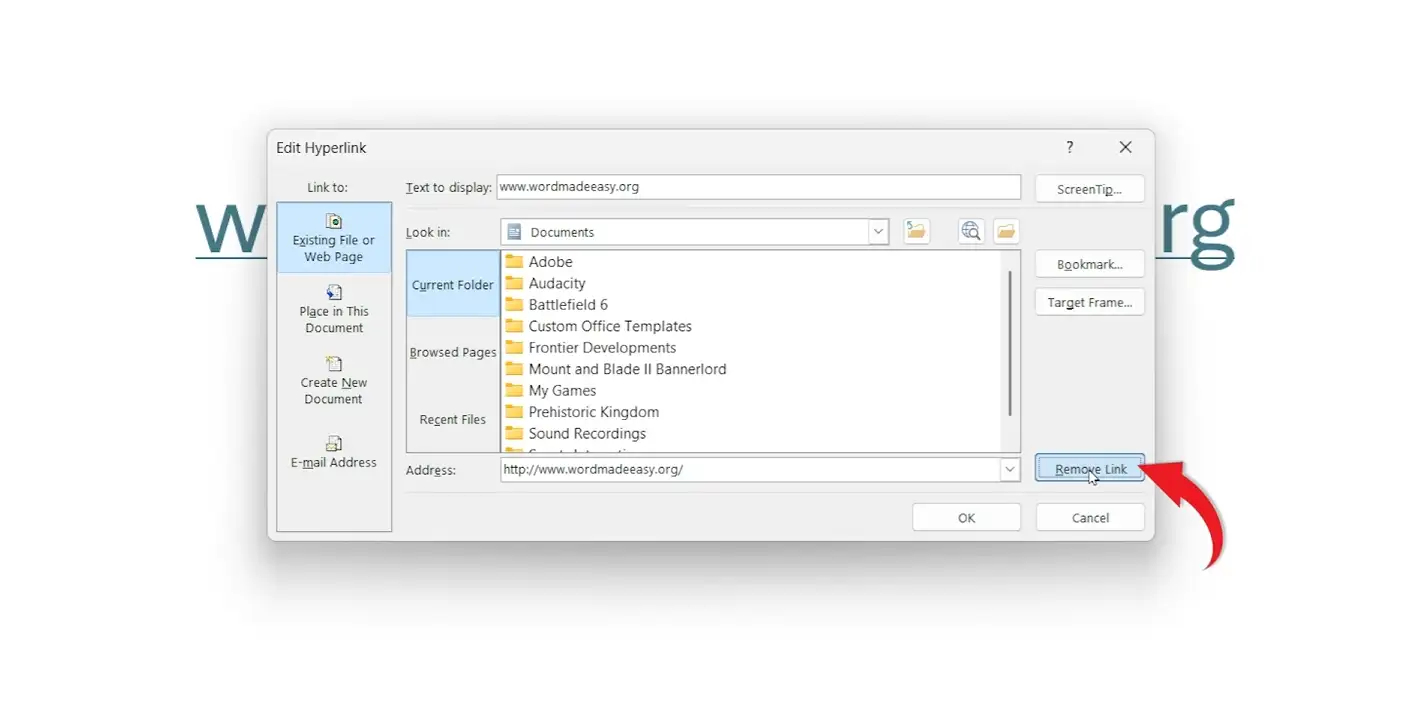
? Same result as Method 1, but you’ve seen the URL before deleting it — handy when you’re not sure whether to remove or update the link.
Method 3: How to Remove All Hyperlinks in Word at Once
If your document is full of pasted-in links and you want them all gone, there’s a single keyboard shortcut that strips every hyperlink in the document — particularly useful alongside our guide on how to remove formatting marks in Word for a complete document cleanup.
Steps:
- Press Ctrl + A to select all text
- Press Ctrl + Shift + F9
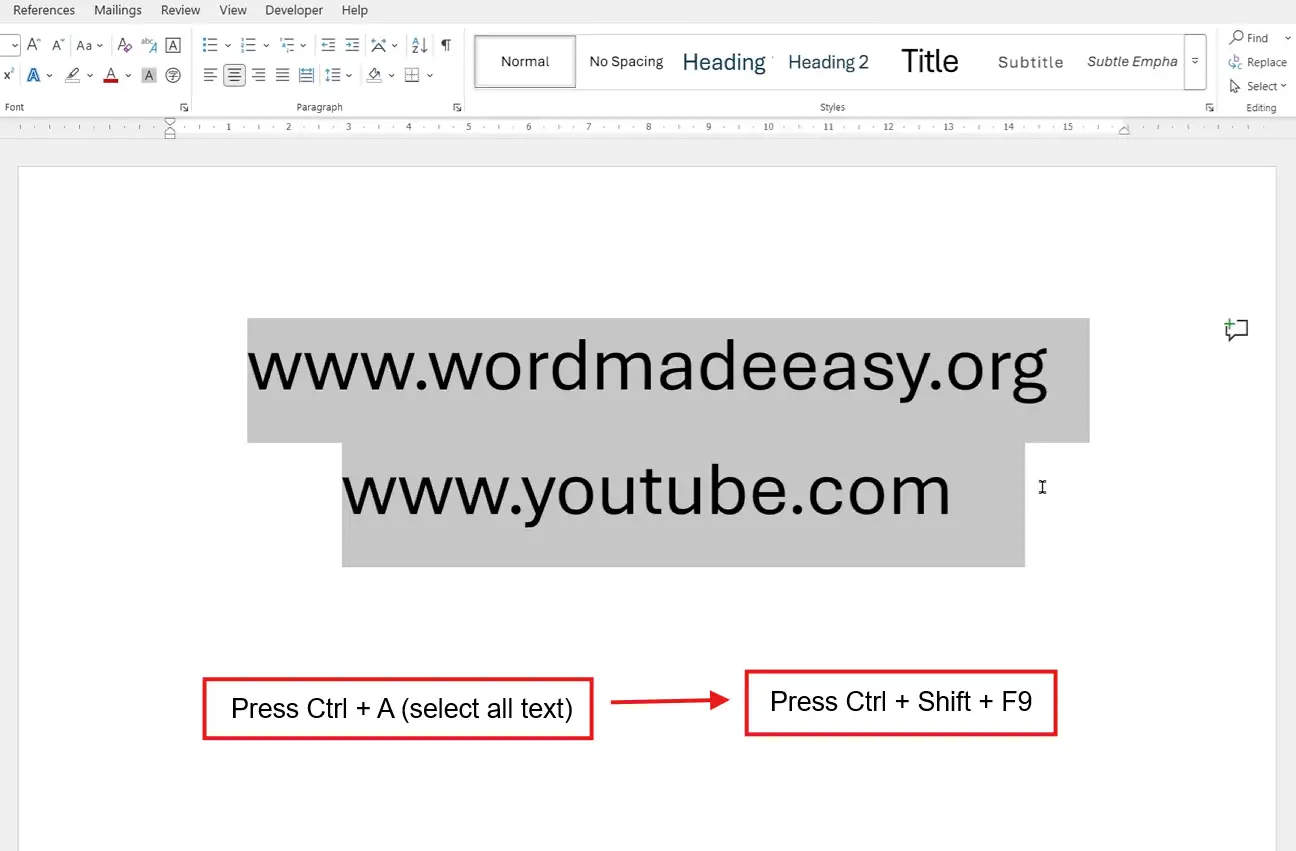
? Every hyperlink in the document strips at once. All the text stays exactly where it was — just clean, unlinked prose.
Method 4: How to Remove Hyperlinks in Word Auto-Created by Word
Word converts URLs into hyperlinks automatically the moment you press space or enter. If you catch it within a couple of keystrokes, one shortcut reverses it.
Steps:
- Type or paste the URL
- Press Space or Enter — Word converts it to a hyperlink
- Immediately press Ctrl + Z
? The hyperlink unwinds but the URL text stays — Word’s undo reverses the conversion, not the typing.
How to Stop Word From Creating Hyperlinks Automatically
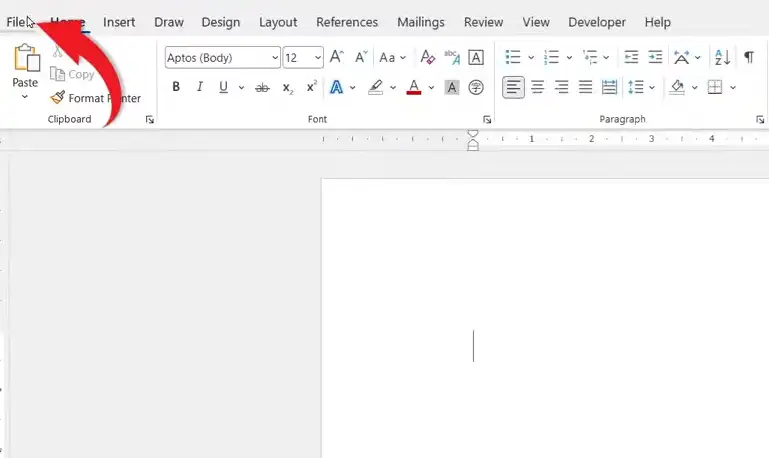
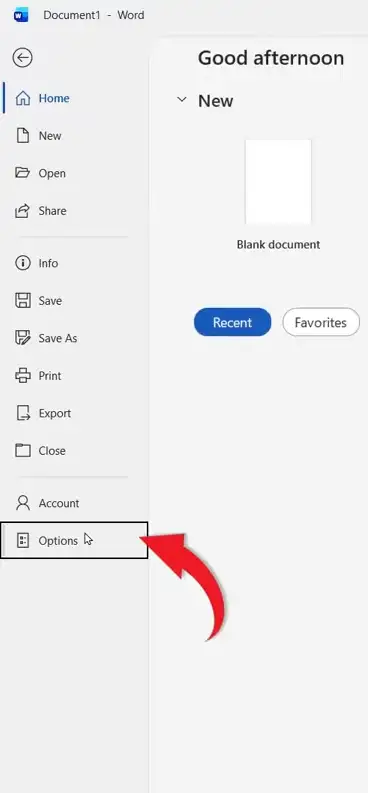
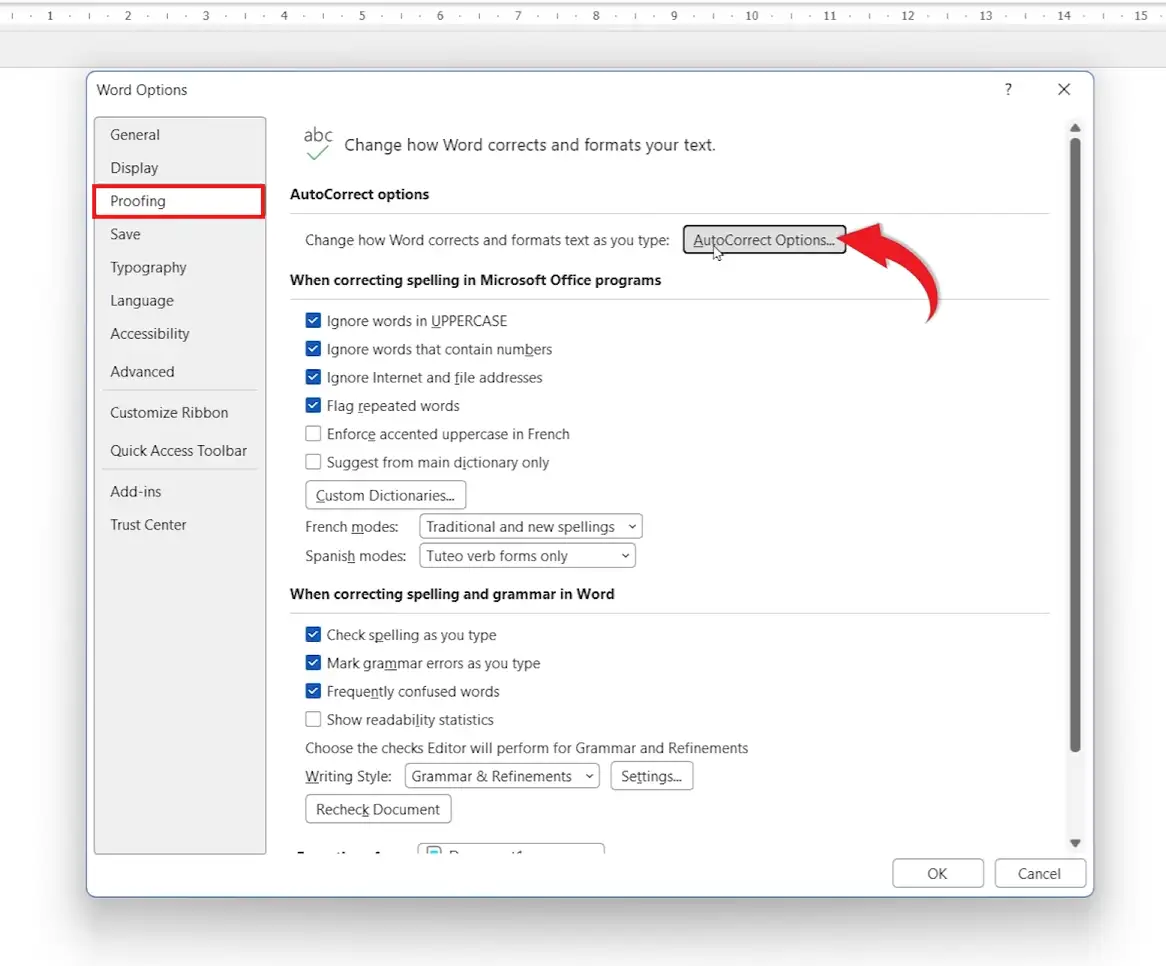
If you never want Word to convert URLs into hyperlinks again, disable the AutoFormat setting once and it stays off in every document.
Steps:
- Click File
- Select Options at the bottom of the left sidebar
- Go to Proofing
- Click AutoCorrect Options
- Switch to the AutoFormat As You Type tab
- Untick Internet and network paths with hyperlinks
- Click OK, then OK again

? Word will no longer convert URLs into hyperlinks. The setting is global — it applies to every document you open from now on.
Which Method Should You Use?
| Method | Best For | Speed | Scope |
|---|---|---|---|
| Method 1 — Right-Click | Removing a single link | Fastest | One link |
| Method 2 — Edit Hyperlink | Confirming the URL first | Medium | One link |
| Method 3 — Ctrl + Shift + F9 | Cleaning the whole document | Instant | Every link |
| Method 4 — Ctrl + Z | Catching an auto-link as it appears | Instant | One link, just made |
For most cleanup work, Method 3 is the one to memorise — Ctrl + A then Ctrl + Shift + F9 handles an entire document in two shortcuts.
Common Problems When Removing Hyperlinks in Word
The text is still blue and underlined after removing the link
Removing the link strips the URL but doesn’t always clear the formatting. Select the affected text and press Ctrl + Space to reset character formatting, or use Home ? Clear All Formatting for a thorough reset.
Ctrl + Shift + F9 isn’t removing all links
The shortcut only affects selected text. Press Ctrl + A first to select everything in the document, then press Ctrl + Shift + F9. If links inside headers, footers, or text boxes survive, click into each one separately and repeat the selection.
Hyperlinks keep coming back when I type URLs
Word’s AutoFormat is converting them on the fly. Follow the AutoCorrect steps in the section above to switch off automatic hyperlink creation permanently across every document.
Removing the link also deleted the text
You probably pressed Delete instead of using Remove Hyperlink. Press Ctrl + Z to undo, then use Method 1 or 3 — both remove the link while leaving the text untouched.
Pro Tips
- For documents you’ll share, remove the links and the formatting together — particularly when pairing with our guide on how to remove formatting marks in Word for a fully cleaned-up final draft.
- Use Paste Special ? Unformatted Text when copying from a website — this skips the link conversion at the source so you don’t have to clean up afterwards.
- If you remove a link by accident, Ctrl + Z restores both the link and its formatting in one step — works for single links and bulk removals alike.
- For printed reports, run Method 3 as the last step before exporting — clean text reads better on paper than visible URLs ever do.
FAQs
How do I remove hyperlinks in Word?
To remove hyperlinks in Word, right-click the link and choose Remove Hyperlink. To strip every link in the document at once, press Ctrl + A then Ctrl + Shift + F9.
Does removing a hyperlink delete the text?
No. Removing a hyperlink strips the clickable link but leaves the text exactly where it was. Only the underline and blue colour go with the link.
Can I remove all hyperlinks at once in Word?
Yes. Select all the text with Ctrl + A, then press Ctrl + Shift + F9. Every hyperlink in the document strips in a single keystroke.
Why does Word keep turning my links blue?
Word’s AutoFormat automatically converts URLs into hyperlinks the moment you press space or enter. The default Hyperlink style is blue and underlined, which is why pasted URLs look that way instantly.
Can I turn off automatic hyperlinks permanently?
Yes. Go to File ? Options ? Proofing ? AutoCorrect Options ? AutoFormat As You Type and untick Internet and network paths with hyperlinks. The change applies to every document from then on.
What’s the difference between removing and editing a hyperlink?
Removing deletes the link entirely and leaves plain text. Editing keeps the link in place but lets you change its destination, display text, or ScreenTip.
How do I remove hyperlinks in Word on Mac?
Same path on Mac. Right-click the link and choose Remove Hyperlink, or use Cmd + A then Cmd + 6 to strip every link in the document at once.
How do I paste text without bringing the hyperlinks across?
Use Paste Special (Ctrl + Alt + V) and choose Unformatted Text. The text pastes in as plain text with no links, no styling, and no carry-over formatting from the source.
Conclusion
Once you know how to remove hyperlinks in Word, document cleanup becomes a two-shortcut job rather than a row-by-row chore. Use Method 1 for the occasional link, Method 3 for a whole-document sweep, and the AutoFormat setting to stop new links appearing in the first place.
When you need to put links back in for a digital version, our guide on how to insert a hyperlink in Word covers the four fastest ways to add them back — so you can keep one clean printable file and one navigable digital file from the same source document.
Related Tutorials
- How to Insert a Hyperlink in Word
- How to Remove Formatting Marks in Word
- How to Justify Text in Word

Recent Microsoft Word Tutorials

Looking for more help with Microsoft Word? Browse all step-by-step Word tutorials covering formatting, layout, pages, and document setup.
? View all Microsoft Word tutorials: https://wordmadeeasy.halmanweb.com/microsoft-word/
? Need more support – check out the official guidance: https://support.microsoft.com/en-au

Prefer watching instead of reading? Many Word tutorials are also available as short, step-by-step videos on the Word Made Easy YouTube channel.