Mail merge shortcuts in Word can cut down the clicks needed to set up recipients, insert fields, preview records and finish a merge. This sheet gives you a compact reference for the commands that matter most.
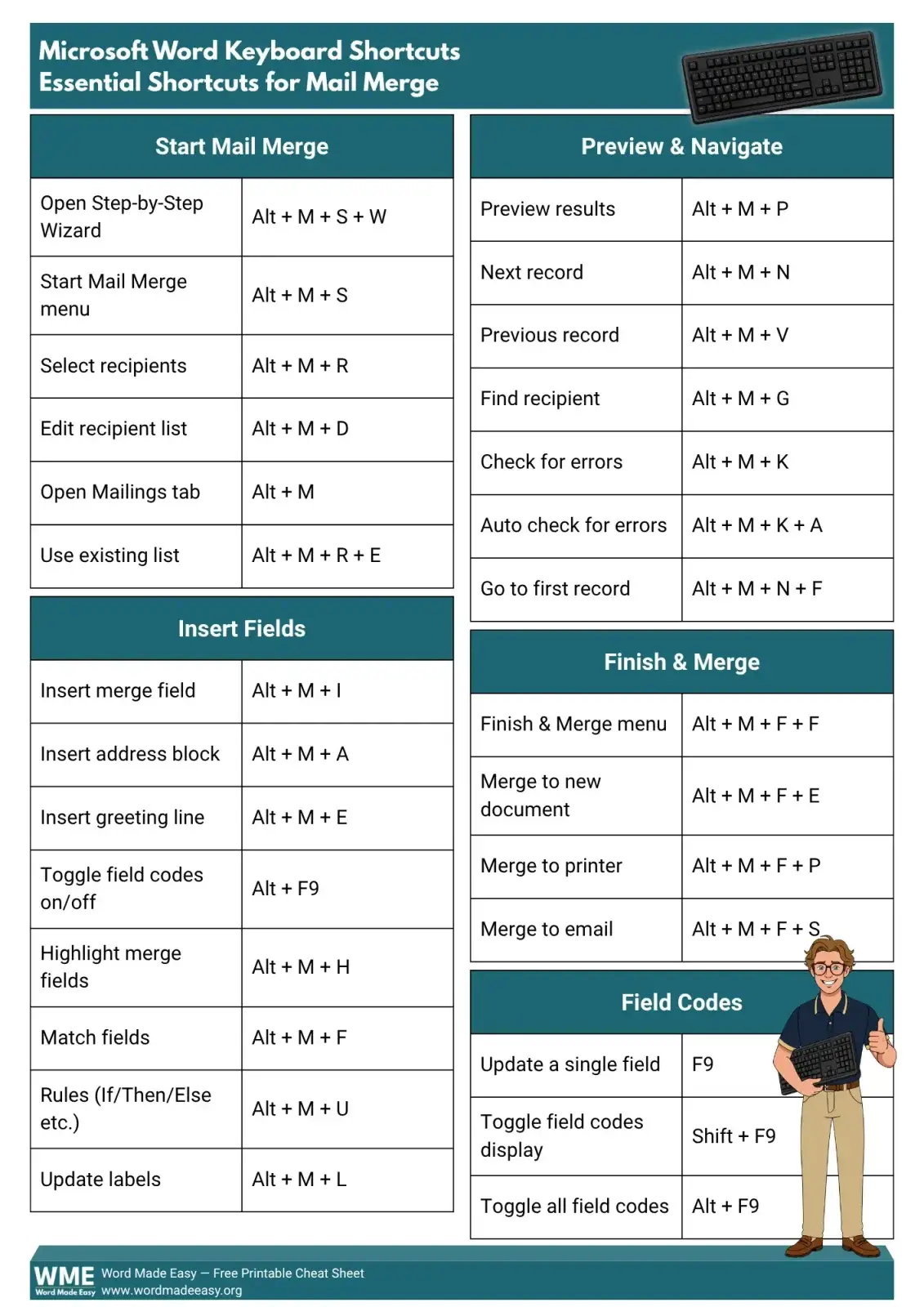
In this guide, you’ll learn the essential shortcuts for starting a mail merge, inserting fields, previewing and navigating records, finishing the merge and working with field codes. The shortcut list below follows the supplied cheat sheet exactly. Because some Alt-key sequences can vary by Word version and configuration, verify every shortcut in your installation before relying on it. A free printable PDF cheat sheet is available at the end.
Why Use Mail Merge Shortcuts?
Mail merge is built around repeated tasks. You choose recipients, insert fields, inspect records and then produce the final documents. Using mail merge shortcuts in Word gives you a faster way to reach those commands without repeatedly hunting through the ribbon.
- Open the Mailings controls and start a merge quickly.
- Select or edit your recipient list without losing your place.
- Insert fields such as an address block or greeting line.
- Preview records and move forwards or backwards through them.
- Check merge errors before producing the final documents.
- Finish the merge to a new document, printer or email.
For the broader workflow, see Microsoft’s official mail merge documentation.
Shortcut Categories at a Glance
| Category | Best For | Learn First |
|---|---|---|
| Start Mail Merge | Opening and setting up the merge | Alt + M + S |
| Insert Fields | Adding personalised content | Alt + M + I |
| Preview & Navigate | Checking individual records | Alt + M + P |
| Finish & Merge | Producing the final output | Alt + M + F + F |
| Field Codes | Inspecting and updating fields | F9 |
Start Mail Merge Shortcuts
Start with the commands that prepare the merge. These mail merge shortcuts in Word cover the step-by-step wizard, the Start Mail Merge menu and recipient controls. For a wider shortcut reference, you can also keep the Word keyboard shortcuts cheat sheet nearby.
- Alt + M + S + W — Open Step-by-Step Wizard
- Alt + M + S — Start Mail Merge menu
- Alt + M + R — Select recipients
- Alt + M + D — Edit recipient list
- Alt + M — Open Mailings tab
- Alt + M + R + E — Use existing list
? Tip: Start by checking your recipient source. A clean list makes every later mail merge step easier to verify.
Insert Fields with Mail Merge Shortcuts
Once your recipients are ready, insert the personalised parts of the document. These mail merge shortcuts in Word cover merge fields, address and greeting blocks, field-code display and several useful merge controls.
- Alt + M + I — Insert merge field
- Alt + M + A — Insert address block
- Alt + M + E — Insert greeting line
- Alt + F9 — Toggle field codes on/off
- Alt + M + H — Highlight merge fields
- Alt + M + F — Match fields
- Alt + M + U — Rules (If/Then/Else etc.)
- Alt + M + L — Update labels
? Tip: Highlight merge fields while building the document. It makes placeholders much easier to spot before you preview the results.
Previewing is where you catch bad addresses, missing fields and other record-specific problems. These mail merge shortcuts in Word let you preview results, move between records, find a recipient and check for errors.
- Alt + M + P — Preview results
- Alt + M + N — Next record
- Alt + M + V — Previous record
- Alt + M + G — Find recipient
- Alt + M + K — Check for errors
- Alt + M + K + A — Auto check for errors
- Alt + M + N + F — Go to first record
? Tip: Preview more than the first record. A field can look correct for one recipient but expose a data problem in another.
Finish and Merge Shortcuts
After checking the records, finish the merge into the destination you need. These mail merge shortcuts in Word cover the Finish & Merge menu, a new document, the printer and email output.
- Alt + M + F + F — Finish & Merge menu
- Alt + M + F + E — Merge to new document
- Alt + M + F + P — Merge to printer
- Alt + M + F + S — Merge to email
? Tip: Merge to a new document when you want one more opportunity to inspect the output before printing or sending it.
Field Code Shortcuts
Field codes expose the instructions behind fields rather than only showing their results. These mail merge shortcuts in Word are useful when you need to inspect or refresh field information.
- F9 — Update a single field
- Shift + F9 — Toggle field codes display
- Alt + F9 — Toggle all field codes
? Tip: Field codes are useful when a field appears to be showing the wrong result. Display the code, inspect it, then update the field.
How to Memorise Mail Merge Shortcuts Faster
Do not try to memorise every sequence at once. Start with the commands you use during every merge, then add the less frequent controls. The best mail merge shortcuts in Word to learn first are the ones that match your daily workflow.
- Learn Alt + M first to reach the Mailings controls.
- Add the preview and next-record commands.
- Learn the field insertion commands you use most often.
- Practise error checking before learning the finishing commands.
- Keep the printable sheet beside your keyboard while the sequences become familiar.
Group the commands by task, not alphabetically. Your memory will have a job to attach each shortcut to.
Common Problems When Using Mail Merge Shortcuts
The Shortcut Doesn’t Work
The cheat sheet contains several Alt-key sequences that should be treated as a reference to test rather than universal guarantees. Word versions, keyboard layouts and customised key assignments can affect these commands. Verify the sequence with the KeyTips shown in your installation.
The Alt-Key Sequence Differs
Press Alt and look at the letters displayed over the ribbon commands. Use those KeyTips to confirm the current sequence instead of assuming every installation matches the sheet.
You See a Field Code Instead of the Result
Use the relevant field-code shortcut from the sheet to switch the display, then update the field with F9 when needed. Remember that displaying a field code and updating a field are separate actions.
The Merge Output Has an Error
Do not finish the merge immediately. Use the preview and error-checking commands first, move through several records and correct the recipient data or field that causes the problem.
Pro Tips for Faster Mail Merge Work
- Keep the cheat sheet visible until the most-used commands become automatic.
- Preview several records before finishing the merge.
- Use field highlighting while building the document so placeholders stand out.
- Use F9 when a field needs updating rather than rebuilding the field.
- For another productivity boost, pair these mail merge shortcuts in Word with the broader Word keyboard shortcut reference — it covers shortcuts beyond mail merge.
FAQs
What are mail merge shortcuts in Word?
Mail merge shortcuts in Word are keyboard sequences used to reach mail merge commands such as recipient selection, field insertion, previewing, error checking and finishing a merge.
What shortcut opens the Mailings tab?
The supplied sheet lists Alt + M for opening the Mailings tab. Test the KeyTips in your version before using it as a fixed sequence.
How do I preview mail merge results with a shortcut?
The sheet lists Alt + M + P for Preview results. Use the next and previous record commands to inspect more than one recipient.
How do I check mail merge errors?
The sheet lists Alt + M + K for checking errors and Alt + M + K + A for automatic error checking.
How do I update a mail merge field?
Use F9 to update a single field. The sheet also lists Shift + F9 and Alt + F9 for changing field-code display.
How do I finish a mail merge with a shortcut?
The sheet lists Alt + M + F + F for the Finish & Merge menu. It also lists separate sequences for merging to a new document, printer or email.
Are mail merge shortcuts the same in every version?
No. The supplied sheet is a Windows-focused reference, and its Alt-key sequences should be verified against the KeyTips in your installation. For the wider mail merge process, use Microsoft’s mail merge documentation as the authority.
Download the Free Cheat Sheet
Keep the printable reference beside your keyboard while you practise the most useful mail merge shortcuts in Word. The sheet groups the commands by task, so you can find the right sequence without searching through a long list.
Conclusion
Mail merge shortcuts in Word can speed up the repetitive parts of a merge, from selecting recipients to previewing records and producing the final output. Start with the commands you use most often, then build your shortcut set gradually.
Download the cheat sheet, test the Alt-key sequences against your Word installation and keep the reference nearby while you work. When you want to expand your keyboard workflow, continue with the full Word keyboard shortcuts cheat sheet.
Related Tutorials

Recent Microsoft Word Tutorials

Looking for more help with Microsoft Word? Browse all step-by-step Word tutorials covering formatting, layout, pages, and document setup.
? View all Microsoft Word tutorials: https://wordmadeeasy.halmanweb.com/microsoft-word/
? Need more support – check out the official guidance: https://support.microsoft.com/en-au

Prefer watching instead of reading? Many Word tutorials are also available as short, step-by-step videos on the Word Made Easy YouTube channel.