Bold italic and underline in Word are the three workhorse formatting tools every document depends on — they create emphasis, build hierarchy, and make a wall of text scannable in seconds.
In this guide, you’ll learn three reliable methods to apply all three styles in Microsoft Word — the ribbon buttons, the keyboard shortcuts every editor should memorise, and the Font dialog box for combined formatting. To take your text styling further afterwards, pair this with the guide on the Microsoft Word keyboard shortcuts cheat sheet.
What Is Bold, Italic, and Underline Formatting?
Bold, italic, and underline are character-level formatting styles that change how text looks without changing what it says. Each one does a different job, and using them well — rather than indiscriminately — is what separates polished documents from cluttered ones.
- Bold — thickens letter strokes to draw attention to key terms and headings
- Italic — slants text rightwards, signalling titles, foreign words, or subtle emphasis
- Underline — adds a line beneath text, traditionally used for titles in handwritten work or formal callouts
These tools earn their keep when used for:
- Highlighting key terms in reports and study notes
- Titles, headings, and section markers
- Emphasis inside running paragraphs
- Professional formatting in CVs, proposals, and contracts
Watch the Video Tutorial
If you prefer to see this in action, the full video walkthrough is below, showing each method step by step.
How to Bold Italic and Underline in Word: Step-by-Step
Word offers three ways to apply these styles, and the right one depends on how often you format text. The ribbon is the most visual, keyboard shortcuts are the fastest, and the Font dialog box gives you combined control plus advanced underline styles like double or dotted lines.
Method 1: How to Bold Italic and Underline in Word Using the Ribbon
This is the beginner-friendly route — the three buttons sit side by side in the Home tab and work the same way across every modern version of Word.
How to bold text:
- Select the text you want to format
- Go to the Home tab
- In the Font group, click the B button
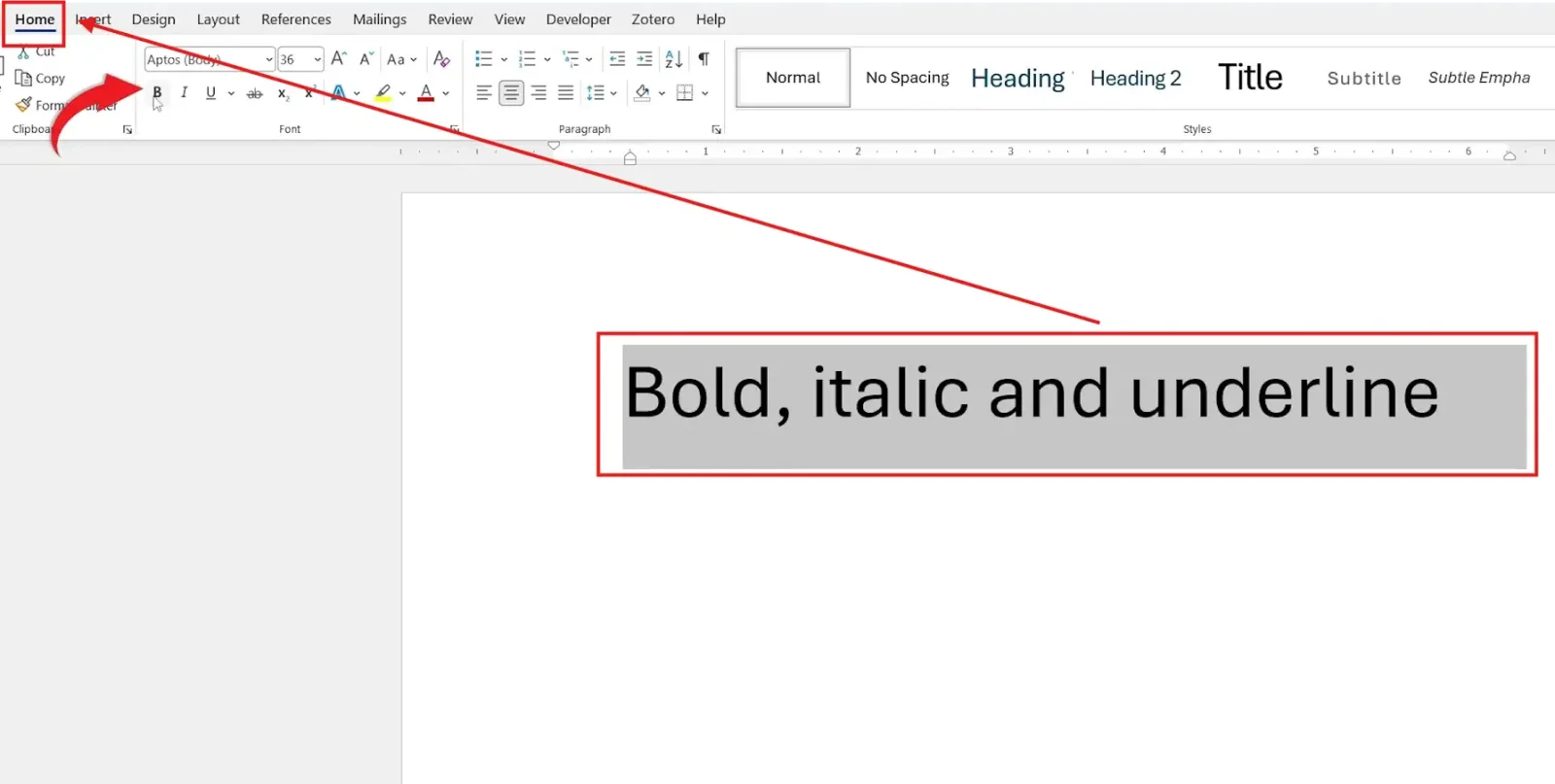
? The selected text now appears thicker and darker. Click the B button again on the same text to toggle bold off.
How to italicize text:
- Select your text
- Click the I button in the Font group
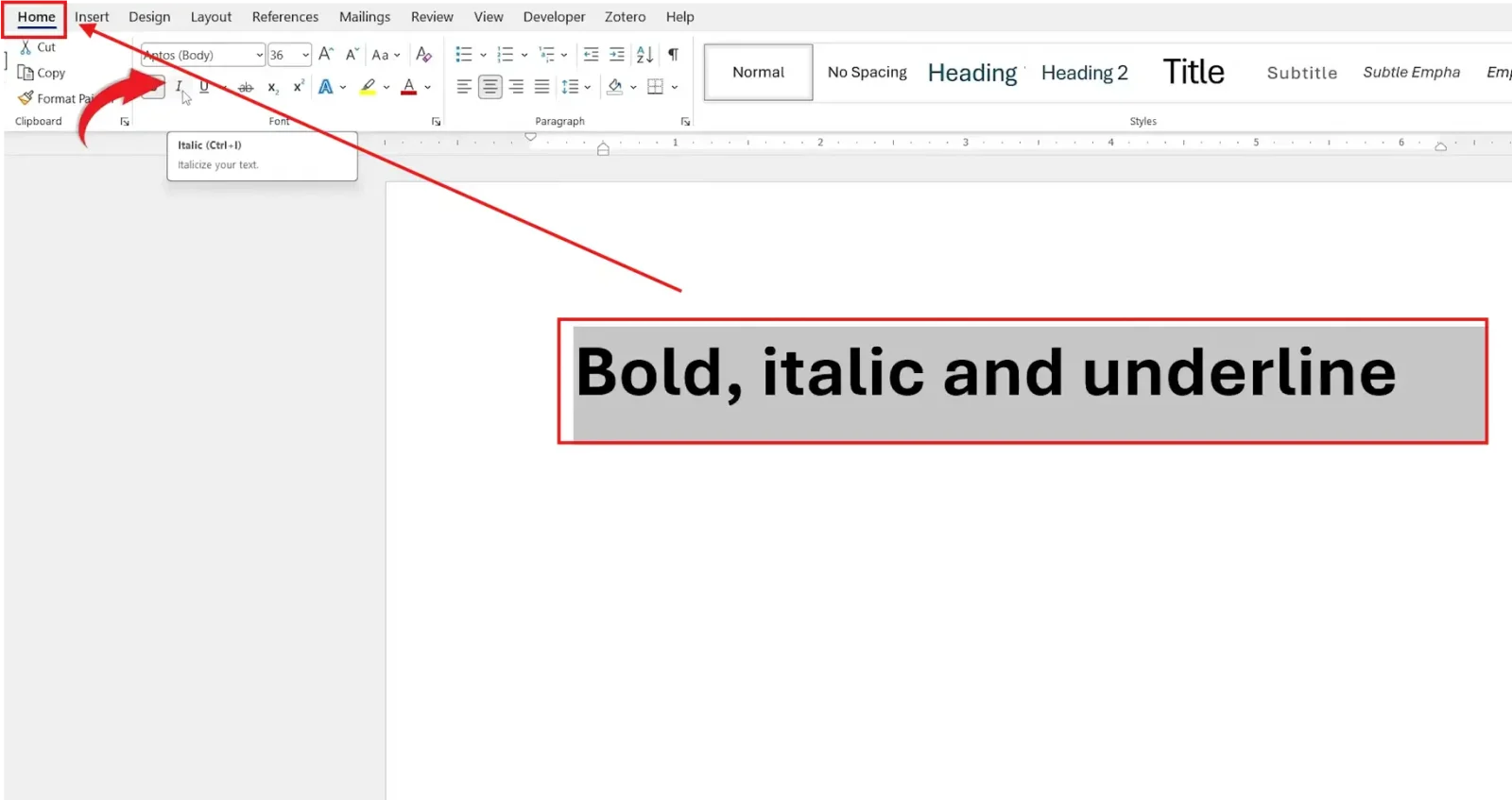
? The text slants slightly to the right — perfect for titles of books, films, or foreign-language terms.
How to underline text:
- Select the text
- Click the U button — the letter U with a line beneath it
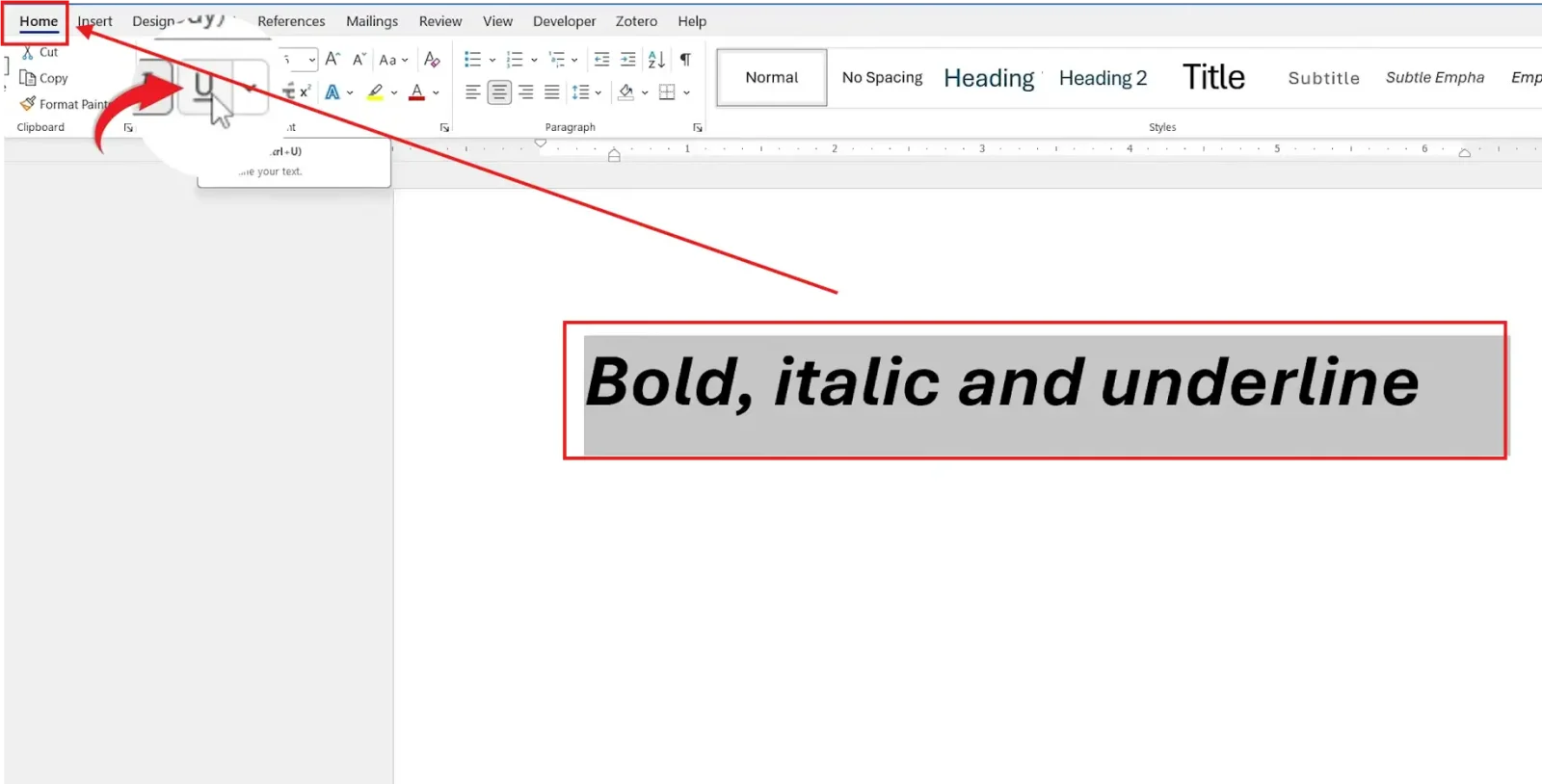
? Click the small dropdown arrow next to the U button to access additional underline styles — double, dotted, dashed, wavy, and thick lines — plus a custom underline colour option.
Method 2: How to Bold Italic and Underline in Word Using Keyboard Shortcuts
If you format text more than a handful of times per document, the keyboard shortcuts are dramatically faster than reaching for the mouse — and they’re universal across every version of Word, Word Online, and even Word for Mac.
| Formatting | Windows Shortcut | Mac Shortcut |
|---|---|---|
| Bold | Ctrl + B | Cmd + B |
| Italic | Ctrl + I | Cmd + I |
| Underline | Ctrl + U | Cmd + U |
How to use them:
- Select the text you want to format
- Press the shortcut combination — for example, Ctrl + B for bold
? All three shortcuts toggle — press them once to apply, press them again on the same selection to remove. You can also press them before typing to start formatting from the cursor onwards.
Method 3: How to Bold Italic and Underline in Word Using the Font Dialog Box
The Font dialog box is the power-user route — it lets you apply all three styles in a single action and unlocks advanced underline options the ribbon buttons hide.
Steps:
- Select your text
- Press Ctrl + D to open the Font dialog box
- Under Font style, choose Bold, Italic, or Bold Italic
- Under Underline style, pick a line style — single, double, dotted, wavy, and more
- Click OK
? The Font dialog applies every change in a single click — useful when you need bold italic underlined text in one step, or when matching an exact underline style for a legal document or academic paper.
Which Method Should You Use?
| Method | Best For | Speed |
|---|---|---|
| Ribbon buttons | Beginners and occasional formatting | Medium |
| Keyboard shortcuts | Frequent editing and writing | Fastest |
| Font dialog (Ctrl + D) | Combined formatting and custom underline styles | Slowest |
Common Problems When Using Bold Italic and Underline in Word
The formatting won’t apply
This almost always means no text is selected. Highlight the text first by clicking and dragging, then click the formatting button or press the shortcut.
The keyboard shortcuts don’t work
Check that Word is the active window — clicking elsewhere on screen will send the shortcut to a different program. If the issue persists, another app like a clipboard manager or text expander may be intercepting Ctrl + B; close background apps and try again.
The formatting looks inconsistent across the document
Heading styles often include built-in bold formatting, so manually bolding a heading does nothing visible. Open the Styles pane and check the underlying style before adjusting individual paragraphs.
I can’t remove formatting from pasted text
Text pasted from another document or the web often carries hidden styles. Select the text and press Ctrl + Spacebar to clear all character formatting at once — then reapply only what you need. See the guide on how to remove formatting marks in Word for the deeper cleanup.
Pro Tips
- Use bold sparingly — when everything is bold, nothing stands out, and the visual hierarchy collapses
- Italic is the modern choice for emphasis in body text; underline reads as old-school and can be confused with hyperlinks on screen
- Combine bold + italic for a stronger emphasis tier — perfect for callouts and warnings inside paragraphs
- Pair these formatting tools with strikethrough for revision workflows — see the guide on how to remove formatting marks in Word for cleaning up afterwards
FAQs
What is the shortcut for bold in Word?
The shortcut for bold in Word is Ctrl + B on Windows or Cmd + B on Mac. Select your text first, then press the keys together.
How do I italicize text in Word?
Select your text and either click the I button in the Home tab Font group or press Ctrl + I. Both methods toggle italic on and off.
What does underline do in Word?
Underline adds a horizontal line beneath selected text. It’s traditionally used for titles in handwritten work, formal headings, and legal documents — modern web writing tends to prefer italic for emphasis to avoid confusion with hyperlinks.
Can I use bold italic and underline together?
Yes. Select your text, then press Ctrl + B, Ctrl + I, and Ctrl + U in sequence — or open the Font dialog with Ctrl + D and apply all three in one click.
How do I remove bold italic or underline formatting?
Select the formatted text and click the same button again, or press the same shortcut — all three are toggles. To strip every character formatting in one go, press Ctrl + Spacebar.
Can I change the underline style in Word?
Yes. Click the small dropdown arrow next to the underline button on the ribbon, or open the Font dialog with Ctrl + D — both give you double, dotted, dashed, wavy, and custom-colour underline options.
Should I use italic or underline for emphasis?
Use italic. Modern style guides recommend italic for emphasis in body text because underlined text on screen reads as a hyperlink, which can confuse readers in digital documents.
Conclusion
Bold italic and underline in Word are the three formatting tools you’ll reach for in nearly every document — once the shortcuts are muscle memory, applying them takes a fraction of a second.
Pick the method that fits your workflow — the ribbon for clarity, Ctrl + B/I/U for speed, or the Font dialog for combined styles — and pair it with how to change the default font in Word to lock in a clean baseline for every new document.
Related Tutorials
- Microsoft Word Keyboard Shortcuts Cheat Sheet
- How to Change the Default Font in Word
- How to Remove Formatting Marks in Word

Recent Microsoft Word Tutorials

Looking for more help with Microsoft Word? Browse all step-by-step Word tutorials covering formatting, layout, pages, and document setup.
? View all Microsoft Word tutorials: https://wordmadeeasy.halmanweb.com/microsoft-word/
? Need more support – check out the official guidance: https://support.microsoft.com/en-au

Prefer watching instead of reading? Many Word tutorials are also available as short, step-by-step videos on the Word Made Easy YouTube channel.