You can convert a PDF to Word document straight inside Microsoft Word — no plugins, no online uploads, no extra software. PDFs are great for sharing because they lock formatting, but that’s exactly what makes them hard to edit. Word’s built-in tool turns a static PDF into a fully editable file in a few clicks, offline. This works in Word 2016, 2019, 2021, and Microsoft 365.
In this guide, you’ll learn how to convert a PDF to Word document step by step, enable editing, fix the common formatting shifts afterwards, and handle scanned PDFs.
Why Convert a PDF to Word?
People convert a PDF to Word document to:
- Edit locked text inside a PDF
- Update outdated information
- Reuse content for reports or assignments
- Fix spelling or formatting errors
- Repurpose a layout for a new document
What You Need Before You Start
- A PDF saved on your computer
- Microsoft Word (2016 or newer)
- Permission to edit the file
No plugins, no online tools, no uploads.
Watch the Video Tutorial
If you prefer to see this in action, the full video walkthrough is below, showing each method step by step.
How to Convert a PDF to Word Document: Step-by-Step
The drag-and-drop method is the fastest way to convert a PDF to Word document. Six short steps:
Step 1: Open Word
Launch Microsoft Word. You don’t need to open the PDF yet — just have Word running.
Step 2: Locate the PDF
Find the PDF on your desktop, in Downloads, or wherever it’s saved.
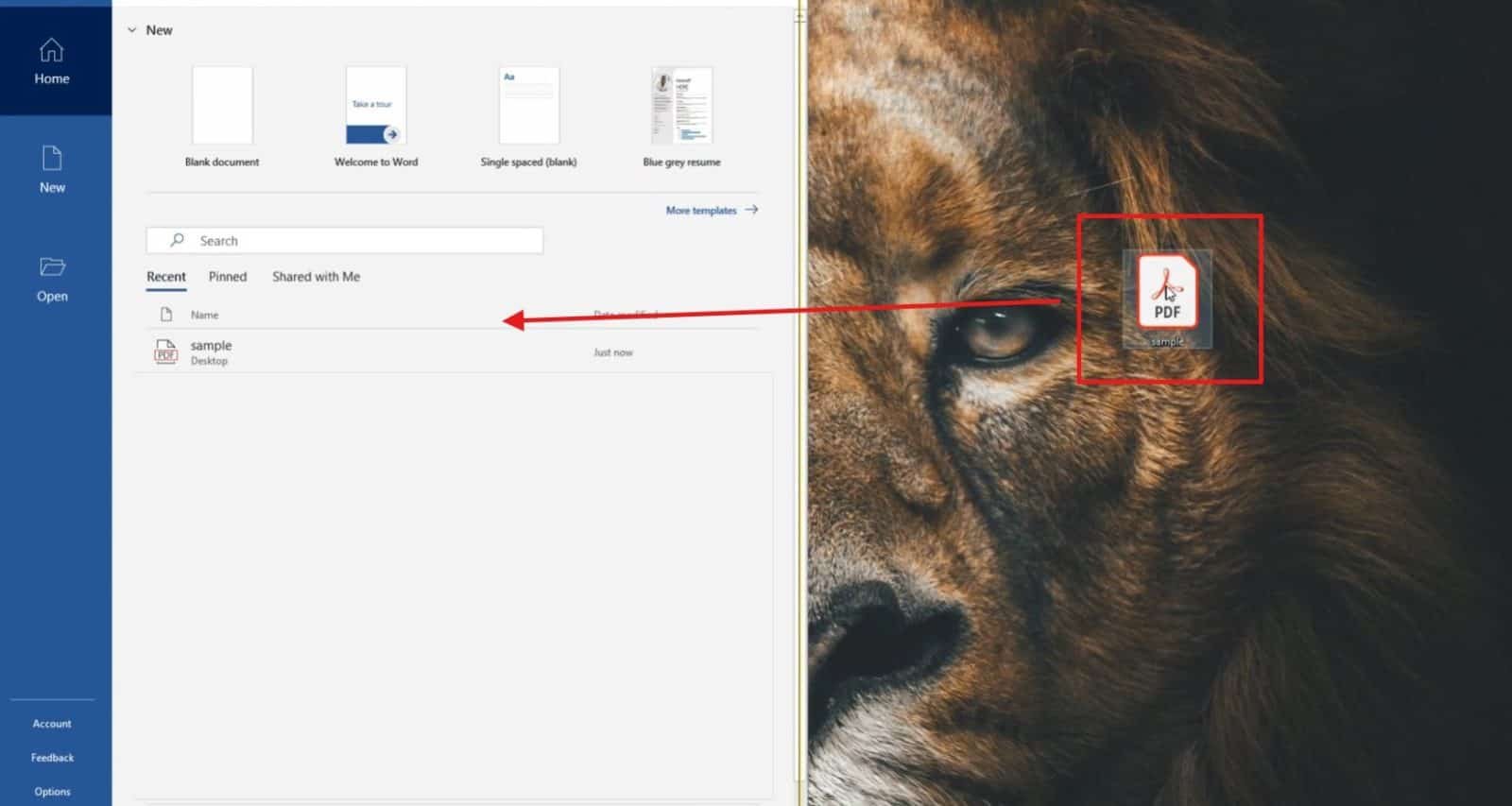
Step 3: Drag the PDF into Word
Click and hold the PDF, drag it into the open Word window, and release. This triggers Word’s built-in conversion.
Step 4: Confirm the Conversion Message
Word shows a message saying it will convert the PDF into an editable document and that formatting may not be perfect. Click OK.

Step 5: Enable Editing
The file may open in Protected View. Click Enable Editing at the top so you can type, delete, and reformat freely.

Step 6: Review the Converted Document
? Done. Your PDF is now an editable Word file. Most content transfers cleanly — expect minor formatting shifts, covered next.
Common Problems After Converting a PDF to Word
Text spacing or alignment shifts
Line breaks and font sizes can move slightly. Fix them with Word’s formatting tools, or adjust the margins in Word if the whole layout looks off.
Images or tables move
Objects can shift or resize during conversion. Click each one to reposition or resize it.
A scanned PDF converts to blank or garbled text
Scanned PDFs are images, so Word can’t read the text. Run the file through OCR first — I use PDF24’s free OCR tool to turn scanned images into selectable, editable text before converting.
Fonts look different
Word substitutes fonts it doesn’t have installed. Reapply your preferred font to the affected text, or install the original font.
Pro Tips for Cleaner Conversions
- Use high-quality, text-based PDFs — not scanned images — for the most accurate result.
- Check headers, footers, and page numbers after converting; these shift most often.
- Save the converted file under a new name to keep the original PDF intact.
- Sharing sensitive content? Learn how to password protect a Word document before you send it.
FAQs
How do I convert a PDF to Word document?
To convert a PDF to Word document, open Word, drag the PDF into the window, click OK on the conversion message, then Enable Editing.
Is converting a PDF to Word free?
Yes. If you already have Microsoft Word, the built-in conversion is completely free.
Will my PDF formatting stay the same?
Most of it transfers, but expect minor shifts in spacing, fonts, and object positions.
Can I convert a scanned PDF this way?
Not accurately. Scanned PDFs need OCR first to turn the image into readable text.
Do I need an internet connection?
No. The whole process runs offline inside Word.
Is my file safe during conversion?
Yes. The file never leaves your computer — nothing is uploaded.
Can I convert large PDF files?
Yes, though very large or image-heavy files take longer to process.
Conclusion
You can convert a PDF to Word document with a single drag-and-drop — no online tools, no uploads, everything offline and secure. A few clicks turns a locked PDF into a fully editable file.
Once it’s editable, keep going — combine it with other files by learning how to merge multiple Word documents into one file.
Related Tutorials
- How to Merge Multiple Word Documents Into One File
- How to Password Protect a Word Document
- How to Adjust Margins in Word

Recent Microsoft Word Tutorials

Looking for more help with Microsoft Word? Browse all step-by-step Word tutorials covering formatting, layout, pages, and document setup.
? View all Microsoft Word tutorials: https://wordmadeeasy.halmanweb.com/microsoft-word/
? Need more support – check out the official guidance: https://support.microsoft.com/en-au

Prefer watching instead of reading? Many Word tutorials are also available as short, step-by-step videos on the Word Made Easy YouTube channel.