A word scramble game in PowerPoint is one of the most effective classroom activities you can build in under an hour — no coding, no plugins, no separate software. Just shapes, animations, and a sound effect, all driven from the Insert tab.
In this guide, you’ll learn how to build a word scramble game in PowerPoint from a blank slide — visual timer, animated countdown, sound effect, word reveal, and a duplication workflow that lets you spin up new words in seconds. Ten steps, a downloadable template, and every animation explained.
What Is a Word Scramble Game?
A word scramble game is a simple but powerful learning activity. Children are shown a word with its letters mixed up. Their job is to unscramble the letters within a set time to find the correct word.
It builds:
- Early reading skills
- Spelling recognition
- Vocabulary development
- Visual learning patterns
Building a word scramble game in PowerPoint turns this classic exercise into a fully interactive classroom experience — with countdowns, sound, and animated reveals that hold attention better than a printed worksheet ever could.
Why Use PowerPoint for Word Scramble Games
PowerPoint hits a rare sweet spot — powerful enough to handle timed animations and sound triggers, simple enough for any teacher to learn in an afternoon.
- Add timers and animations with a single click
- Trigger sound effects for urgency and feedback
- Reveal correct answers automatically on cue
- Duplicate the slide to create more words in seconds
Build one slide properly and the rest take less than a minute each.
What You Need Before You Start
Before building your word scramble game in PowerPoint, make sure you have:
- Microsoft PowerPoint (desktop version recommended)
- Internet access (for stock images and sound effects)
- A short alarm or chime sound (MP3 or WAV)
Watch the Video Tutorial
If you prefer to see this in action, the full video walkthrough is below, showing each method step by step.
? Download the PowerPoint Template
Skip the build and use the exact file from the video — drop in your own words and images and go.
Download the Word Scramble PowerPointHow to Build a Word Scramble Game in PowerPoint: Step-by-Step
The build runs across ten steps — slide setup, visual elements, scrambled and correct words, animations, sound, and duplication. Each step takes 30 seconds to a few minutes. The first slide is the longest; every slide after that is a copy.
Step 1: Create a New PowerPoint Slide
- Open PowerPoint
- Select New Presentation
- Delete the default title and text boxes
? You now have a clean workspace. Everything from here is built on top of an empty slide — no template defaults to fight with.
Step 2: Build a Visual Timer Bar
The timer bar is the heart of the game — a long rectangle that wipes away as the countdown runs.
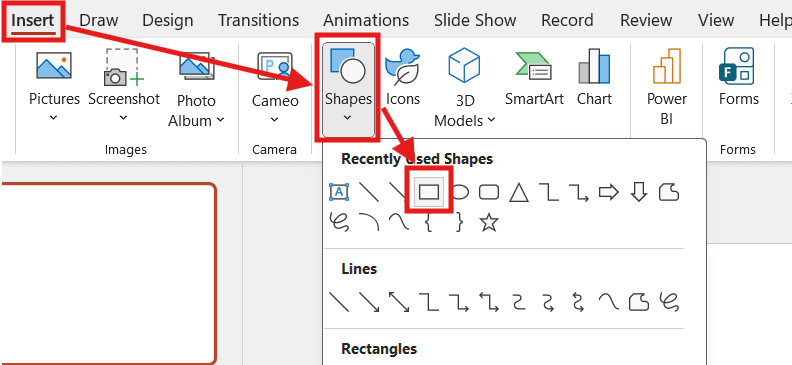
- Go to Insert ? Shapes ? Rectangle
- Draw a long horizontal bar across the top of the slide
- Change the fill colour to something bright (orange works well)

Add a Border That Stays Visible
So the timer outline stays on screen even after the orange fill wipes away:
- Copy the rectangle (Ctrl + C, Ctrl + V)
- Remove the fill from the copy
- Add a thick outline (4–5 pt)
- Place it directly on top of the filled rectangle


? The outlined copy stays put while the filled version wipes away. That contrast is what makes the countdown feel like a real timer rather than a shape disappearing.
Step 3: Insert and Prepare a Clock Icon
- Go to Insert ? Pictures ? Online Pictures
- Search for cartoon clock
- Insert and resize to fit one end of the timer bar
- Delete any licensing or attribution text that imports with the image

? Position the clock just inside or against the timer bar — the proximity signals that the two are linked, which matters when the clock starts shaking later.
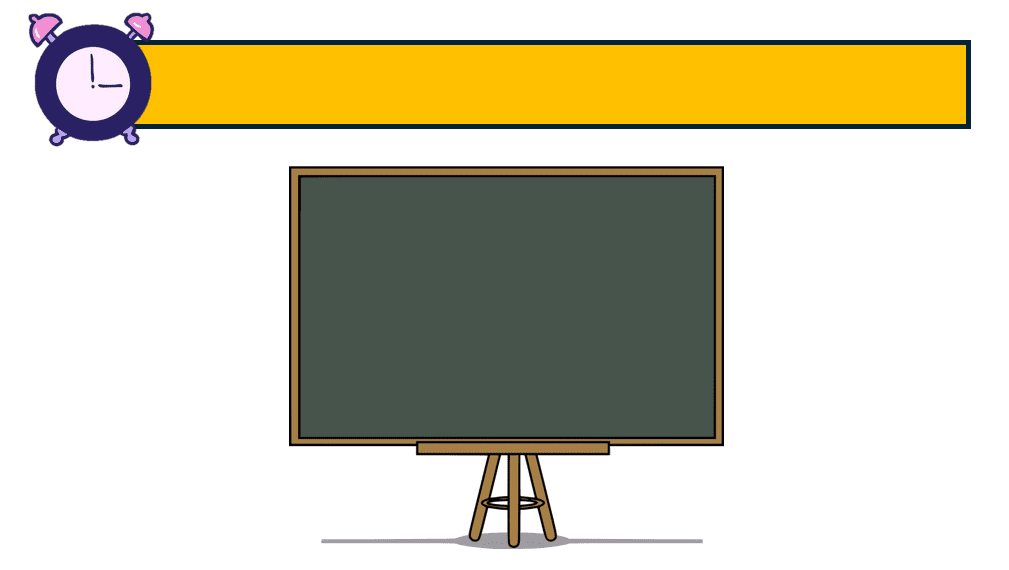
Step 4: Add a Chalkboard or Whiteboard Area
This is the visual home for the scrambled word — and later, the correct word.
- Go to Insert ? Pictures ? Online Pictures
- Search for cartoon whiteboard or chalkboard
- Resize and centre on the slide below the timer bar
Step 5: Create the Scrambled Word
- Insert a Text Box
- Type the scrambled word (e.g. EDB)
- Increase the font size — go big, this is the focal point
- Centre-align the text
- Change text colour to white for contrast against the chalkboard
- Add a subtle shadow for depth
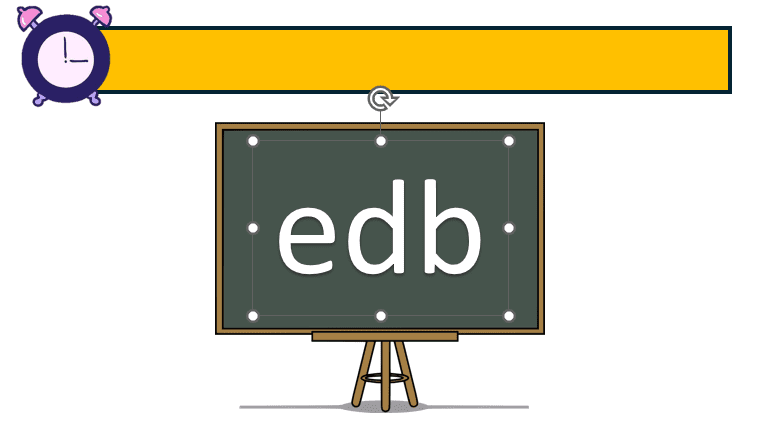
? White text on a dark chalkboard gives maximum readability across the room — important if you’re projecting onto a wall or whiteboard.
Step 6: Add the Correct Word and Matching Image
- Copy the scrambled word text box
- Change the text to the correct word (e.g. BED)
- Place it directly on top of the scrambled word — same position, same size
- Insert a matching online image (e.g. cartoon bed)
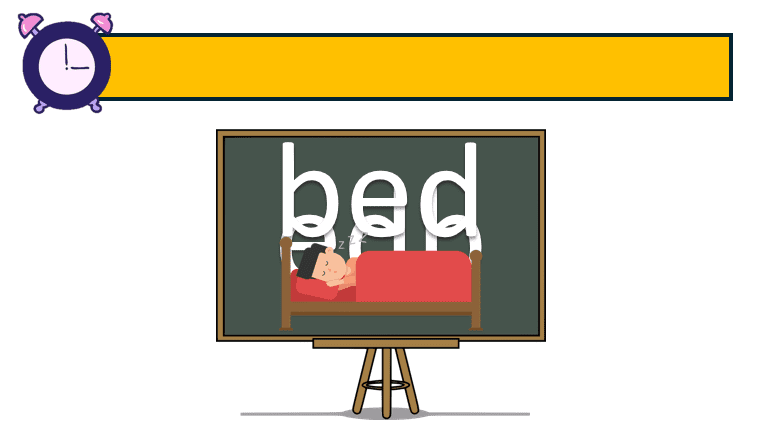
? Stacking the correct word over the scrambled one is what makes the reveal animation work — one fades out as the other fades in, like a magic-trick swap.
Step 7: Animate the Countdown Timer
- Select the orange timer bar (the filled one, not the outline)
- Go to Animations ? Exit ? Wipe
- Change the direction to from left (so it wipes left-to-right)
- Set Duration: 5 seconds
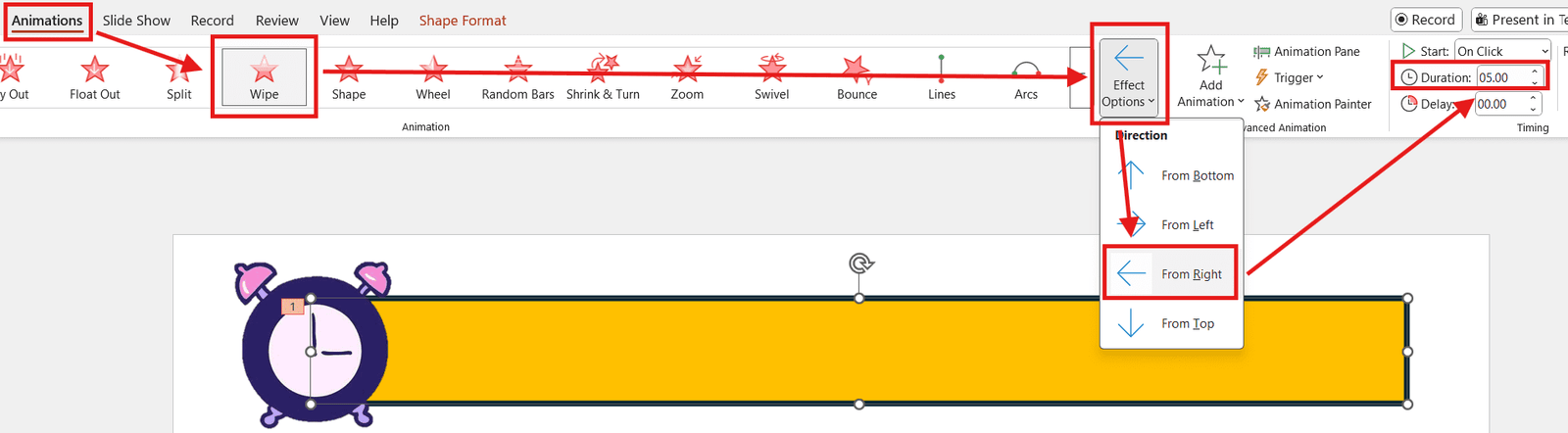
? The 5-second duration is your countdown window. Adjust this longer for older learners or harder words — shorter for fast-paced rounds with familiar vocabulary.
Step 8: Animate the Clock and Add Sound
Clock Animation
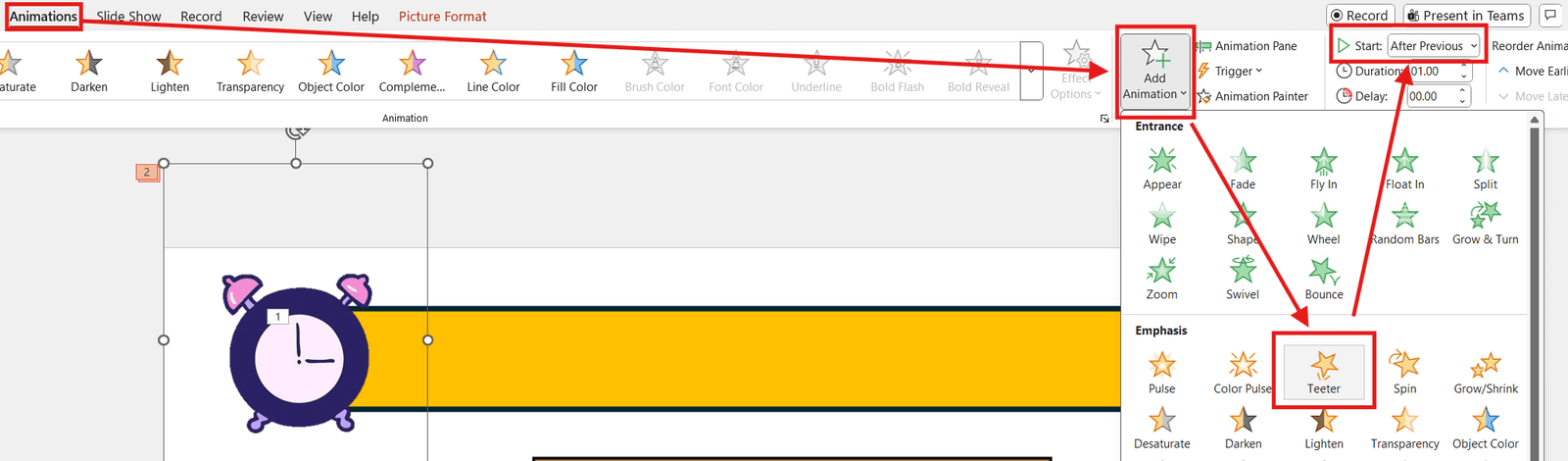
- Select the clock icon
- Animations ? Emphasis ? Teeter
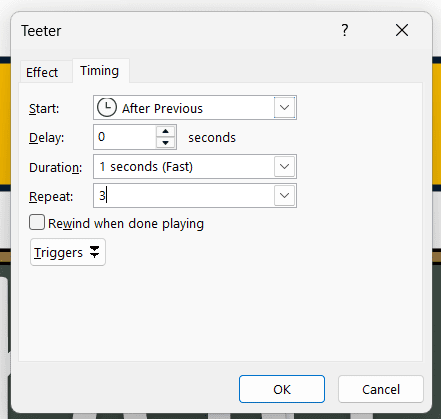
- Open the Animation Pane, right-click the clock animation, select Timings
- Set Repeat: 3 times
- Set Start: After Previous
Sound Effect
- Insert audio from your computer, or download a chime from Sample Focus
- Place the audio icon behind the chalkboard so it stays hidden during playback
- Open Animations ? Animation Pane
- Right-click the audio entry, select Timings
- Set Repeat: 3 times
- Set Start: With Previous
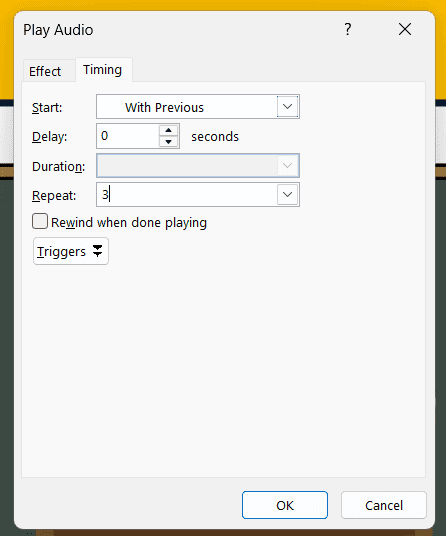
? The clock shakes and the chime rings three times in sync — that’s what builds the urgency. Without sound, the visual alone feels half-finished.
Step 9: Animate the Word Reveal
- Select the scrambled word ? Exit ? Fade
- Set delay: 0.5 seconds
- Select the correct word ? Entrance ? Fade, start With Previous
- Select the matching image ? Entrance ? Fade, start With Previous
? The scrambled letters fade out as the correct word and supporting image fade in — one seamless reveal moment that lands the answer with visual reinforcement.
Step 10: Test and Duplicate Slides
Run the slideshow (F5) to test the full sequence end-to-end. When it works:
- Right-click the slide in the slide panel
- Select Duplicate Slide
- On the new slide, change only the scrambled word, correct word, and matching image
? All animations, sound triggers, and timings carry over to the duplicated slide. A 20-slide game pack is now 19 quick edits away.
Slide Element Breakdown
| Element | Purpose | Animation |
|---|---|---|
| Orange timer bar (filled) | Visual countdown | Exit ? Wipe (5 sec) |
| Outlined rectangle | Stays visible as timer frame | None |
| Clock icon | Reinforces countdown urgency | Emphasis ? Teeter × 3 |
| Chime audio | Audible countdown cue | Plays × 3 with clock |
| Scrambled word | The puzzle | Exit ? Fade (after timer) |
| Correct word | The reveal | Entrance ? Fade (with scrambled exit) |
| Matching image | Visual reinforcement of answer | Entrance ? Fade (with correct word) |
Every element on the slide has one job. If something feels off when you test it, troubleshoot by checking each element’s animation against this table.
Common Problems When Building a Word Scramble Game in PowerPoint
Timer Bar Disappears Completely After the Animation
You only created one rectangle. The wipe animation removes the filled rectangle entirely — you need a second, outlined rectangle stacked on top (Step 2) to keep the timer frame visible after the countdown ends.
Sound Only Plays Once Instead of Three Times
Repeat is set on the wrong animation, or you missed the Timings dialog. Open the Animation Pane, right-click the audio entry specifically (not the clock), select Timings, and set Repeat to 3.
Correct Word Appears Before the Timer Finishes
The reveal animation is set to start too early. Open the Animation Pane, click the correct word’s entrance animation, and set Start to After Previous — it should fire only after the scrambled word’s exit animation completes.
Audio Icon Shows On Screen During Playback
Either the audio icon is sitting in front of the chalkboard, or “Hide During Show” isn’t enabled. Right-click the audio icon, select Playback tab in the ribbon, and tick Hide During Show — or drag it behind another element.
Pro Tips for Your Word Scramble Game in PowerPoint
- Use 3–5 second timers for early learners, 7–10 seconds for longer words or older students
- Encourage verbal answers before the reveal — turns it from a watching activity into a participation activity
- Use matching pictures to support ESL students who recognise the image before they recognise the word
- For accompanying worksheets, drop your scrambled words into a printable handout using how to insert a picture in Word — the cartoon images you used in the slides work just as well on paper
FAQs About the Word Scramble Game in PowerPoint
How do I build a word scramble game in PowerPoint?
To build a word scramble game in PowerPoint, create a timer bar with a wipe animation, add a chalkboard with the scrambled word, stack the correct word on top, and use entrance/exit fades to reveal the answer when the timer finishes. Ten steps total — the full process is laid out above.
Can beginners create a word scramble game in PowerPoint?
Yes. Everything in this build uses basic shapes, online pictures, and three standard animations (Wipe, Teeter, Fade). No coding, no macros, no advanced features.
Can I reuse the animations for multiple words?
Absolutely. Duplicate the slide and change only the scrambled word, correct word, and matching image. Every animation, timing, and sound trigger carries across automatically.
Do I need internet access every time?
Only during initial setup, when you’re inserting online pictures and downloading the chime sound. Once everything is embedded in the file, the game runs offline.
Can this be used for home learning?
Yes. It works on any device that runs PowerPoint, and projects cleanly to interactive whiteboards or shared screens for remote sessions.
What age group is this suitable for?
Ages 4–8 is the sweet spot for short three-letter words. For older students, lengthen the word, lengthen the timer, and remove the matching image so they can’t shortcut the puzzle visually.
Can I change the timer length?
Yes. Select the timer bar, open Animations, and change the Duration from 5 seconds to whatever fits your class — 3 seconds for fast rounds, 10 seconds for harder words.
Summary: Word Scramble Game in PowerPoint
- A word scramble game in PowerPoint is built from shapes, online pictures, and three animation types — Wipe, Teeter, and Fade
- The timer bar uses a Wipe exit animation (5 seconds) with an outlined copy stacked on top to keep the frame visible
- The clock icon shakes via Teeter animation, synchronised with a repeating chime sound
- The scrambled word fades out as the correct word and matching image fade in
- Duplicate the finished slide to spin up new words in under a minute each
- Download the free template if you’d rather skip the build and edit directly
Once your first slide is built, every new word is a 60-second job. The same shape-and-animation logic powers dozens of other classroom games — and for printed companion sheets, dropping the same images into a handout via how to insert a picture in Word gives you a paper backup for any session.
? Download the PowerPoint Template
Skip the build entirely — grab the exact file from the video and customise it with your own words and images.
Download the Word Scramble PowerPointRelated Tutorials
- How to Record Audio and Screen in PowerPoint
- How to Insert a Picture in Word
- Microsoft Word Keyboard Shortcuts Cheat Sheet
More Microsoft PowerPoint Tutorials
Looking for More?
Browse step-by-step PowerPoint tutorials covering formatting, slide layout, presentation setup, and creating interactive PowerPoint games.
? View all Microsoft Word tutorials: https://wordmadeeasy.halmanweb.com/powerpoint-tutorials/
Watch the Video Version
Prefer watching instead of reading? Many PowerPoint tutorials are also available as short, step-by-step videos on the Word Made Easy YouTube channel.